
Plugins are one of the biggest strengths of WordPress, but they are also one of the most common reasons a website breaks.
If your site suddenly shows errors, becomes slow, or features stop working after installing or updating a plugin, you are likely facing a WordPress plugin conflict.
This guide explains what plugin conflicts are, why they happen, and how to fix them safely.
🔴 What Is a WordPress Plugin Conflict?
A plugin conflict happens when:
-
Two plugins try to control the same functionality
-
A plugin is incompatible with your theme
-
A plugin is outdated or poorly coded
When this happens, WordPress doesn’t know which code to execute, and your site may break.
🚨 Common Signs of Plugin Conflicts
You may have a plugin conflict if you notice:
-
Website breaks after installing a plugin
-
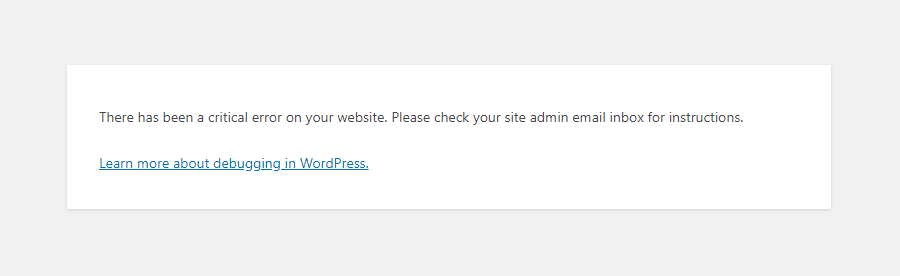
“There has been a critical error on this website”
-
Admin dashboard not loading
-
WooCommerce checkout not working
-
Page builder buttons not responding
-
Website suddenly becomes very slow
🔍 Main Causes of WordPress Plugin Conflicts
1️⃣ Duplicate Plugins (Most Common)
Using multiple plugins for the same purpose, such as:
-
Two SEO plugins
-
Two cache plugins
-
Two security plugins
Fix: Use only one plugin per function.
2️⃣ Outdated or Abandoned Plugins
Plugins that haven’t been updated for a long time may not support:
-
Latest WordPress version
-
New PHP versions
Fix: Replace outdated plugins with actively maintained ones.
3️⃣ Plugin vs Theme Conflict
Some themes include built-in features that clash with plugins.
Fix:
-
Temporarily switch to a default theme
-
Check if the issue disappears
4️⃣ JavaScript or PHP Errors
Poorly coded plugins can break scripts or PHP functions.
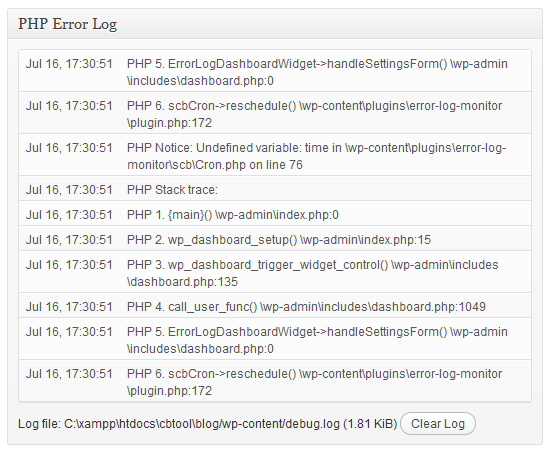
Fix: Disable the plugin causing errors and check error logs.

🛠️ How to Fix WordPress Plugin Conflicts (Step-by-Step)
✅ Step 1: Disable All Plugins
-
Go to Plugins → Installed Plugins
-
Deactivate all plugins
-
Check if the website loads correctly
If it works, a plugin conflict is confirmed.
✅ Step 2: Activate Plugins One by One
-
Activate one plugin
-
Refresh the website
-
Repeat until the issue returns
👉 The last activated plugin is the problem.
✅ Step 3: Replace or Remove the Conflicting Plugin
You can:
-
Replace it with a trusted alternative
-
Downgrade to a stable version
-
Get a custom fix from a developer
🧩 How to Prevent Plugin Conflicts in the Future
✔ Use fewer, high-quality plugins
✔ Avoid pirated or nulled plugins
✔ Keep WordPress, plugins, and themes updated
✔ Test updates on a staging site
✔ Use trusted themes and developers
📚 Also Read

Hire Me on Upwork – Dokan & WooCommerce Expert

 Chat on WhatsApp
One Response