
Updating WordPress is essential for security, performance, and stability, but many site owners fear updates because they can sometimes break the website.
If your website is built on WordPress, this guide will show you how to update WordPress safely without breaking your site, even if you are not a technical user.
🔴 Why WordPress Updates Are Important
WordPress updates usually include:
-
Security patches
-
Bug fixes
-
Performance improvements
-
Compatibility with new plugins & PHP versions
Ignoring updates can lead to:
❌ Website hacks
❌ Plugin conflicts
❌ Slow performance
❌ SEO ranking drops


⚠️ Why WordPress Sites Break After Updates
Most update-related issues happen because of:
-
Plugin incompatibility
-
Theme compatibility issues
-
Custom code breaking
-
Outdated PHP version
-
No backup before update
The good news? Almost all issues are preventable.
✅ Step-by-Step: How to Safely Update WordPress
Follow these steps every time you update WordPress.
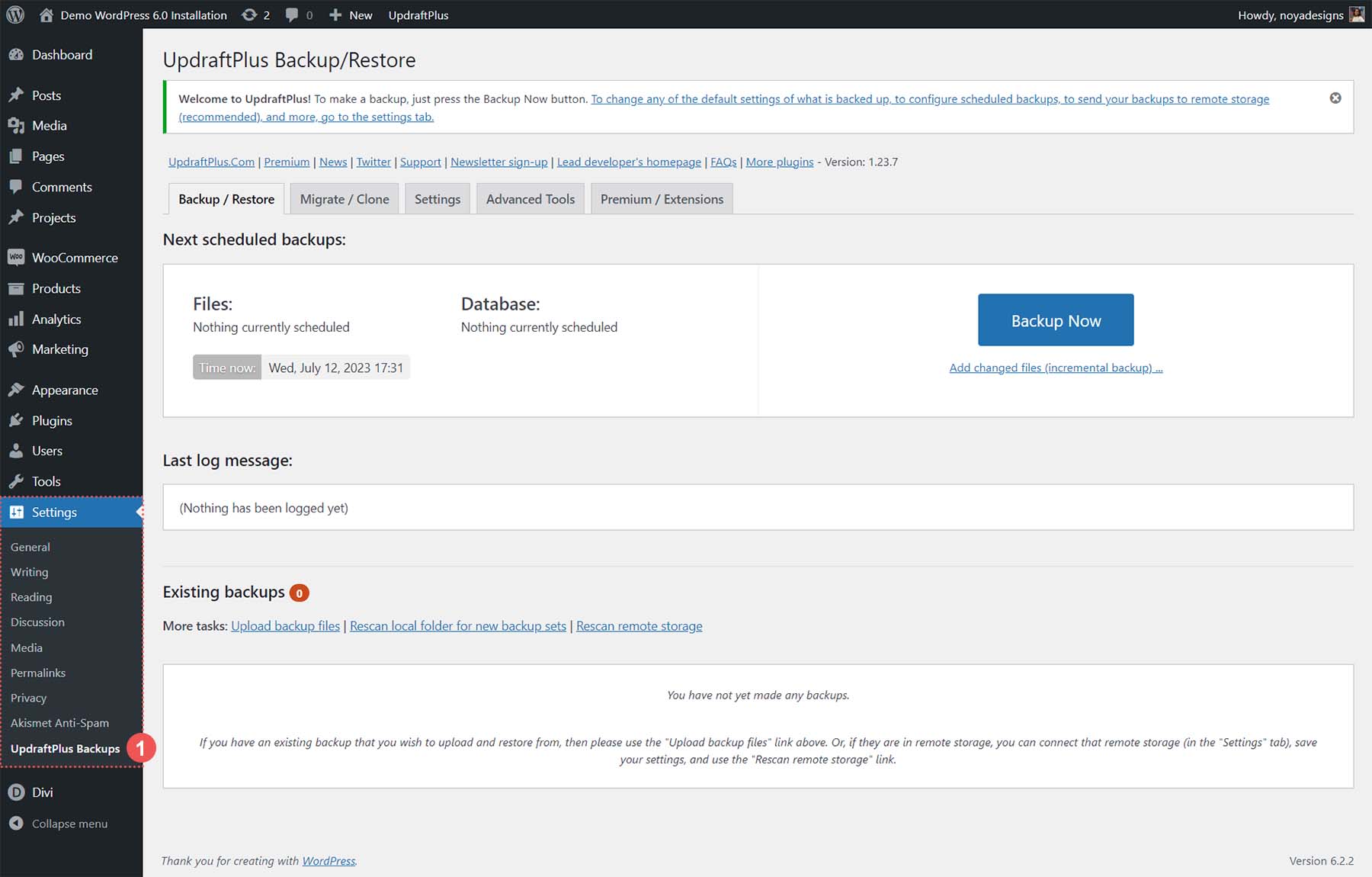
1️⃣ Take a Full Website Backup (MOST IMPORTANT)
Before any update, always take a full backup:
-
Files
-
Database
If something goes wrong, you can restore your site instantly.

👉 Never update without a backup
2️⃣ Update Plugins & Themes First
Before updating WordPress core:
-
Update all plugins
-
Update your active theme
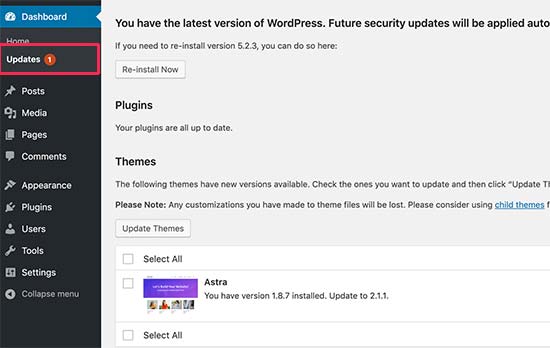
This ensures compatibility with the latest WordPress version.
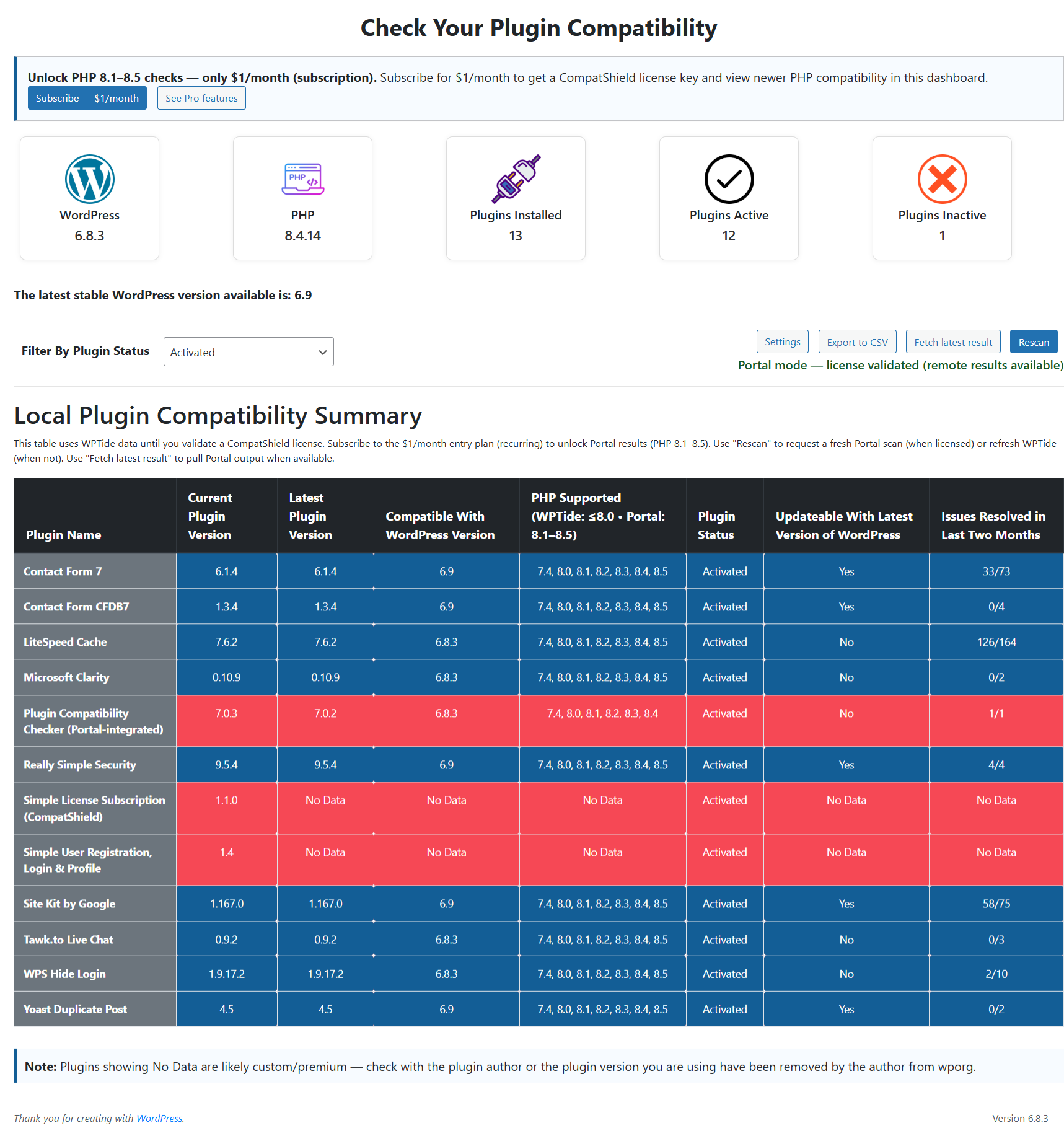
3️⃣ Check Plugin & Theme Compatibility
Before updating:
-
Check plugin “Last Updated” date
-
Avoid plugins not updated in 6–12 months
-
Replace abandoned plugins if needed
4️⃣ Test Updates on a Staging Site (Best Practice)
A staging site is a copy of your live website used for testing.
On staging:
-
Update WordPress
-
Test all features
-
Check errors
If everything works → update live site.
5️⃣ Update WordPress Core
Now you can safely update:
-
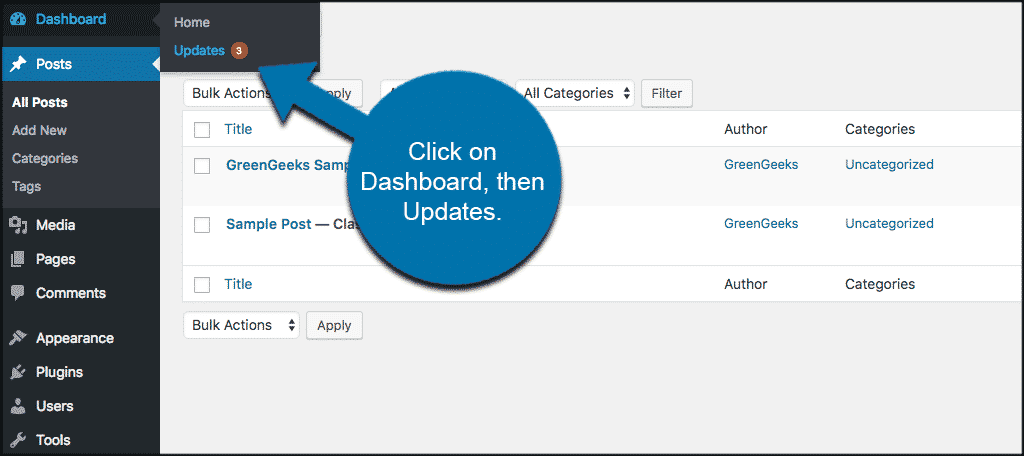
Go to Dashboard → Updates
-
Click Update Now
Most updates take only a few seconds.

6️⃣ Test Website After Update (DO NOT SKIP)
After updating, check:
-
Homepage
-
Contact forms
-
Login & admin area
-
WooCommerce checkout (if applicable)
-
Page layouts
🚨 What to Do If Your Site Breaks After Update
If something goes wrong:
-
Restore backup immediately
-
Disable recently updated plugins
-
Switch to default theme
-
Enable debug mode to identify error
Most issues are caused by one plugin, not WordPress itself.
🔁 How Often Should You Update WordPress?
-
Security updates: Immediately
-
Minor updates: Within a few days
-
Major updates: Test first, then update
Delaying updates for months is risky.
🧩 Extra Safety Tips (Highly Recommended)
✔ Use staging environment
✔ Avoid pirated themes/plugins
✔ Keep PHP version updated
✔ Limit number of plugins
✔ Schedule regular backups
📚 Also Read

Hire Me on Upwork – Dokan & WooCommerce Expert

 Chat on WhatsApp
One Response