
User role management is one of the most overlooked yet most critical aspects of a WordPress website.
Whether you run:
-
A business website
-
A blog with multiple authors
-
An eCommerce store
-
A membership or learning platform
👉 Improper user role management can lead to security risks, data loss, and operational chaos.
This guide explains WordPress user roles, permissions, best practices, and real-world use cases, so you can safely manage users and scale your website without problems.
🔴 Why User Role Management Is Important in WordPress
Every user role defines what a user can and cannot do.
Poor role management leads to:
❌ Accidental content deletion
❌ Unauthorized access
❌ Security vulnerabilities
❌ Confusion among team members
👉 Good role management = better security + smoother workflows
🧠 How WordPress User Roles Work
WordPress uses a role-based permission system.
Each role has a set of capabilities, such as:
-
Editing posts
-
Publishing content
-
Managing plugins
-
Accessing settings
The key rule:
Users should only have access to what they actually need.
Default WordPress User Roles Explained
WordPress comes with six default user roles.
1️⃣ Administrator (Full Control)
🔑 Capabilities:
-
Manage themes & plugins
-
Edit all content
-
Manage users
-
Change site settings
✅ Best Practice:
Assign Administrator role only to trusted users.
📌 Never give admin access unnecessarily — it’s the biggest security risk.
2️⃣ Editor (Content Manager)
🔑 Capabilities:
-
Publish & edit all posts
-
Moderate comments
-
Manage categories & tags
✅ Best Use Case:
-
Content managers
-
Editorial team leads
❌ Cannot install plugins or change site settings.
3️⃣ Author (Content Creator)
🔑 Capabilities:
-
Write & publish own posts
-
Upload media
✅ Best Use Case:
-
Blog authors
-
Freelance writers
❌ Cannot edit others’ posts.
4️⃣ Contributor (Limited Writer)
🔑 Capabilities:
-
Write posts
-
Submit for review
❌ Limitations:
-
Cannot publish posts
-
Cannot upload media
✅ Best Use Case:
-
Guest writers
-
Trial contributors
5️⃣ Subscriber (Basic User)
🔑 Capabilities:
-
Read content
-
Manage own profile
✅ Best Use Case:
-
Newsletter users
-
Membership websites
6️⃣ Super Admin (Multisite Only)
Available only in WordPress Multisite.
🔑 Capabilities:
-
Control all sites
-
Manage network-wide settings
👉 Use only if you fully understand multisite architecture.
🔧 Managing Users in WordPress (Step-by-Step)
✅ Add a New User
-
Go to Users → Add New
-
Enter email & username
-
Assign the correct role
-
Send login credentials


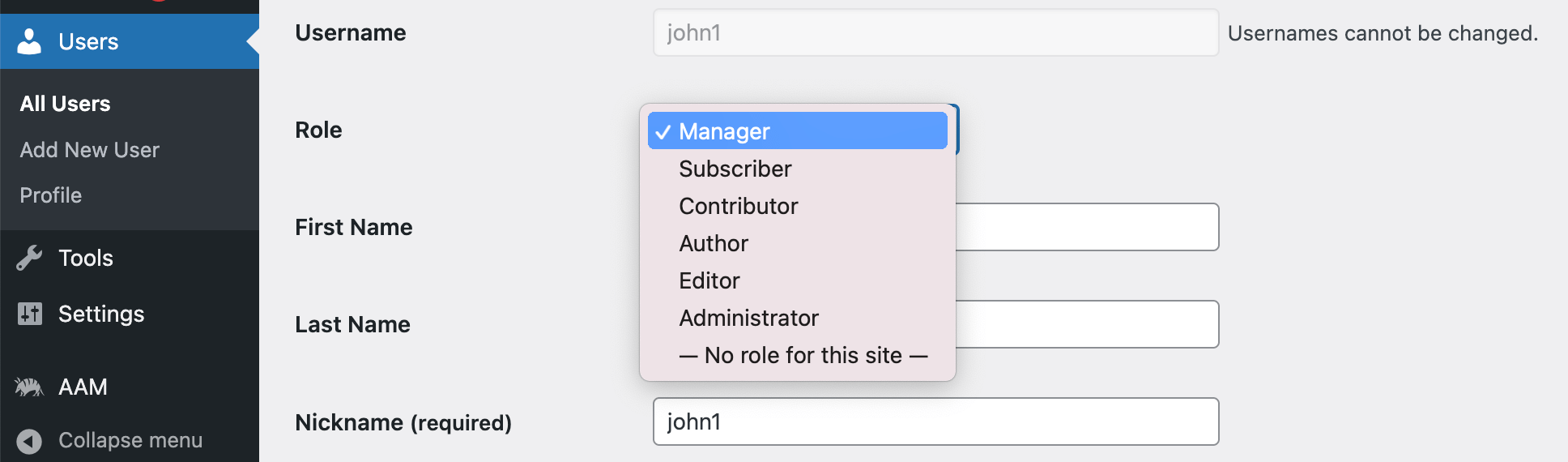
✅ Change User Role
-
Go to Users → All Users
-
Select the user
-
Change role from dropdown
-
Save changes
📌 Always review roles during team changes.
🔐 Best Practices for WordPress User Role Management
1️⃣ Follow the Principle of Least Privilege
Give users minimum access required to do their job.
Example:
-
Writer → Author
-
SEO manager → Editor
-
Developer → Admin (temporary)
👉 This minimizes damage if an account is compromised.
2️⃣ Avoid Using Administrator for Daily Tasks
Use admin access only when needed.
Best practice:
-
Create a separate admin account for maintenance
-
Use Editor or custom roles for daily work
3️⃣ Create Custom User Roles (When Needed)
Default roles may not always fit your workflow.
Example Custom Roles:
-
SEO Manager (edit content, no plugins)
-
Shop Manager (orders & products only)
-
Support Agent (view orders, reply to tickets)
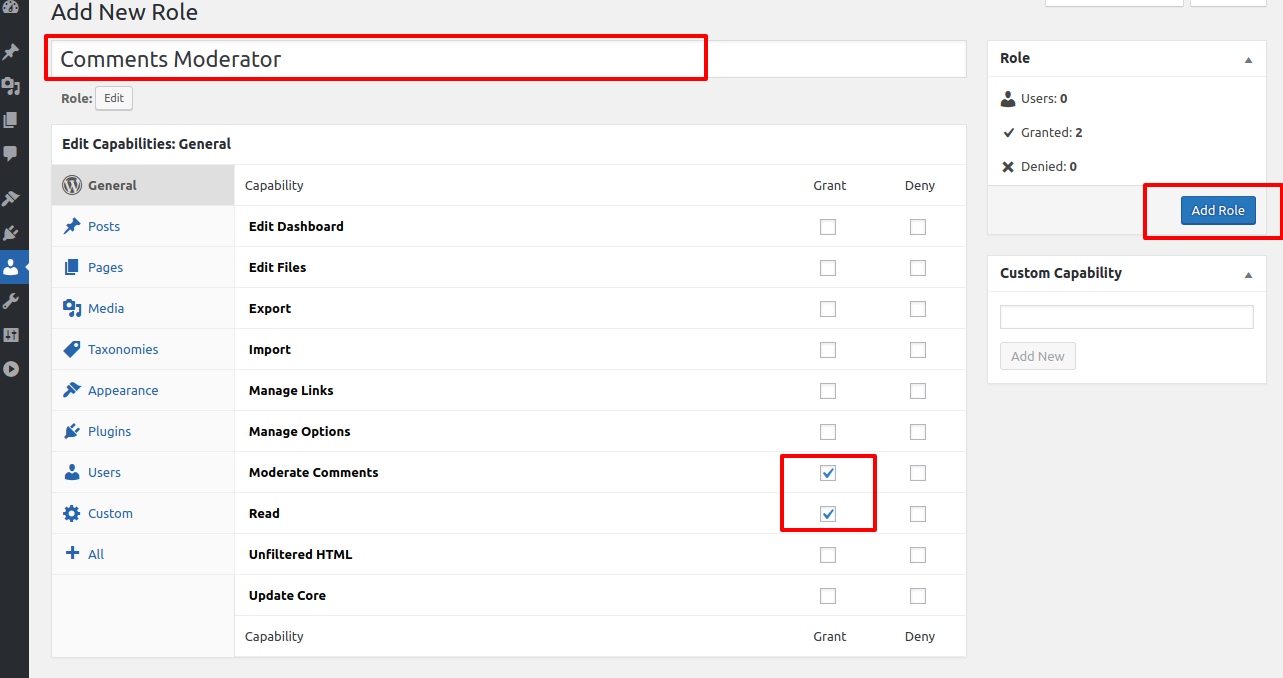
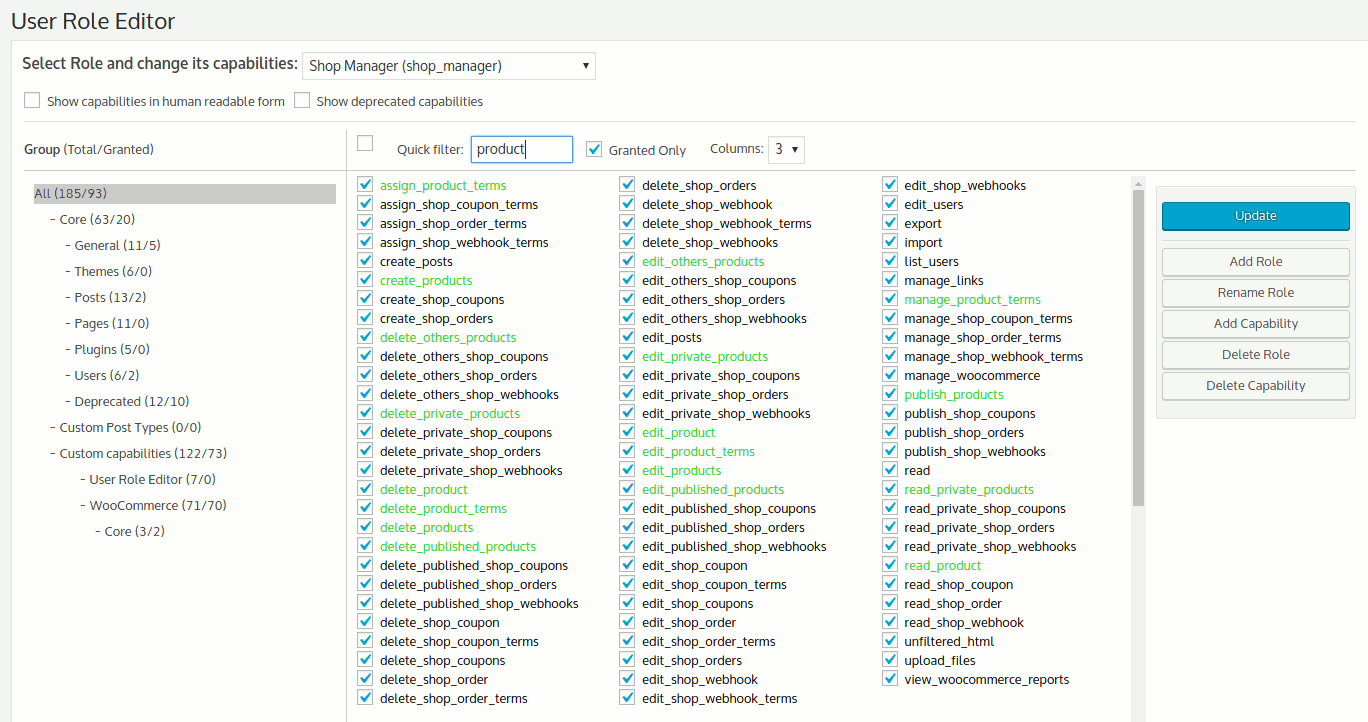
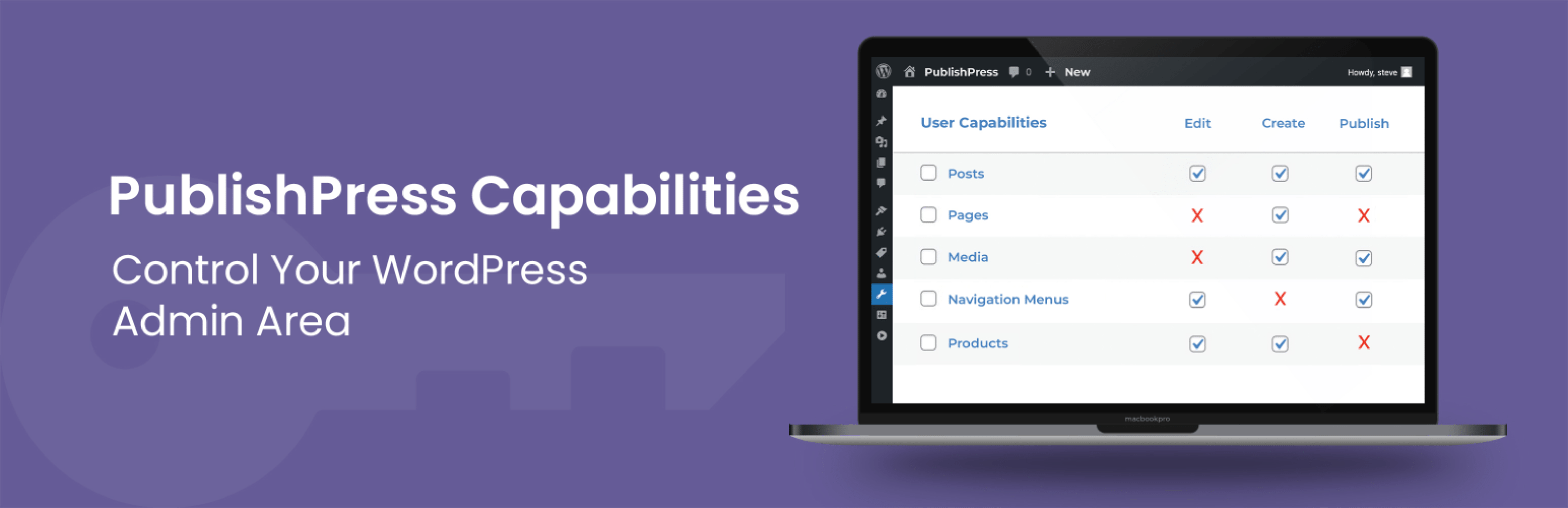
Use role-management plugins carefully and document changes.
4️⃣ Review & Audit Users Regularly
Every 1–3 months:
-
Remove inactive users
-
Downgrade unused admin roles
-
Delete old contractor accounts
📌 This is critical for security compliance.
5️⃣ Secure Login & User Accounts
User roles are useless without proper security.
Best Practices:
-
Enforce strong passwords
-
Enable two-factor authentication
-
Limit login attempts
-
Monitor login activity
👉 Many hacks happen via weak user accounts, not core WordPress flaws.
User Roles for Common Website Types
🔹 Business Website
-
Admin (Owner)
-
Editor (Content Manager)
-
Author (Writer)
🔹 Blog / Media Site
-
Editor (Lead)
-
Authors
-
Contributors
🔹 WooCommerce Store
-
Admin
-
Shop Manager
-
Support Staff (limited access)
🔹 Membership / LMS Website
-
Admin
-
Instructor
-
Student (Subscriber-based roles)
🚨 Common User Role Management Mistakes
❌ Giving admin access to everyone
❌ Never removing old users
❌ Ignoring custom role documentation
❌ No login security
❌ Mixing responsibilities
These mistakes slowly weaken your website security.
📚 Also Read (Internal Links)

Hire Me on Upwork – Dokan & WooCommerce Expert

 Chat on WhatsApp