
If you don’t track your website data correctly, you’re making decisions blindly.
With Google Analytics 4 (GA4) now being the default analytics system, every WordPress website owner must update how they track:
-
Visitors
-
Traffic sources
-
User behavior
-
Conversions
This guide explains how to properly set up GA4 on WordPress, so you can:
-
Track accurate data
-
Understand user behavior
-
Measure conversions
-
Make data-driven decisions
🔴 Why GA4 Is Important for WordPress Websites
GA4 is not just an update — it’s a completely new analytics model.
GA4 Key Advantages:
✔ Event-based tracking
✔ Better cross-device tracking
✔ Improved privacy compliance
✔ Built-in conversion tracking
✔ Future-ready analytics
👉 Using outdated analytics setups leads to incomplete or wrong data.
🧠 How GA4 Tracking Works (Simple Explanation)
GA4 tracks events, not just page views.
Examples of GA4 Events:
-
Page view
-
Scroll
-
Click
-
Form submission
-
Purchase
-
Video play
Flow:
1️⃣ User visits website
2️⃣ Events are triggered
3️⃣ GA4 records interactions
4️⃣ Reports show user behavior
Understanding this helps you track what actually matters.
1️⃣ What You Need Before Setting Up GA4
Before setup, make sure you have:
✔ A Google account
✔ Access to WordPress admin
✔ Basic understanding of your site goals
No coding knowledge is required for basic setup.
2️⃣ Create a GA4 Property (Step-by-Step)
-
Go to Google Analytics
-
Click Admin → Create Property
-
Enter website name & timezone
-
Choose GA4 (default)
-
Add your website URL
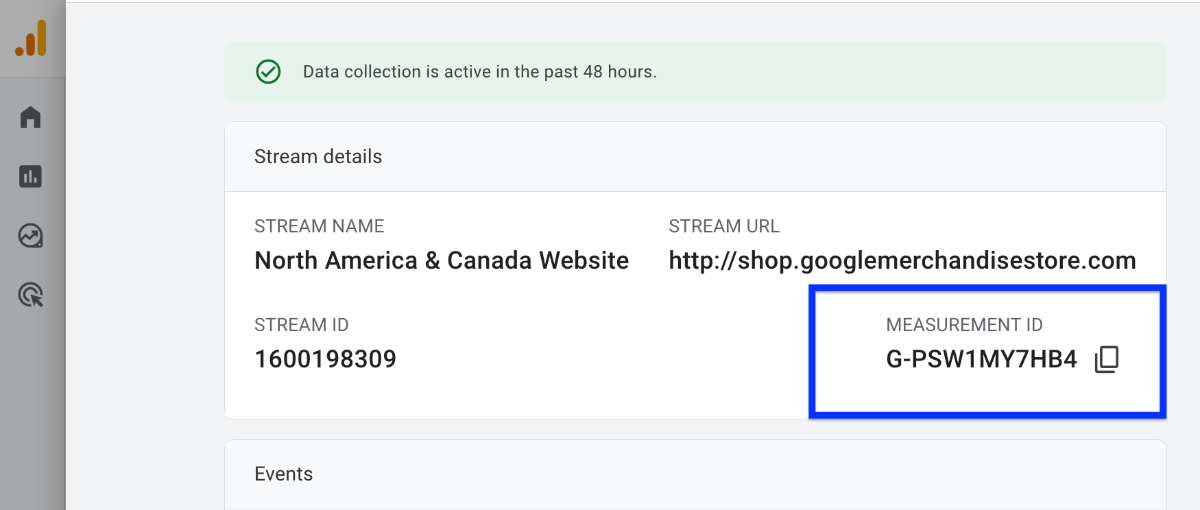
After setup, you’ll get a Measurement ID (looks like G-XXXXXXXXXX).
📌 Keep this ID handy.
3️⃣ Best Ways to Add GA4 to WordPress
There are three common methods.
🔹 Method 1: GA4 Plugin (Recommended for Most Users)
Best for:
-
Non-technical users
-
Quick setup
-
Built-in event tracking
Steps:
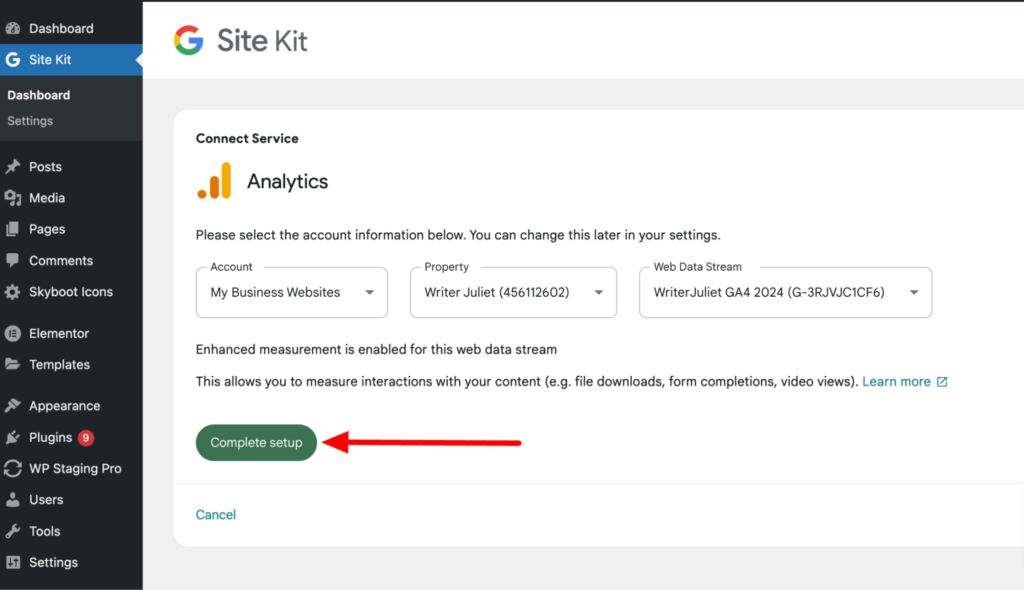
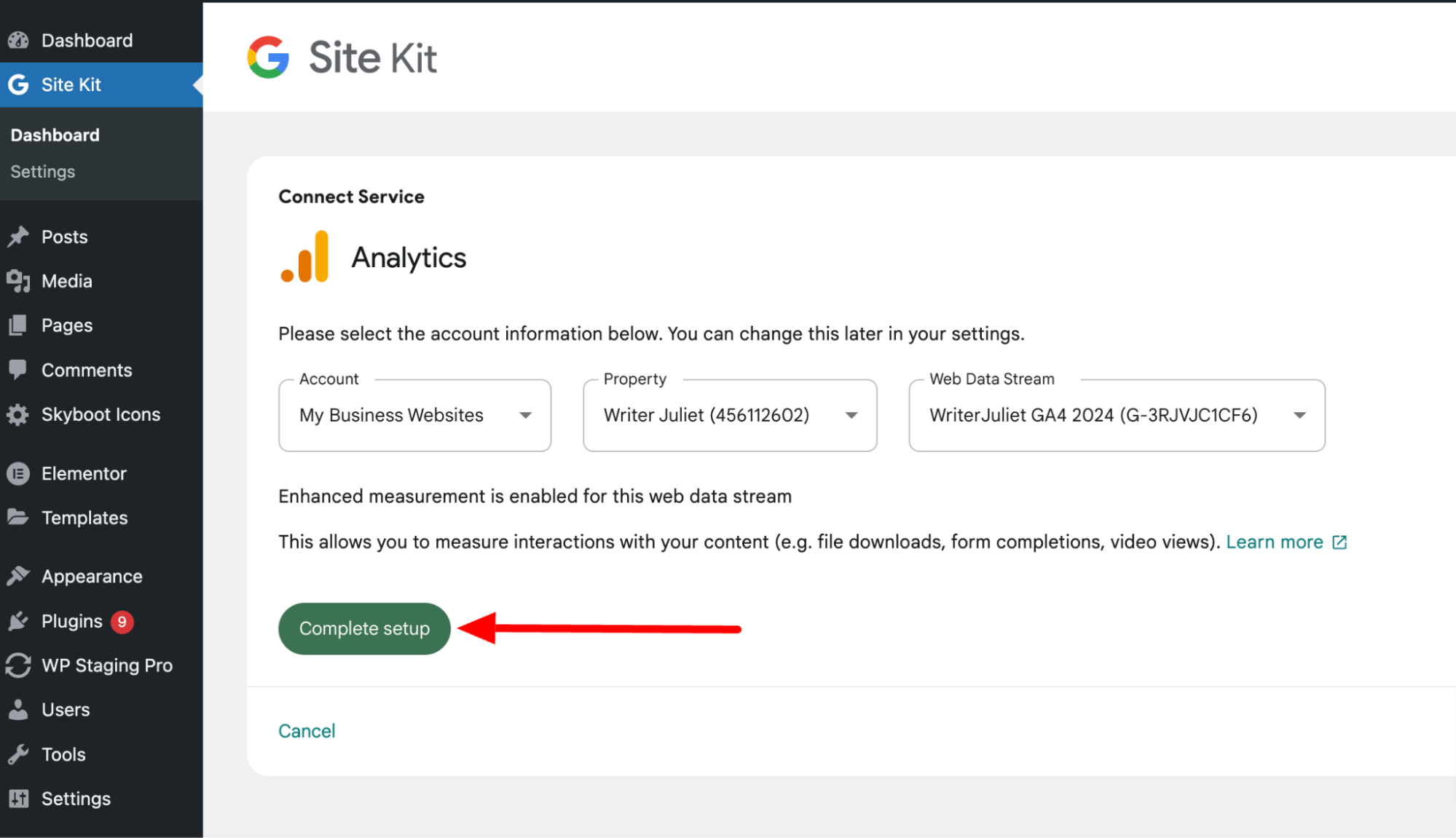
-
Install a trusted GA4 plugin
-
Connect Google account or paste Measurement ID
-
Enable recommended events
✔ Fast
✔ Low risk
✔ Easy to manage
🔹 Method 2: Google Tag Manager (Advanced & Scalable)
Best for:
-
eCommerce sites
-
Conversion-heavy websites
-
Advanced tracking needs
Steps:
-
Create GTM account
-
Add GA4 tag
-
Configure triggers
-
Add GTM code to WordPress
✔ Flexible
✔ Powerful
❌ Slightly complex
🔹 Method 3: Manual Code (Not Recommended for Beginners)
-
Add GA4 script in header
-
Requires theme-safe implementation
❌ Risky during theme updates

4️⃣ Verify GA4 Is Working Correctly
Never assume analytics is working.
✅ How to Verify:
-
Open GA4 → Realtime Report
-
Visit your website in a new tab
-
Check if your activity appears
If not visible:
❌ Tracking is broken
❌ Plugin misconfigured
❌ Cache blocking script
5️⃣ Configure Essential GA4 Settings
After installation, configure these must-have settings.
🔧 Recommended GA4 Settings:
✔ Enable enhanced measurement
✔ Exclude internal traffic
✔ Set correct timezone
✔ Enable data retention (14 months)
👉 These improve data accuracy significantly.
6️⃣ Set Up Conversions in GA4 (Very Important)
GA4 does NOT track conversions automatically.
Examples of Conversions:
-
Contact form submission
-
Newsletter signup
-
Purchase
-
Button clicks
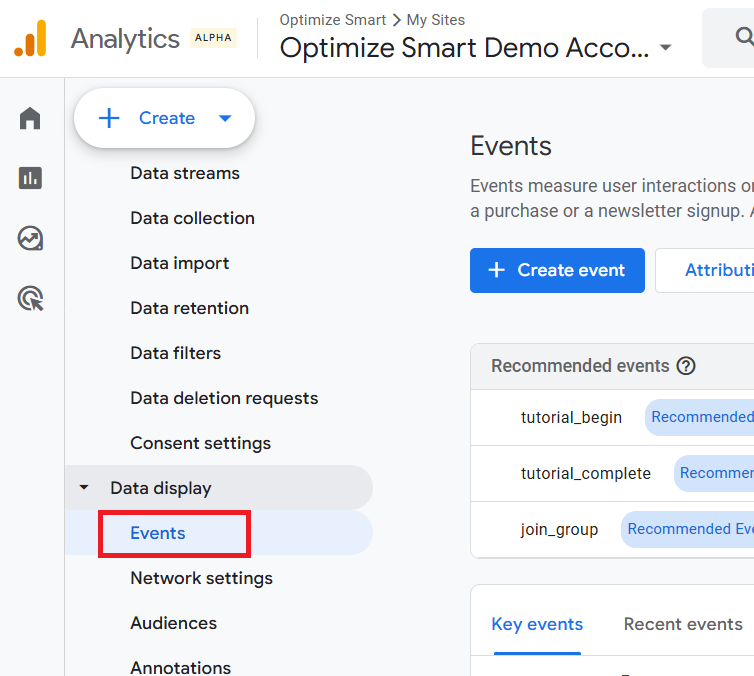
Steps:
-
Identify event
-
Mark it as Conversion in GA4
-
Test conversion tracking
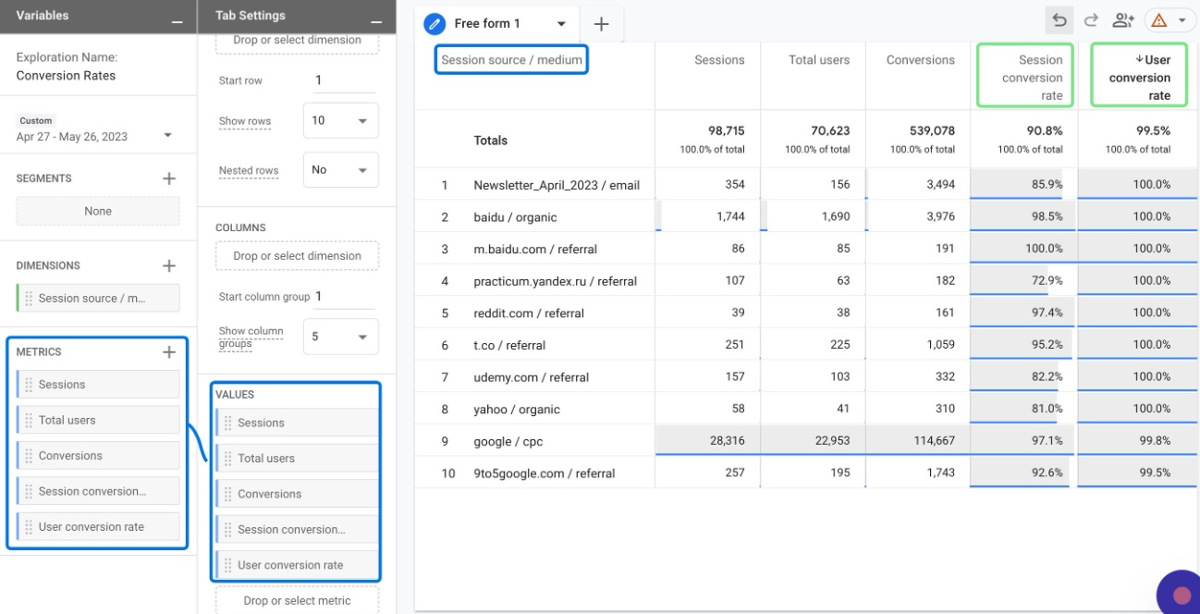
📌 Without conversions, analytics is incomplete.
7️⃣ GA4 Setup for WooCommerce Websites
WooCommerce sites need extra tracking.
Track:
-
Product views
-
Add to cart
-
Checkout steps
-
Purchases
-
Revenue
Best Practice:
-
Use GA4 + WooCommerce-compatible plugin or GTM
-
Verify eCommerce events in GA4
👉 Accurate eCommerce tracking = real profit insights.
8️⃣ Common GA4 Setup Mistakes in WordPress
❌ Not setting conversions
❌ Tracking admin visits
❌ Multiple GA4 tags installed
❌ No verification after setup
❌ Ignoring data retention settings
These mistakes lead to wrong decisions based on wrong data.
9️⃣ How to Read GA4 Reports (Beginner-Friendly)
Start with these reports:
-
Realtime
-
Traffic acquisition
-
Engagement
-
Events
-
Conversions
📌 Focus on:
✔ Trends
✔ User behavior
✔ Conversion paths
Not vanity metrics.
🔟 GA4 Best Practices for Long-Term Success
✔ Review analytics weekly
✔ Track business goals, not just traffic
✔ Keep tracking simple
✔ Document changes
✔ Re-check after major updates
👉 Analytics is not “set and forget”.
📚 Also Read (Internal Links)

Hire Me on Upwork – Dokan & WooCommerce Expert

 Chat on WhatsApp