
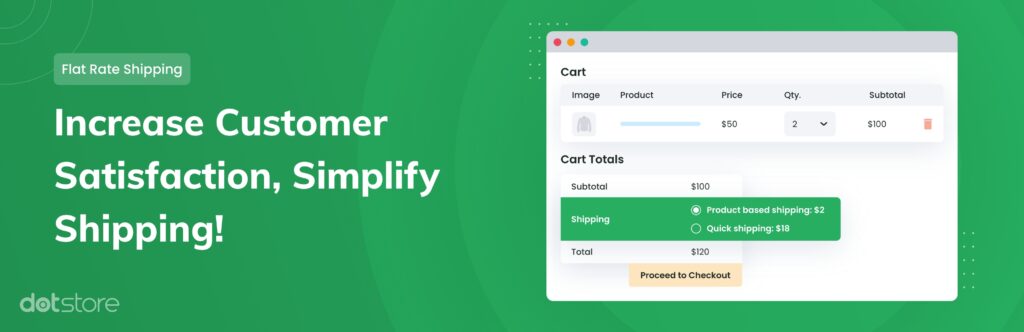
Shipping is one of the most complicated parts of any multivendor marketplace.
In a single WooCommerce store, shipping is already complex.
In a Dokan multivendor marketplace, it becomes even more challenging because:
-
Each vendor may have different shipping rules
-
Vendors may ship to different regions
-
Products may have different shipping classes
-
Marketplace admin may override shipping logic
If shipping is misconfigured:
❌ Checkout fails
❌ Wrong shipping charges apply
❌ Vendors complain
❌ Customers abandon cart
This guide explains how to properly configure Dokan shipping zones and advanced shipping setups, step by step.
🔴 How Shipping Works in Dokan (Important)
Dokan builds on top of WooCommerce shipping logic.
Basic flow:
1️⃣ Customer adds product to cart
2️⃣ WooCommerce detects customer location
3️⃣ Shipping zone matched
4️⃣ Vendor shipping rules applied
5️⃣ Shipping cost calculated
6️⃣ Checkout displays shipping options
In multivendor marketplaces:
-
Each vendor can define their own shipping
-
Shipping is calculated per vendor
👉 That’s why proper configuration is critical.
🧱 Step 1: Enable Shipping in WooCommerce
Before configuring Dokan shipping:
Go to:
WooCommerce → Settings → General
✔ Enable shipping
✔ Set store location
✔ Configure default shipping country

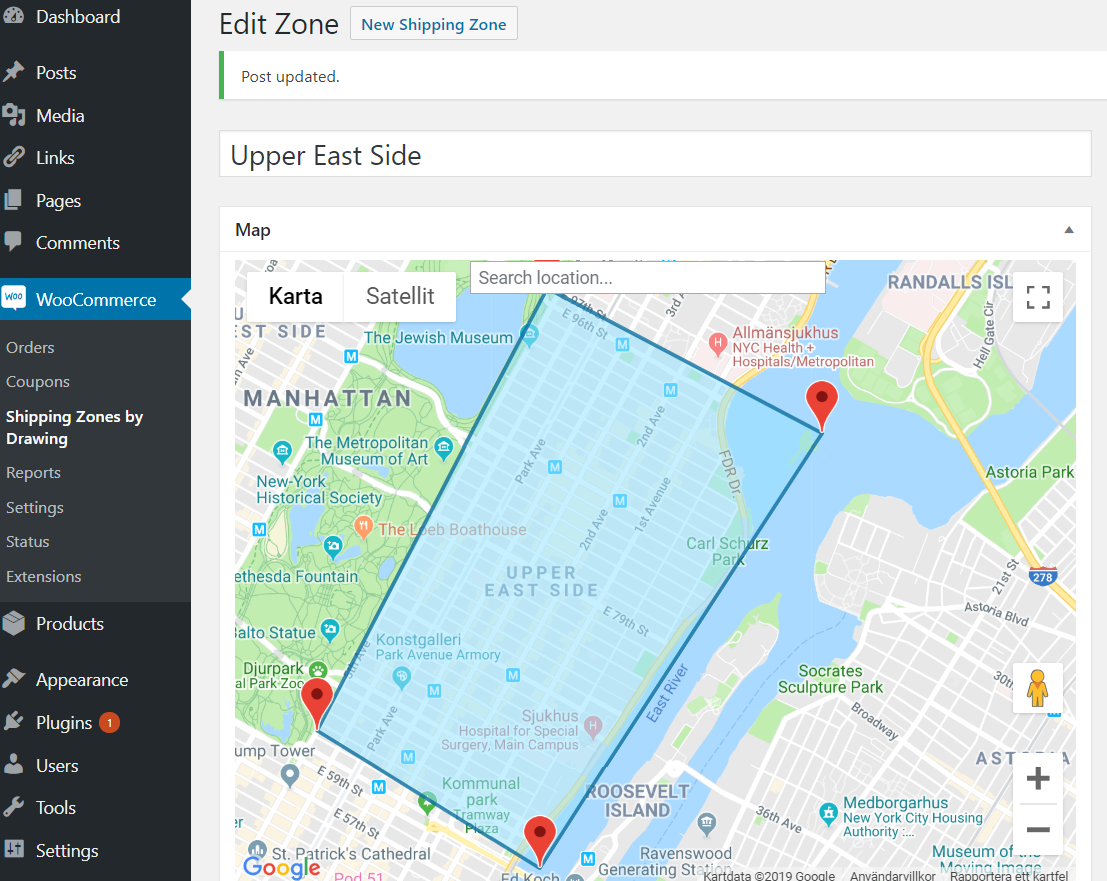
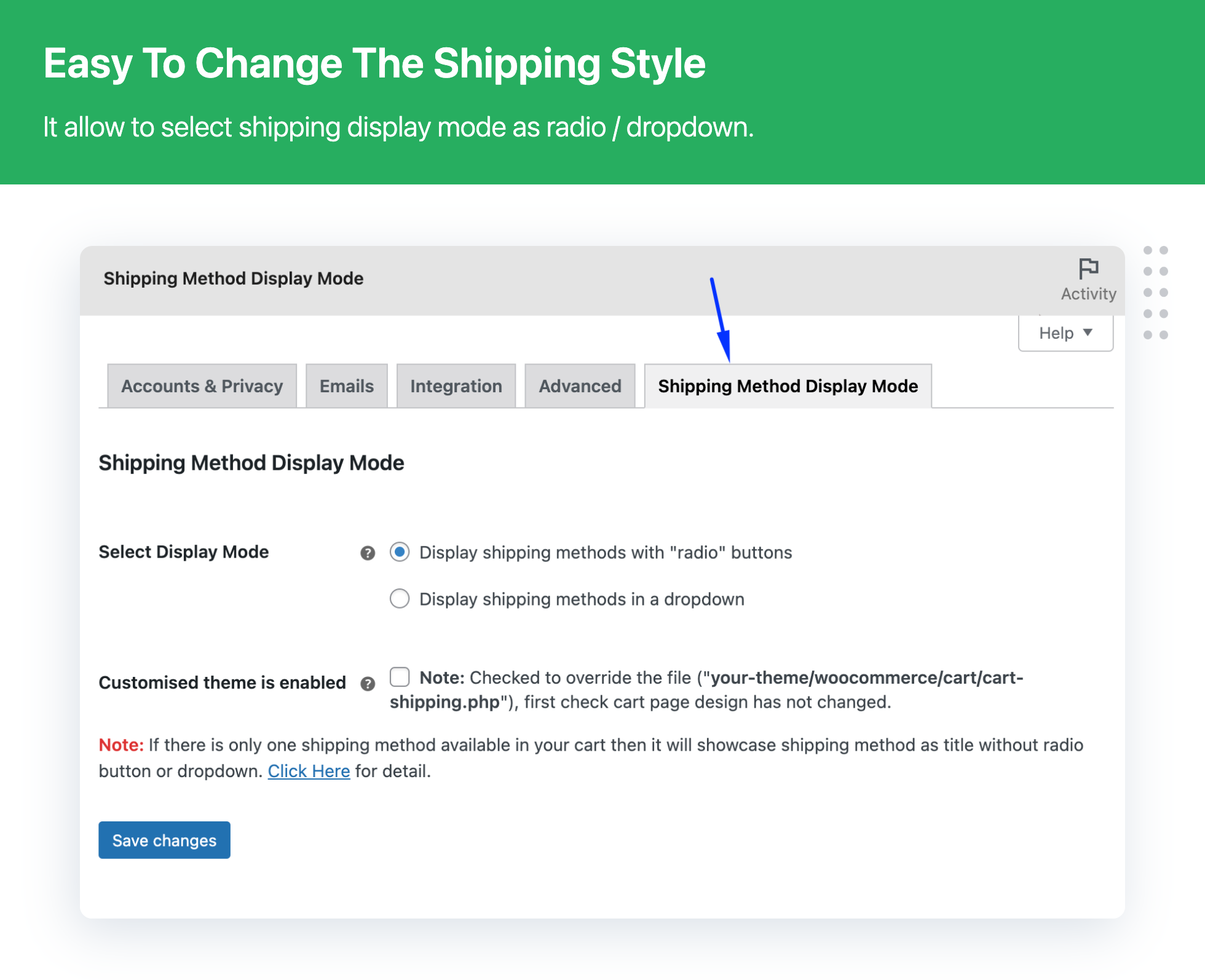
Without WooCommerce shipping zones, Dokan shipping won’t work correctly.
🌍 Step 2: Understanding Shipping Zones
Shipping zones define geographic areas.
Example zones:
| Zone Name | Regions |
|---|---|
| India | All India |
| USA | All States |
| Europe | Selected Countries |
| Local Pickup | Specific City |
Zones are matched based on customer address.
Order of zones matters — first matching zone applies.
🛒 Step 3: Enable Vendor Shipping in Dokan
To allow vendors to configure shipping:
Go to:
Dokan → Settings → Shipping
✔ Enable vendor shipping
✔ Allow vendors to add shipping zones
✔ Define admin override rules
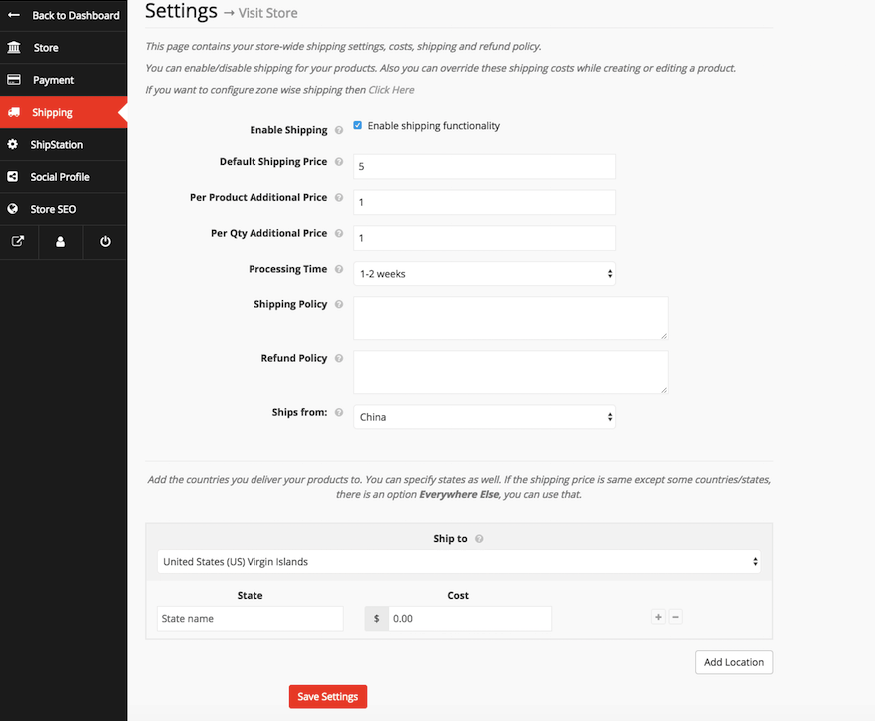
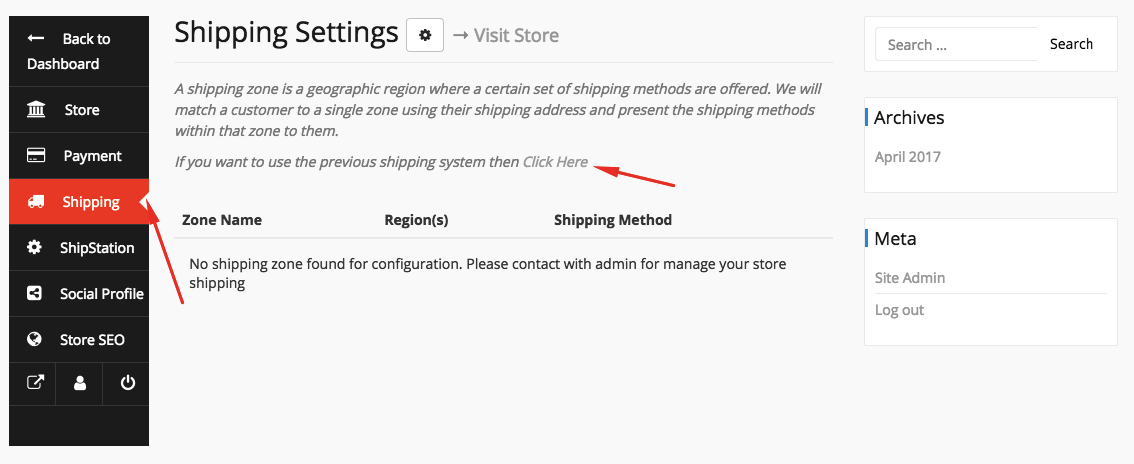
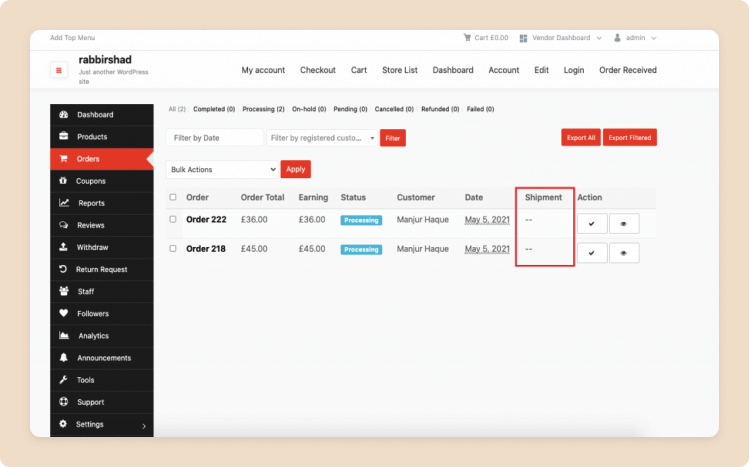
Each vendor can now create their own shipping zones.
🚚 Step 4: Vendor-Level Shipping Configuration
Vendors can define:
✔ Shipping zones
✔ Flat rate shipping
✔ Free shipping
✔ Local pickup
✔ Per product shipping
Example:
Vendor A:
-
India → ₹100
-
International → ₹500
Vendor B:
-
India → ₹150
-
No international shipping
👉 Shipping is calculated per vendor, not globally.
📦 Step 5: Shipping Classes (Advanced Setup)
Shipping classes help manage:
-
Heavy products
-
Fragile products
-
Express shipping
-
Large items
Example:
| Shipping Class | Extra Cost |
|---|---|
| Heavy | +₹200 |
| Fragile | +₹100 |
| Express | +₹300 |
Assign shipping classes to products.
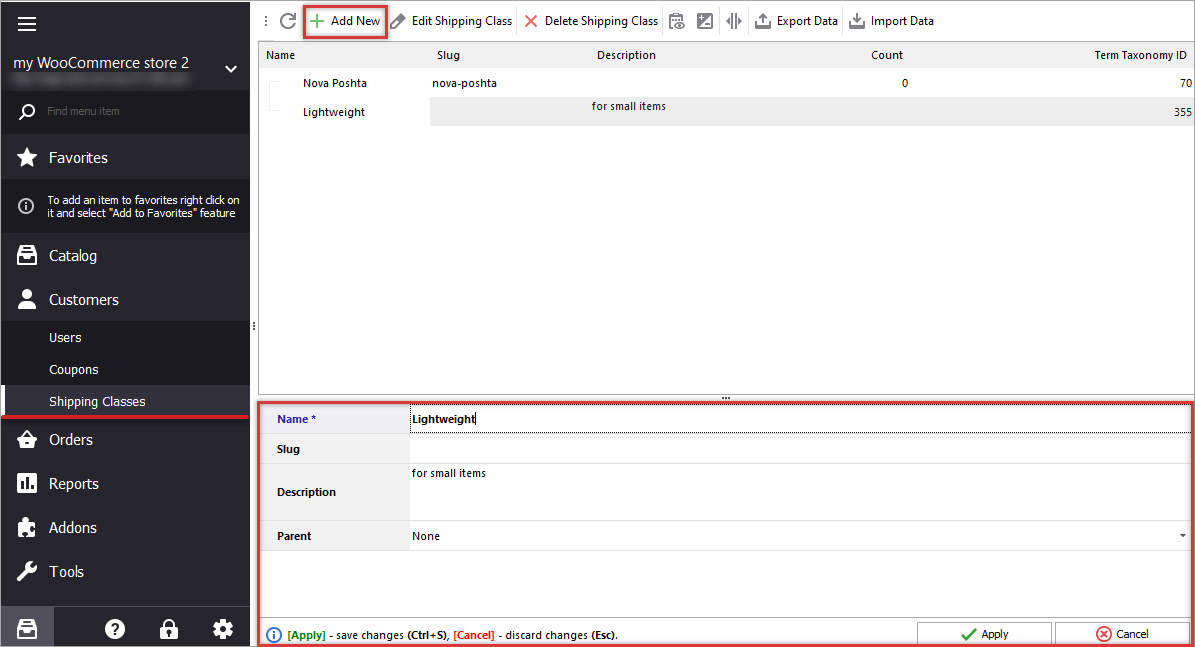
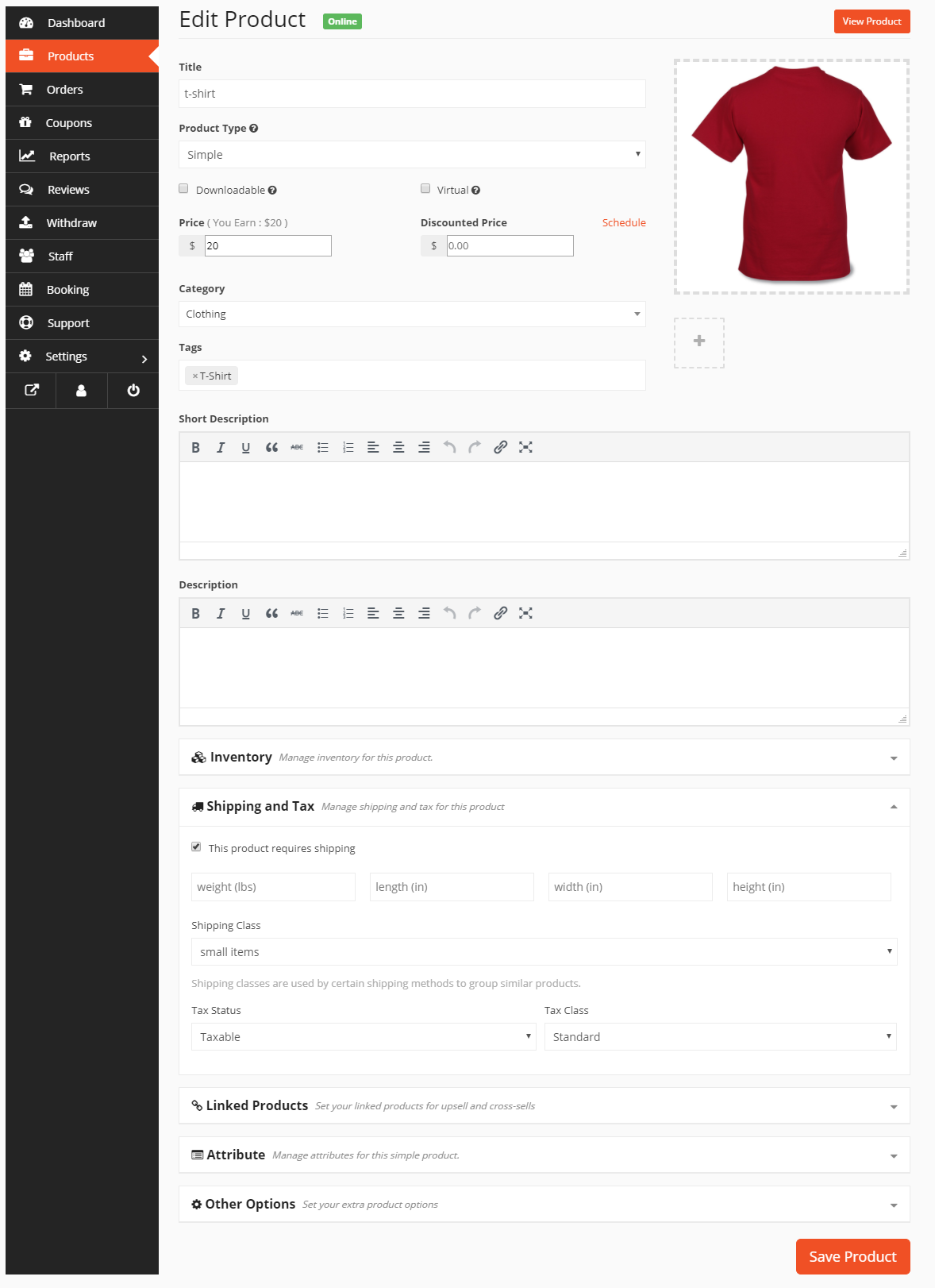
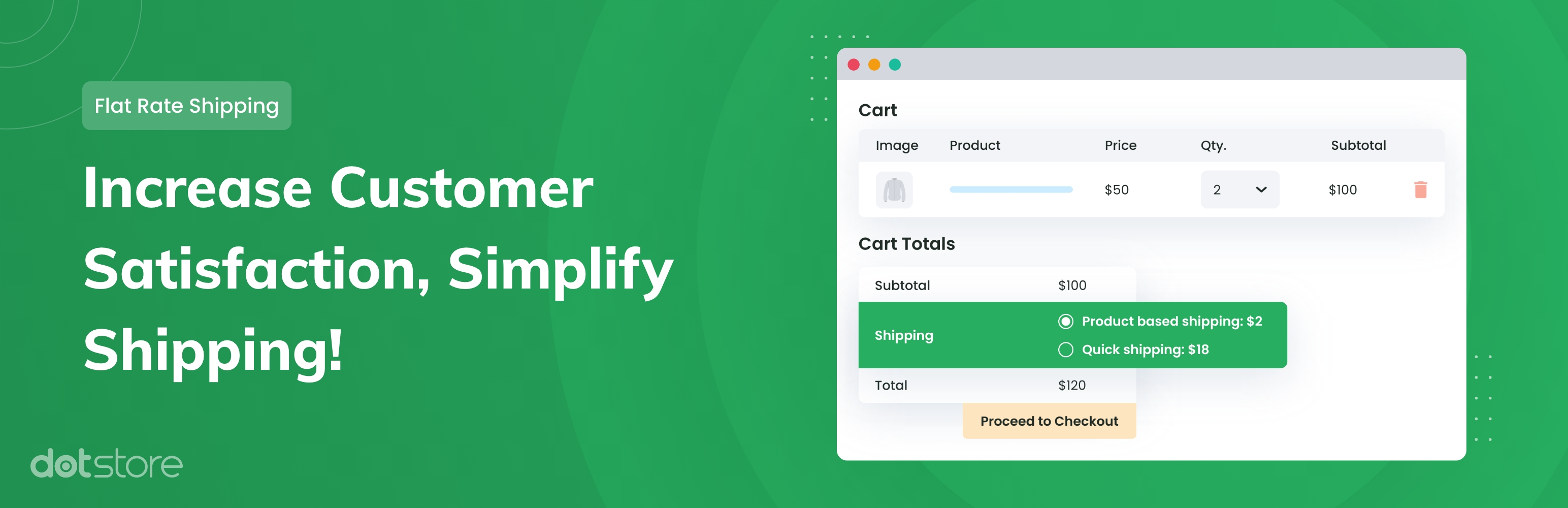
This allows dynamic pricing per product type.
⚙ Step 6: Complex Shipping Cost Formulas
WooCommerce supports formulas like:
Example:
-
Base cost ₹10
-
₹2 per quantity
You can combine:
✔ Flat rate
✔ Per quantity cost
✔ Per weight cost
✔ Per shipping class cost
This allows flexible pricing logic.
🌎 Step 7: Multi-Country & International Shipping
For international marketplaces:
✔ Create separate zones per country
✔ Add region-specific rates
✔ Define currency compatibility
✔ Set different shipping methods
Example:
India → ₹150
USA → $20
Europe → €25
Test checkout for every region.
🏬 Step 8: Marketplace-Wide Shipping Overrides
Admin may want to:
✔ Override vendor shipping
✔ Force global shipping rules
✔ Add admin-level shipping fees
Use this carefully — vendor independence is important.
Best practice:
Allow vendor-level control unless centralized shipping is required.
🧪 Step 9: Testing Complex Shipping Setup
Before going live:
✔ Test single vendor checkout
✔ Test multi-vendor cart
✔ Test different countries
✔ Test different product classes
✔ Test mobile checkout
Multi-vendor carts are the most common source of shipping errors.
🔁 Step 10: Common Dokan Shipping Problems
❌ “No shipping methods available”
❌ Shipping works for one vendor, not another
❌ Shipping disappears after coupon
❌ Wrong shipping total
❌ Cart fails for international address
Most issues are caused by:
-
Missing shipping zones
-
Zone order conflict
-
Cache interference
-
Vendor shipping not configured
Always troubleshoot systematically.
📈 Advanced Shipping Scenarios
You can build:
✔ Weight-based shipping
✔ Distance-based shipping
✔ Table rate shipping
✔ Courier API integration
✔ Split shipping per vendor
For complex marketplaces, shipping customization may require additional plugins or development.
🔐 Shipping & Customer Trust
Customers expect:
✔ Clear shipping cost
✔ Estimated delivery time
✔ Transparent policies
✔ No surprise fees
Confusing shipping = abandoned carts.
📚 Also Read (Internal Links)

Hire Me on Upwork – Dokan & WooCommerce Expert

 Chat on WhatsApp