
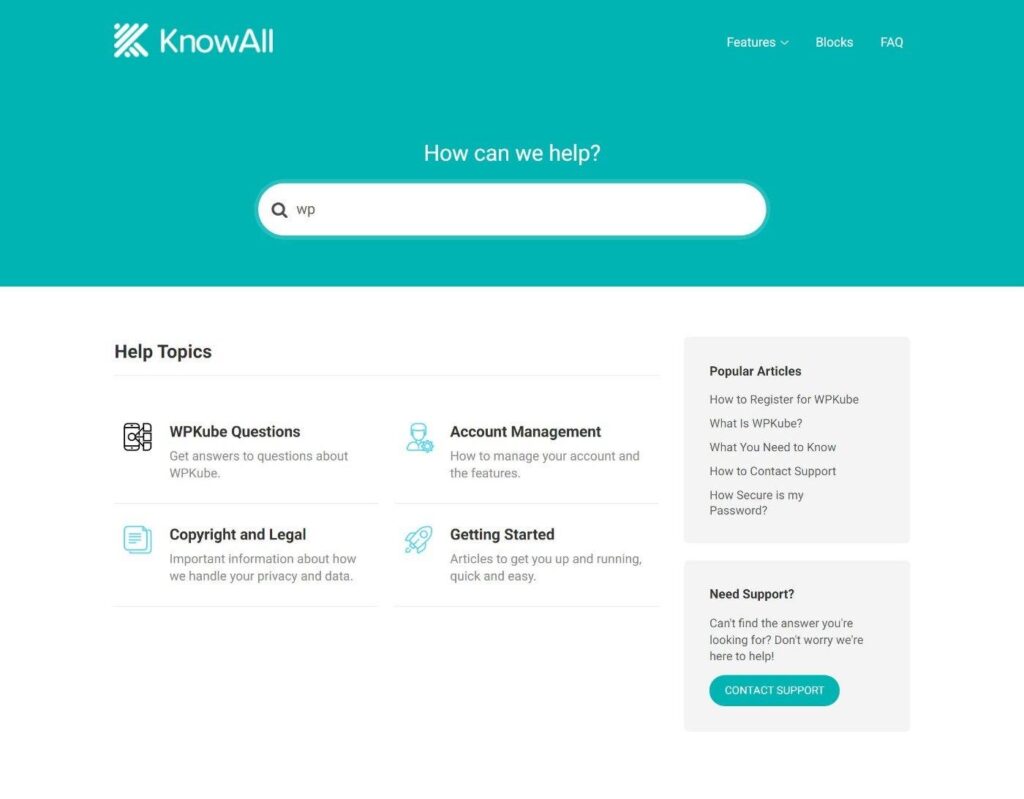


A well-built knowledge base can drastically reduce support tickets, improve user experience, and save time.
Instead of answering the same questions repeatedly, you provide users with a self-service help center.
If you’re using WordPress, you can easily build a powerful knowledge base without complex development.
In this guide, you’ll learn how to create a professional knowledge base step-by-step.
🔴 What is a Knowledge Base?
A knowledge base is a centralized collection of help articles that users can access anytime.
It includes:
✔ FAQs
✔ Tutorials
✔ How-to guides
✔ Troubleshooting steps
👉 Goal: solve problems without support
🧠 Why You Need a Knowledge Base
Without it:
❌ Too many support tickets
❌ Slow response time
❌ Repetitive queries
With it:
✔ Self-service support
✔ Reduced workload
✔ Better user experience
✔ Faster issue resolution
👉 Knowledge base = support automation
⚙️ Step 1: Choose Knowledge Base Type
📚 Basic Blog-Style KB
✔ Use posts/pages
✔ Organize with categories
👉 Simple and free.
🔌 Plugin-Based KB
Popular plugins:
✔ BetterDocs
✔ Heroic Knowledge Base
✔ weDocs
👉 Advanced features included.
🏗️ Step 2: Structure Your Knowledge Base
Organize content into:
✔ Categories
✔ Subcategories
✔ Articles
Example:
- Getting Started
- Orders & Payments
- Account Issues
- Troubleshooting
👉 Clear structure = easy navigation.
🔍 Step 3: Add Search Functionality
Users should quickly find answers.
✔ Add search bar
✔ Enable instant suggestions
👉 Search = core feature.
✍️ Step 4: Create High-Quality Content
Each article should include:
✔ Clear title
✔ Step-by-step instructions
✔ Screenshots/images
✔ FAQs
👉 Good content reduces confusion.
🎨 Step 5: Design & UX
✔ Clean layout
✔ Easy navigation
✔ Mobile-friendly
✔ Fast loading
👉 UX is critical.
📊 Step 6: Track Performance
Monitor:
✔ Most viewed articles
✔ Search queries
✔ Unanswered questions
👉 Improve content continuously.
🤖 Step 7: Integrate with Chatbot
Combine KB with chatbot tools like Tidio:
✔ Suggest articles automatically
✔ Answer queries instantly
👉 Smart support system.
🔗 Step 8: Link Knowledge Base Everywhere
Add links in:
✔ Product pages
✔ Emails
✔ Dashboard
✔ Footer
👉 Increase usage.
📱 Step 9: Mobile Optimization
✔ Responsive design
✔ Fast search
✔ Easy navigation
👉 Most users are mobile.
🚀 🔟 Update Regularly
✔ Add new articles
✔ Update outdated content
✔ Improve based on feedback
👉 Keep it relevant.
📈 Real Impact
After implementing a knowledge base:
✔ 50–70% fewer support tickets
✔ Faster issue resolution
✔ Better customer satisfaction
✔ Reduced workload
👉 Huge efficiency boost.
🚨 Common Mistakes to Avoid
❌ Poor structure
❌ No search feature
❌ Low-quality content
❌ Not updating content
❌ Hard navigation
👉 Avoid these issues.
📌 Knowledge Base Checklist
✔ Choose platform/plugin
✔ Structure categories
✔ Add search
✔ Create content
✔ Optimize UX
✔ Track performance
👉 Follow this step-by-step.
📚 Internal Links

Hire Me on Upwork – Dokan & WooCommerce Expert

 Chat on WhatsApp