
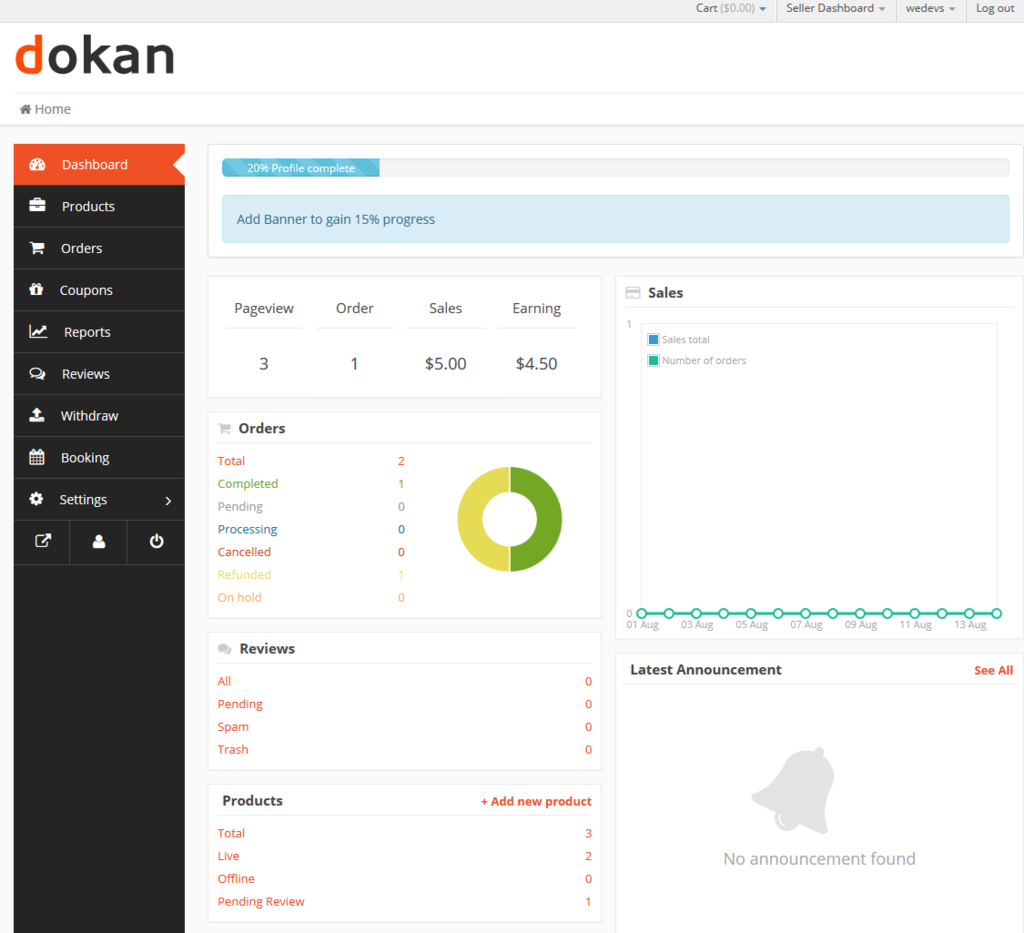
The vendor dashboard is where sellers spend most of their time in a multi-vendor marketplace.
If the dashboard is confusing, cluttered, or missing important features, vendors struggle—and that directly affects your marketplace growth.
If you are using Dokan, customizing the vendor dashboard helps you create a better experience for vendors, improve productivity, and reduce support requests.
This guide explains how and why to customize the Dokan vendor dashboard, in a simple and practical way.
🔴 Why Customize the Dokan Vendor Dashboard?
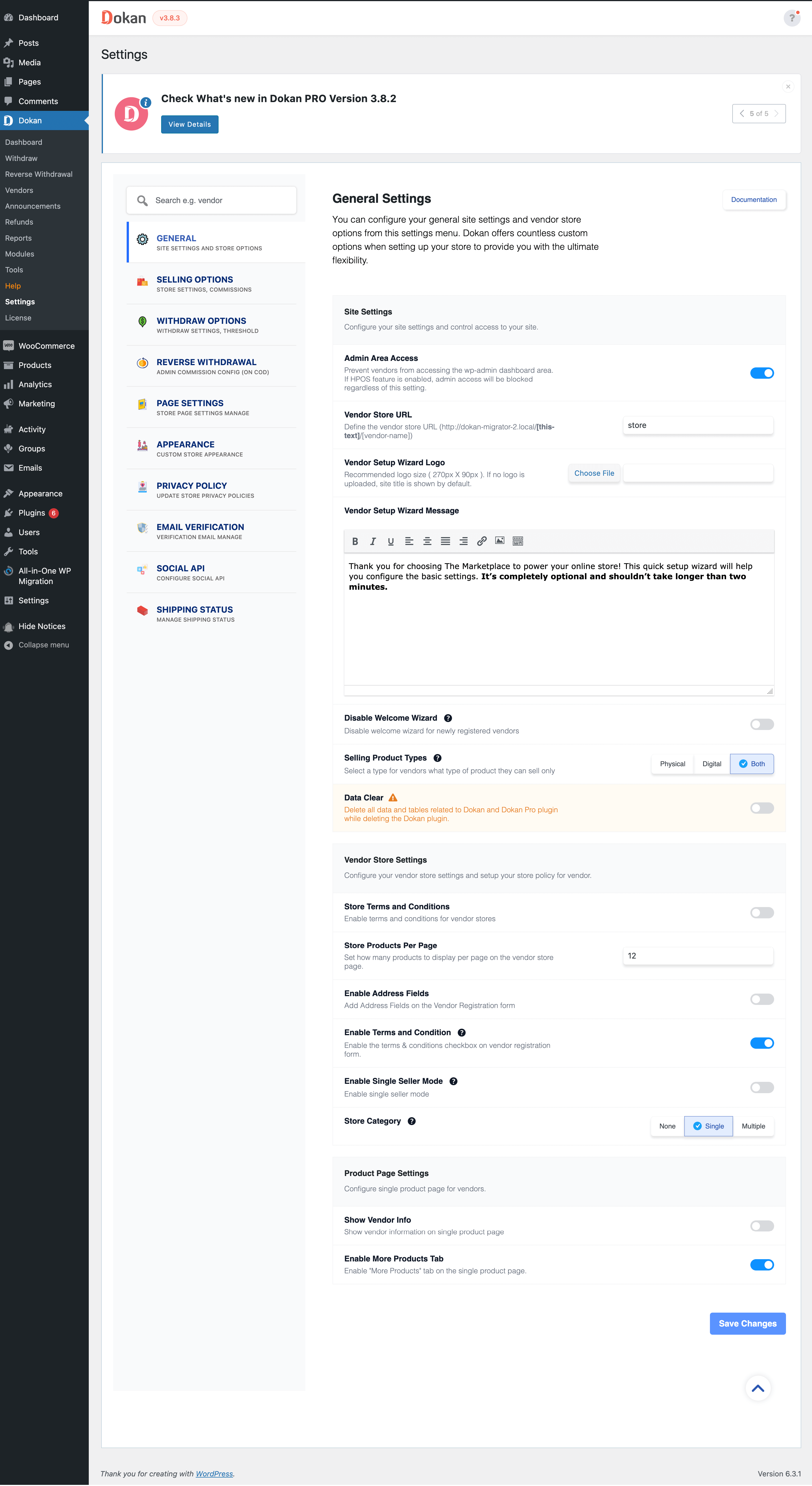
Dokan’s default dashboard is designed to work for all types of marketplaces, but every business is different.
Customizing the dashboard helps you:
-
Remove unused or confusing options
-
Add marketplace-specific features
-
Simplify vendor workflows
-
Improve vendor adoption
-
Reduce repeated support questions
🧠 What Can Be Customized in Dokan Vendor Dashboard?
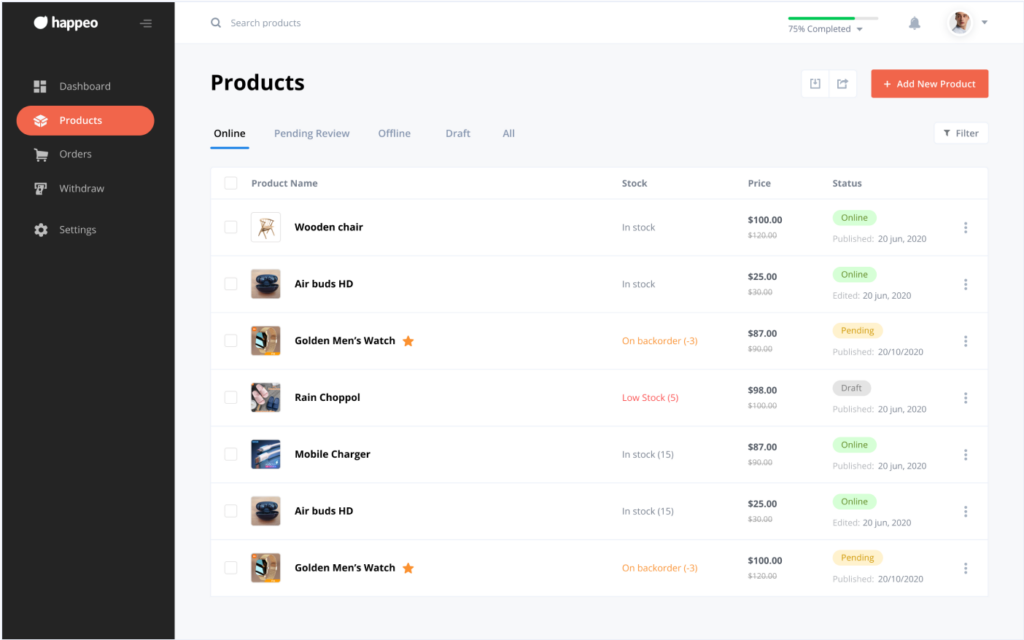
You can customize many parts of the dashboard, including:
-
Vendor menu items
-
Vendor permissions
-
Product add/edit forms
-
Dashboard layout & design
-
Custom pages or tabs
-
Vendor-specific features
You don’t need to change everything—even small changes make a big difference.
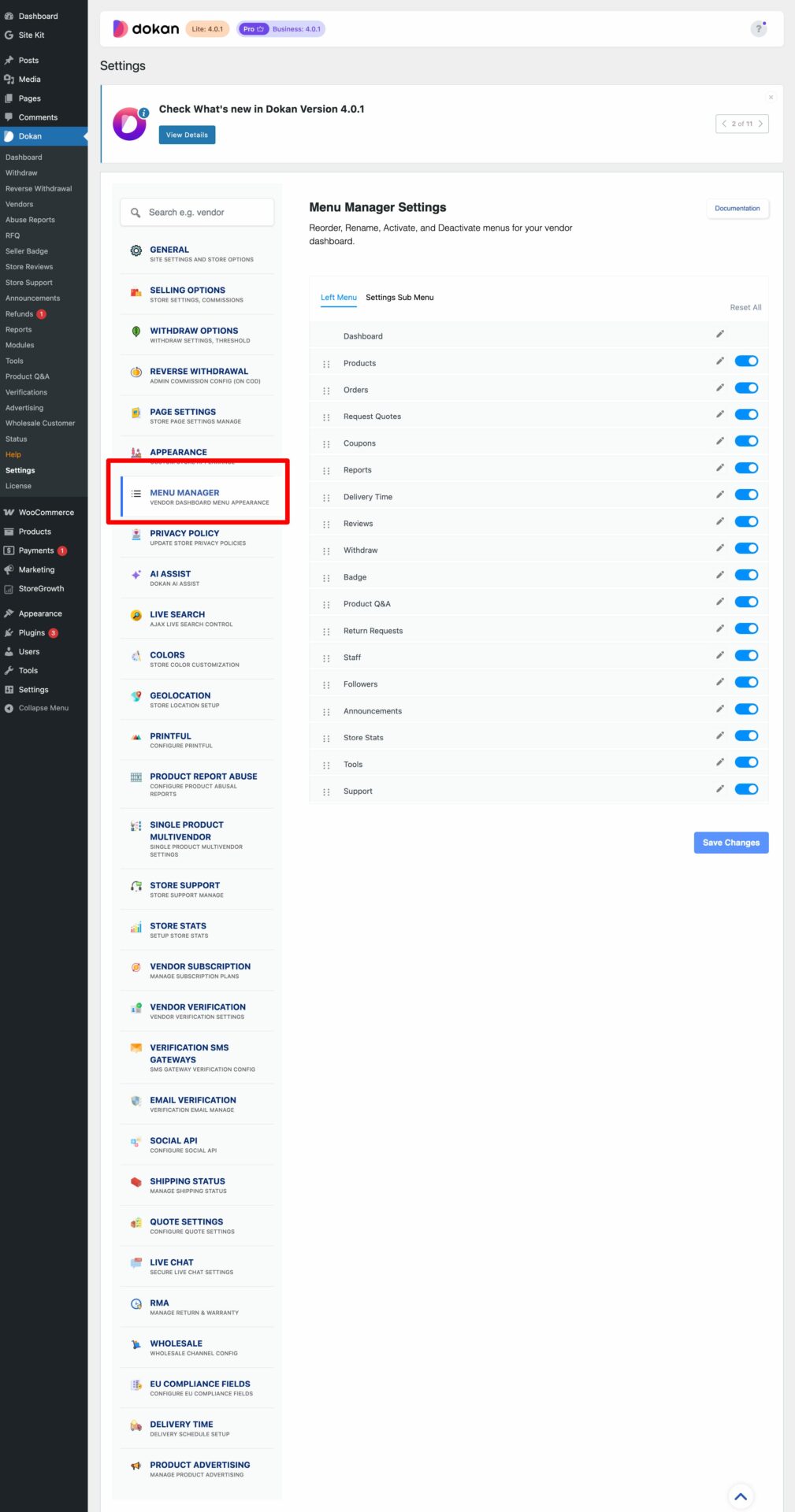
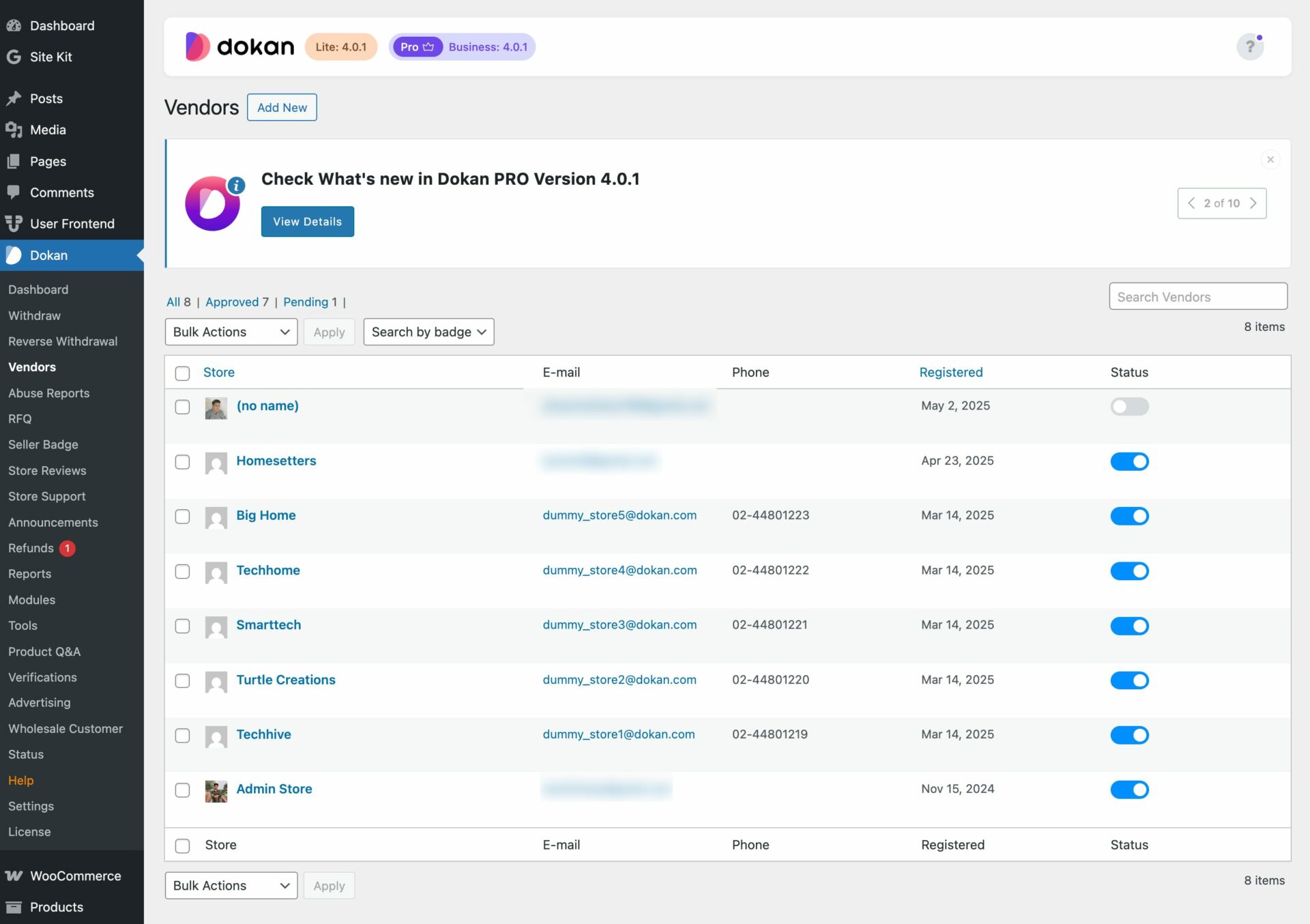
1️⃣ Customize Vendor Dashboard Menu
The sidebar menu is the first thing vendors interact with.
Common Customizations
-
Hide unused menu items
-
Rename menu labels
-
Reorder menu items
-
Add custom menu links
Example
-
Rename Products to “My Services”
-
Hide Coupons for basic vendors
-
Add a Help / Support menu
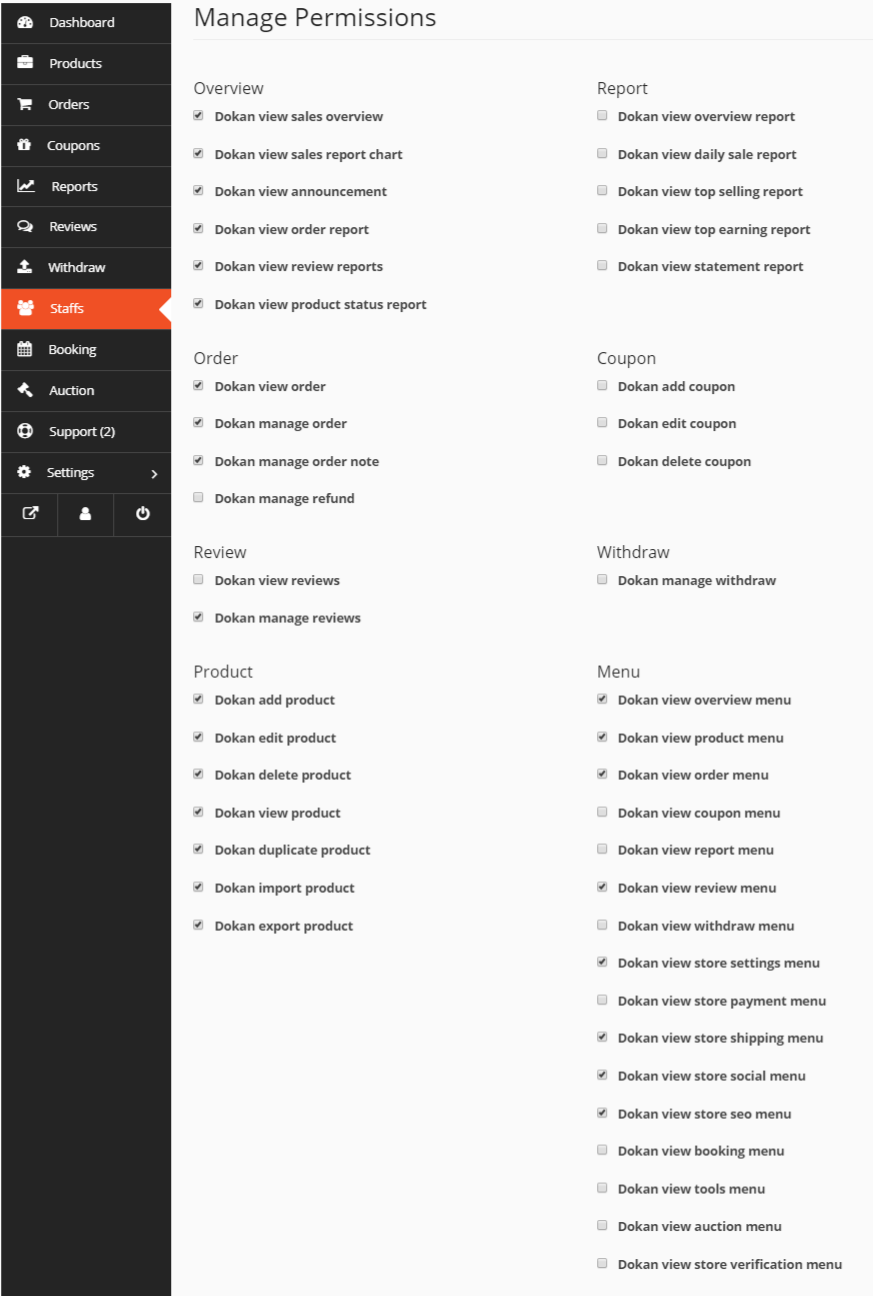
2️⃣ Control Vendor Permissions (Very Important)
Not every vendor should access every feature.
You can control:
-
Who can add products
-
Who can edit published products
-
Who can create coupons
-
Who can request withdrawals
Why This Matters
✔ Prevents misuse
✔ Enables vendor tiers
✔ Gives admin better control
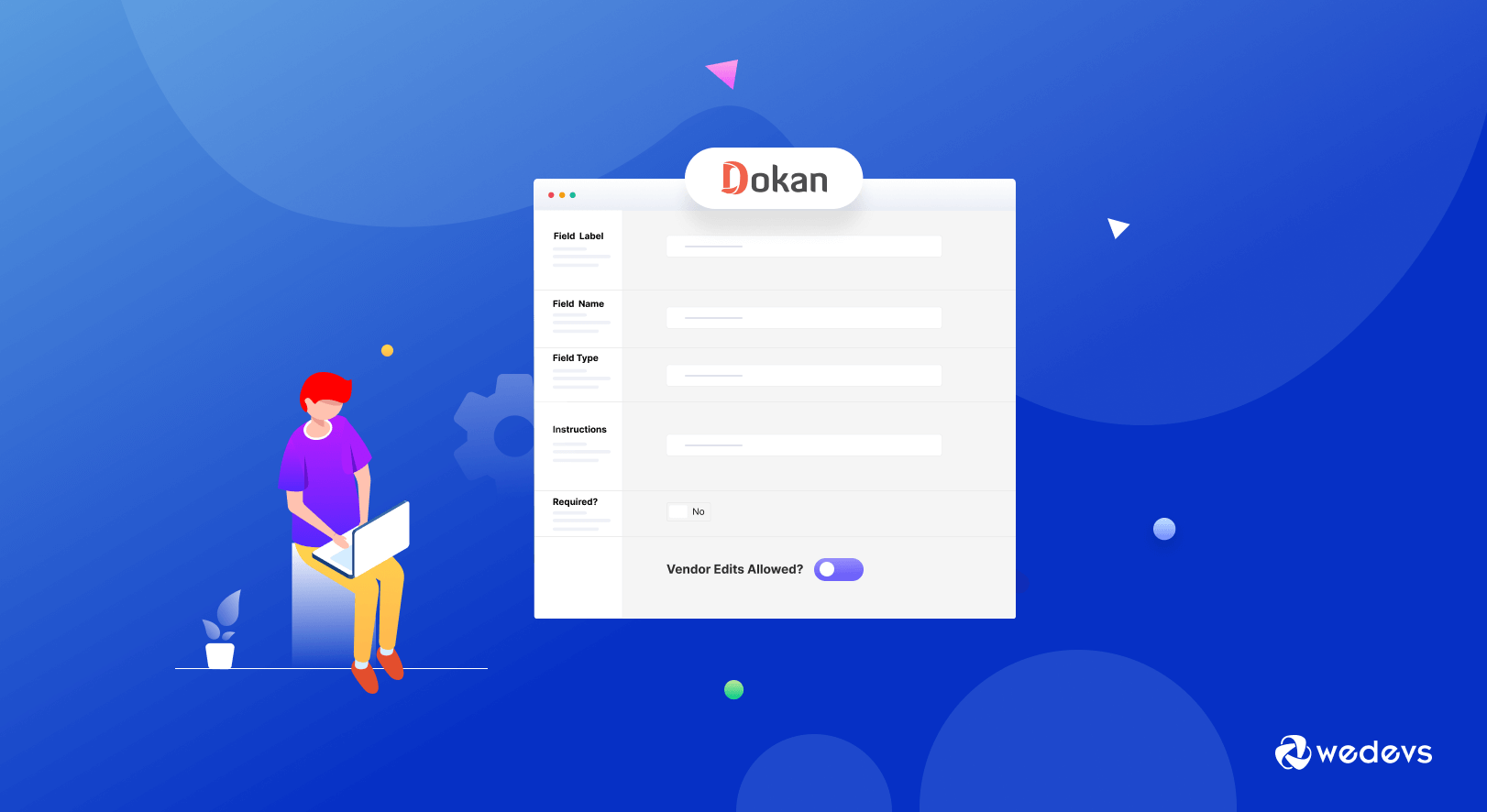
3️⃣ Customize the Add Product Form
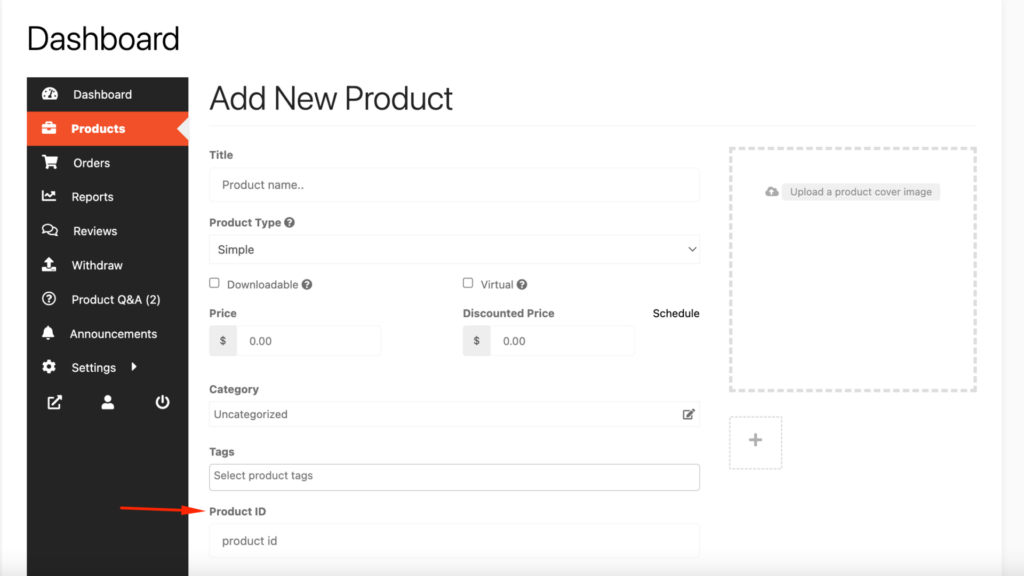
Most marketplaces need extra product information.
You Can Add:
-
Custom fields (text, dropdown, date, file upload)
-
Required fields
-
Marketplace-specific inputs
Examples
-
Service duration
-
Delivery time
-
License type
-
Custom attributes
4️⃣ Remove Unnecessary Fields (Services or Digital Products)
If your marketplace sells:
-
Services
-
Digital products
You can hide:
-
Shipping fields
-
Inventory fields
-
Weight & dimensions
This makes the dashboard simpler and clearer for vendors.
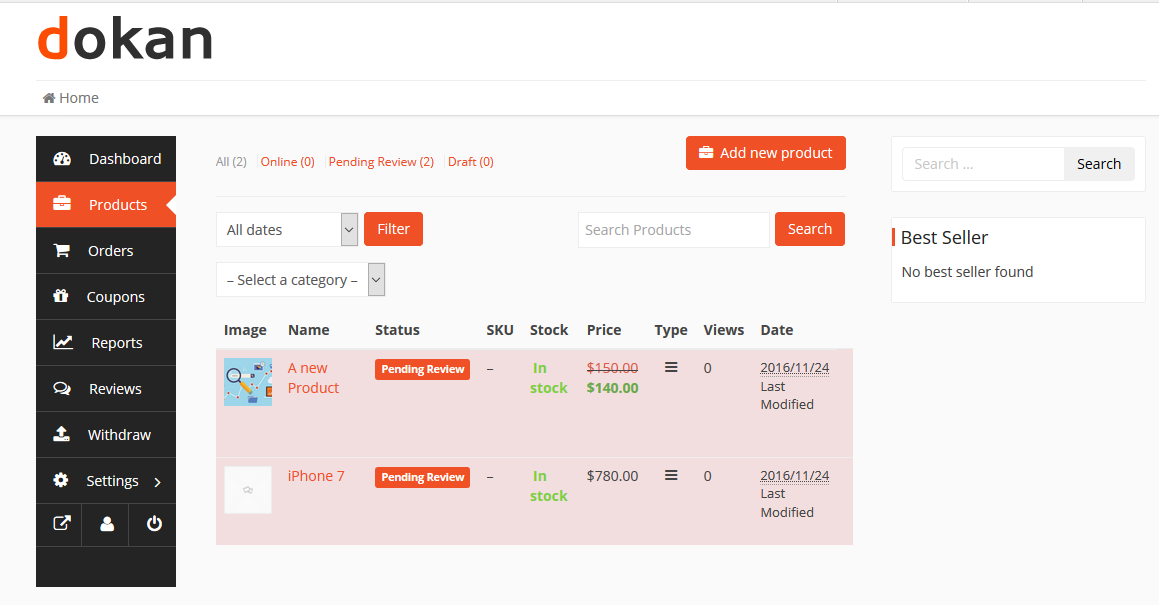
5️⃣ Improve Vendor Dashboard Design (UI/UX)
A clean design improves usability.
Common Improvements
-
Better spacing and layout
-
Clear labels and headings
-
Helpful notes or tooltips
-
Mobile-friendly dashboard
These changes are usually done using:
-
Custom CSS
-
Child theme
-
Dokan hooks
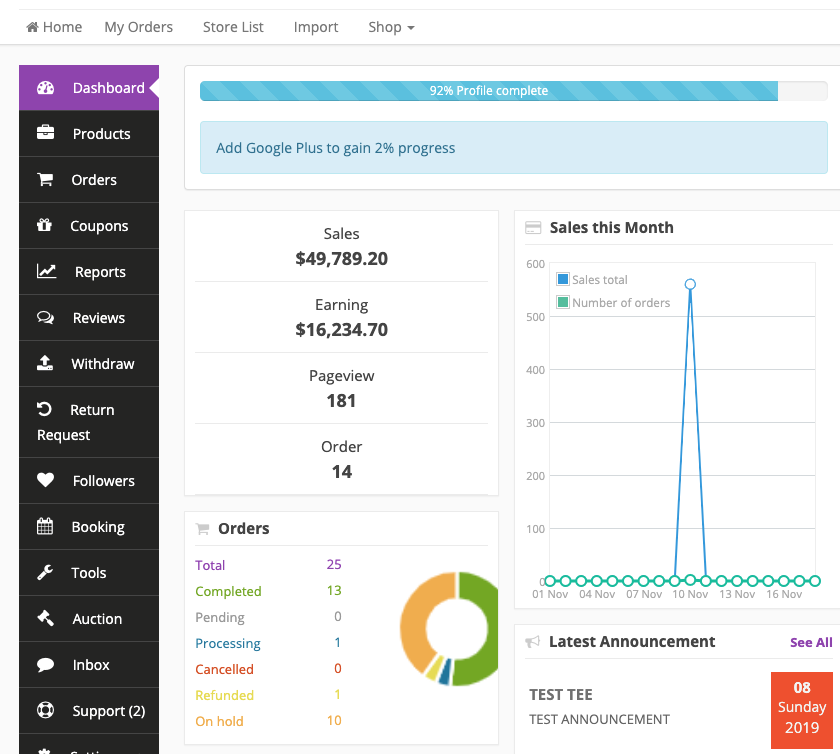
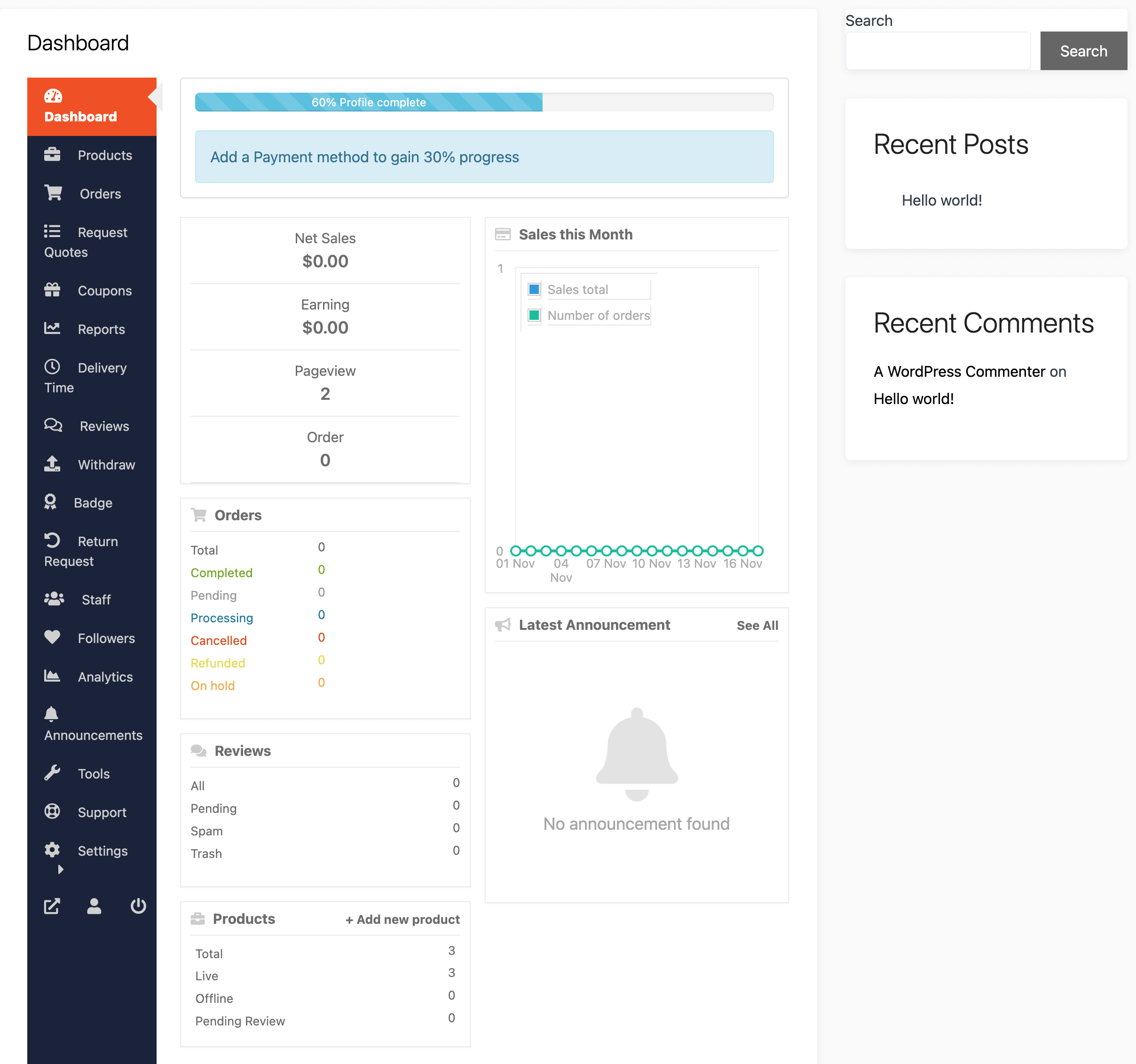
6️⃣ Add Custom Widgets to Vendor Dashboard
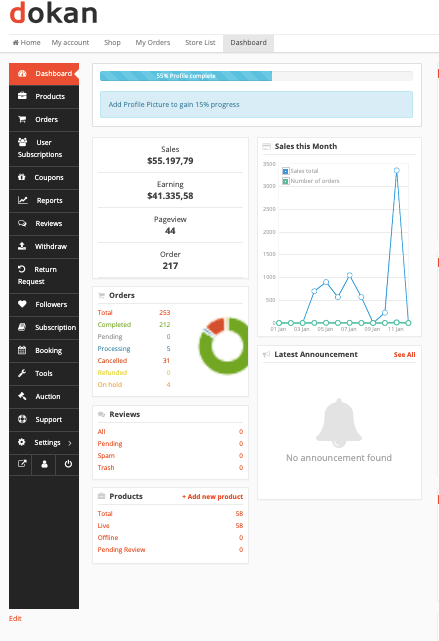
Dashboard widgets help vendors see important information quickly.
Popular Widgets
-
Today’s sales
-
Pending orders
-
Earnings summary
-
Admin announcements
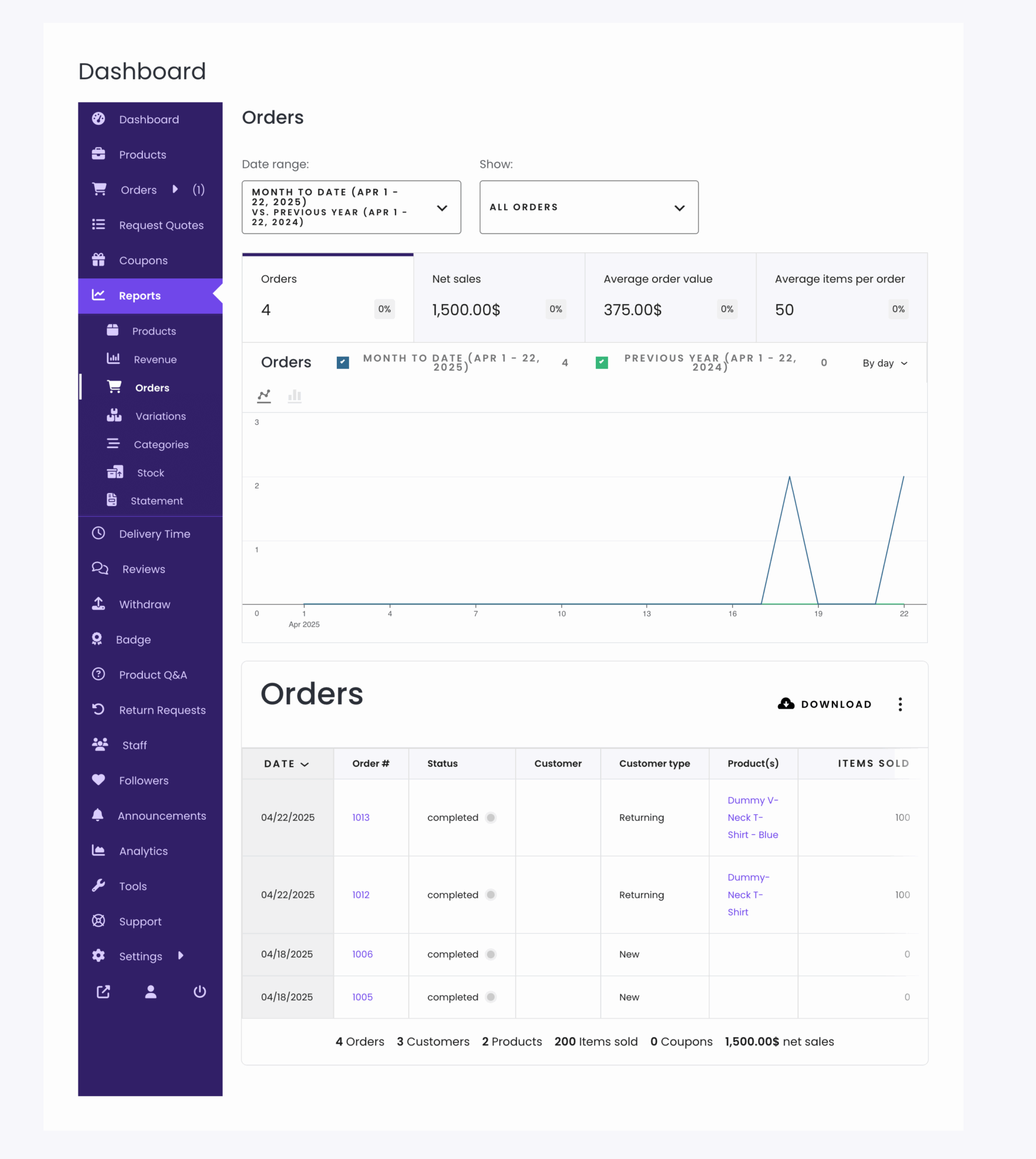
7️⃣ Add Custom Pages Inside Vendor Dashboard
You can add custom pages such as:
-
Vendor onboarding guide
-
Marketplace rules & policies
-
Help documentation
-
Custom reports or tools
These pages appear inside the vendor dashboard, not WordPress admin.
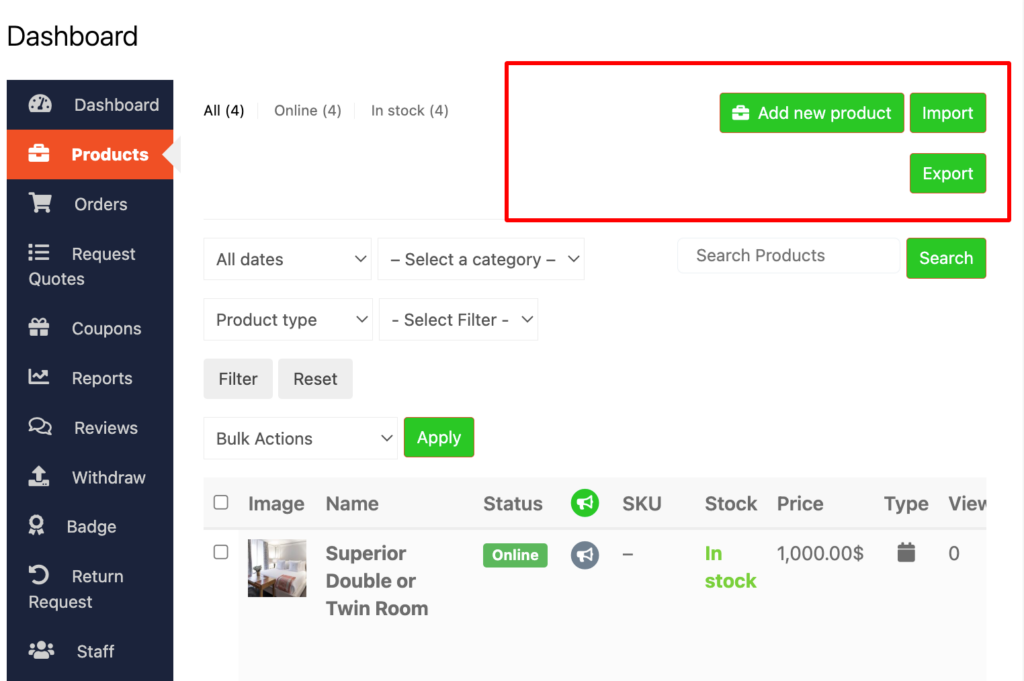
⚠️ Limitations of Default Dokan Customization
By default, Dokan has limitations when it comes to:
-
Complex workflows
-
Role-based dashboard layouts
-
Conditional fields and menus
-
Performance-optimized dashboards
For these cases, custom Dokan development is required.
🛠️ When You Should Use Custom Dokan Development
You should consider custom development if:
-
Vendors complain about usability
-
You run a service or digital marketplace
-
You want vendor tiers (basic / premium)
-
You plan to scale to many vendors
Custom development ensures:
✔ Clean & maintainable code
✔ Update-safe customizations
✔ Long-term scalability
📚 Also Read

Hire Me on Upwork – Dokan & WooCommerce Expert

 Chat on WhatsApp
2 Responses