
A slow multi-vendor marketplace can kill conversions, frustrate vendors, and hurt Google rankings.
Because Dokan runs on top of WordPress and WooCommerce, performance optimization is not optional—it’s critical.
If your marketplace uses Dokan, this checklist will help you optimize speed, stability, and scalability step by step.
🔴 Why Dokan Performance Optimization Is Important
A slow Dokan marketplace leads to:
-
Poor vendor experience
-
Checkout drop-offs
-
Lower SEO rankings
-
Higher server costs
-
Scaling issues
Performance optimization helps you:
✔ Improve speed
✔ Handle more vendors
✔ Increase conversions
✔ Reduce support issues
🧠 How Dokan Performance Works (Big Picture)
Dokan performance depends on three layers:
1️⃣ WordPress
2️⃣ WooCommerce
3️⃣ Dokan (vendor & commission logic)
If one layer is slow, everything becomes slow.
✅ Dokan Performance Optimization Checklist
Use this checklist to improve your marketplace speed and reliability.
1️⃣ Hosting & Server Optimization (FOUNDATION)
✔ Use WooCommerce-optimized hosting
✔ Enable server-level caching
✔ Use latest stable PHP version
✔ Allocate enough RAM & CPU
👉 Cheap hosting = slow marketplace.
2️⃣ Enable Page Caching (Carefully)
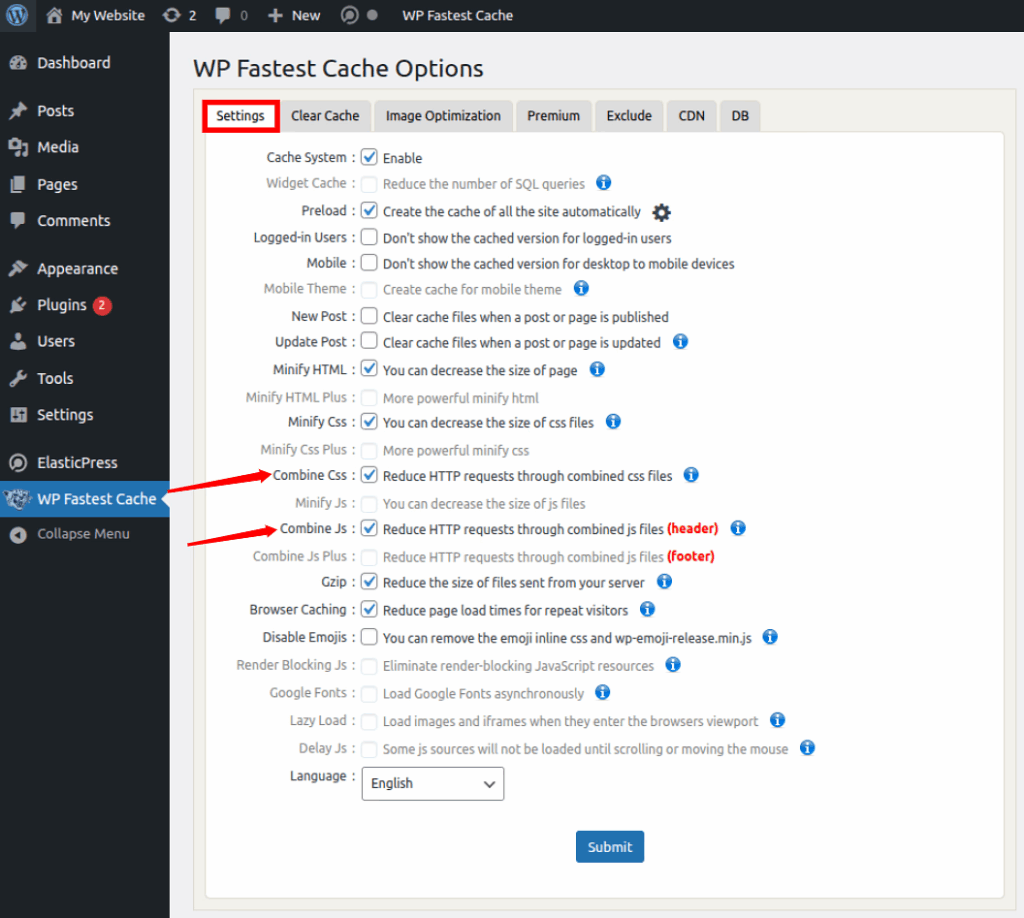
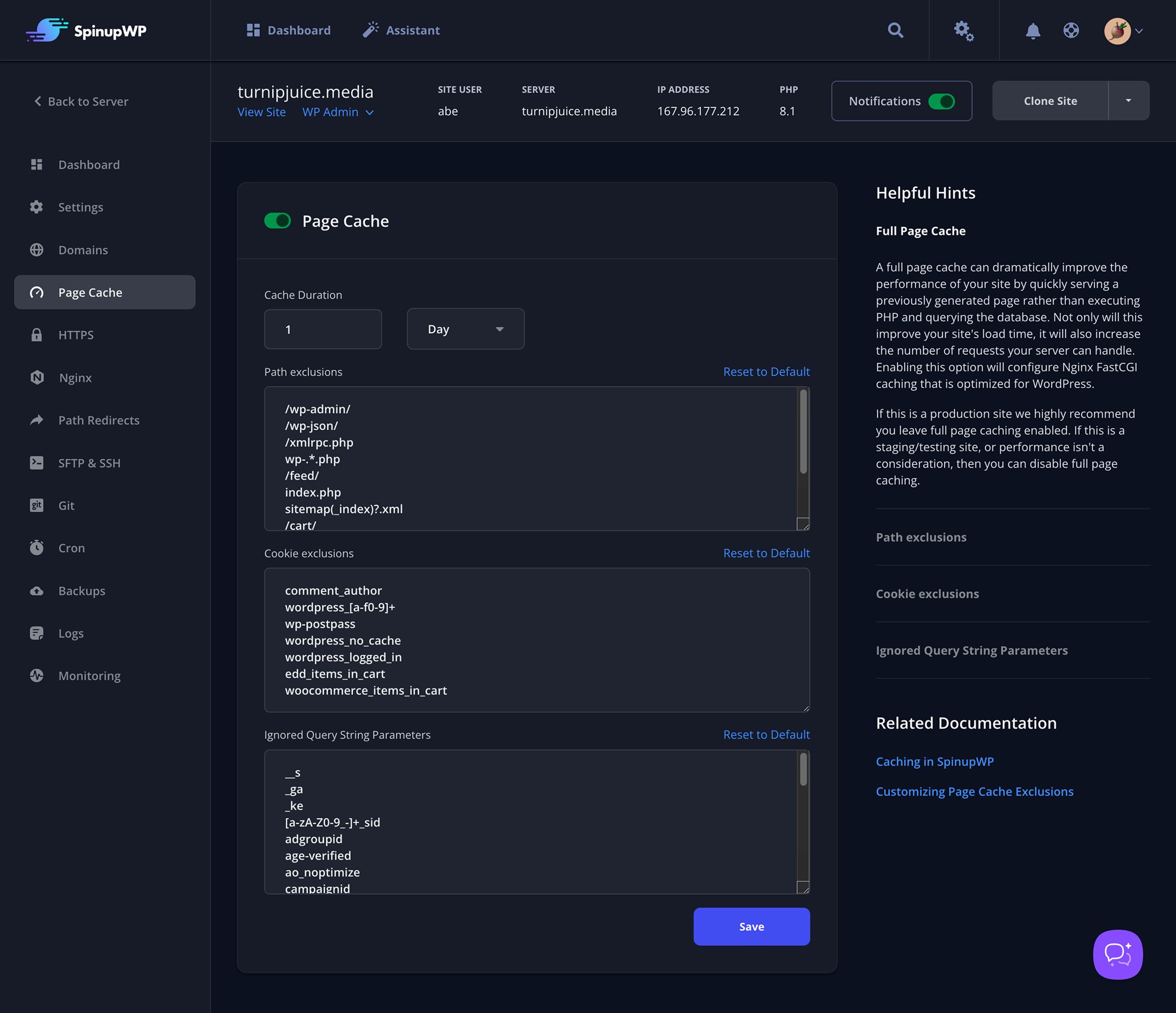
✔ Enable page caching for public pages
✔ Exclude:
-
Cart
-
Checkout
-
Vendor dashboard
Caching the wrong pages can break Dokan.
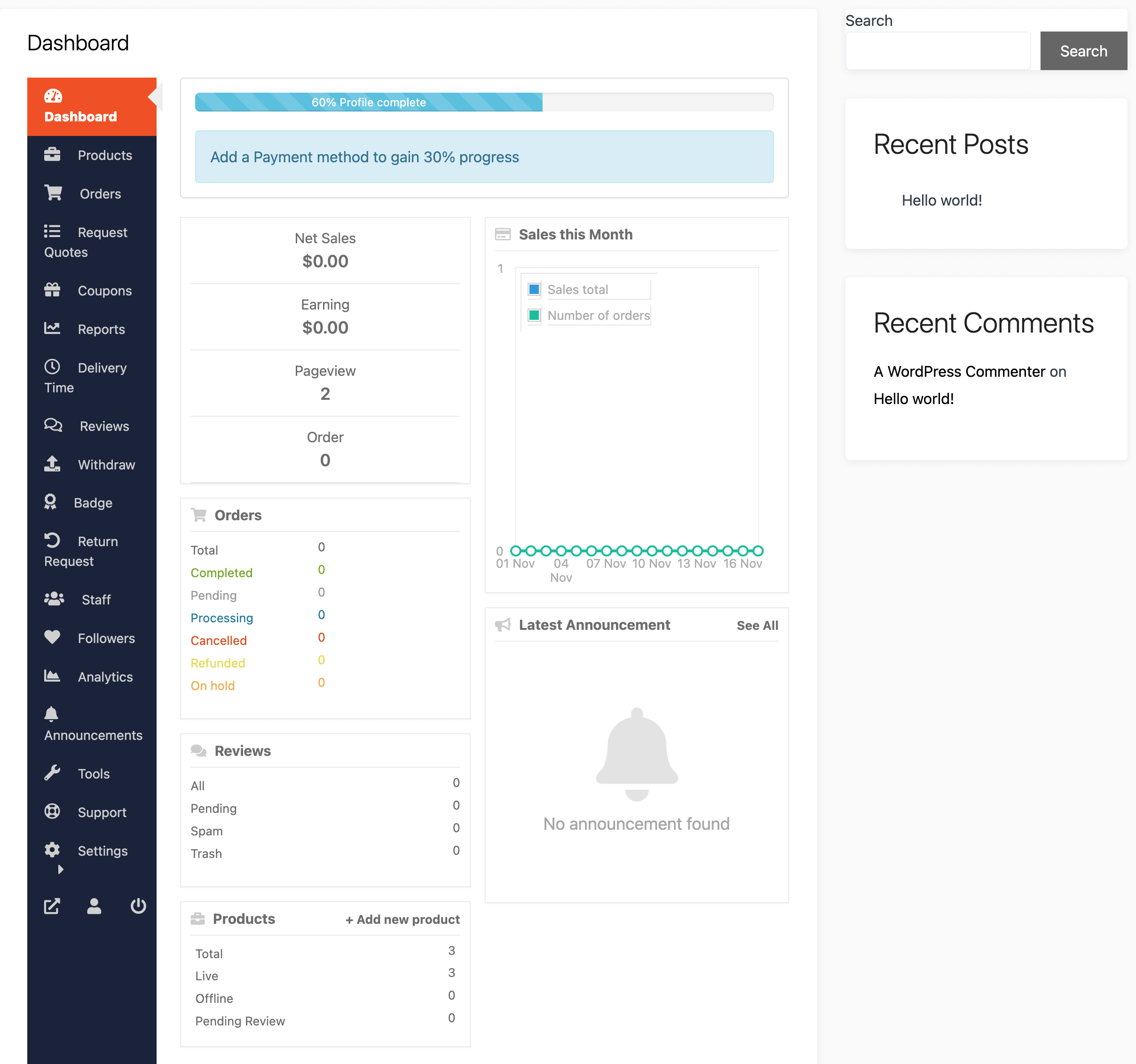
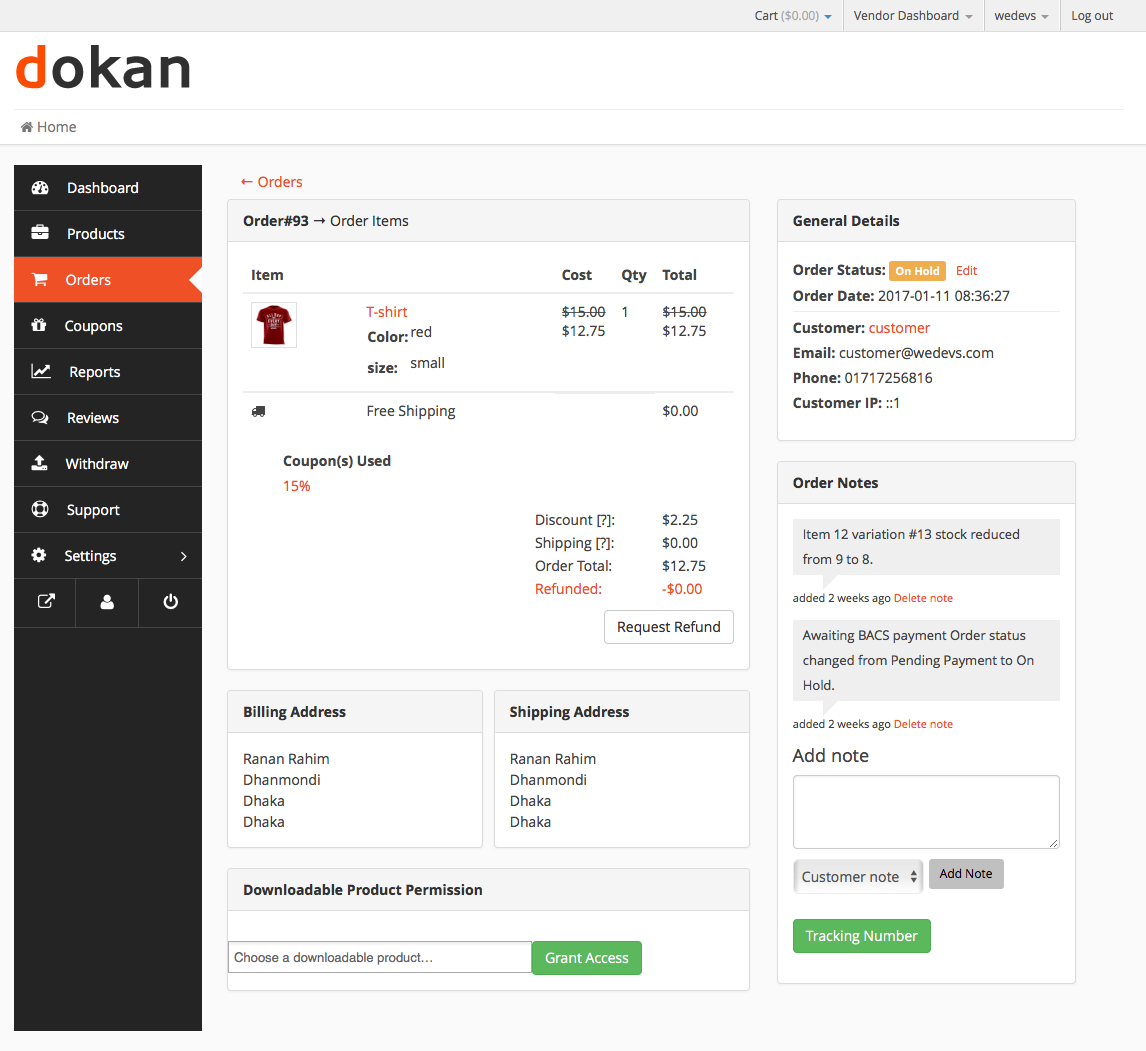
3️⃣ Optimize Vendor Dashboard Performance
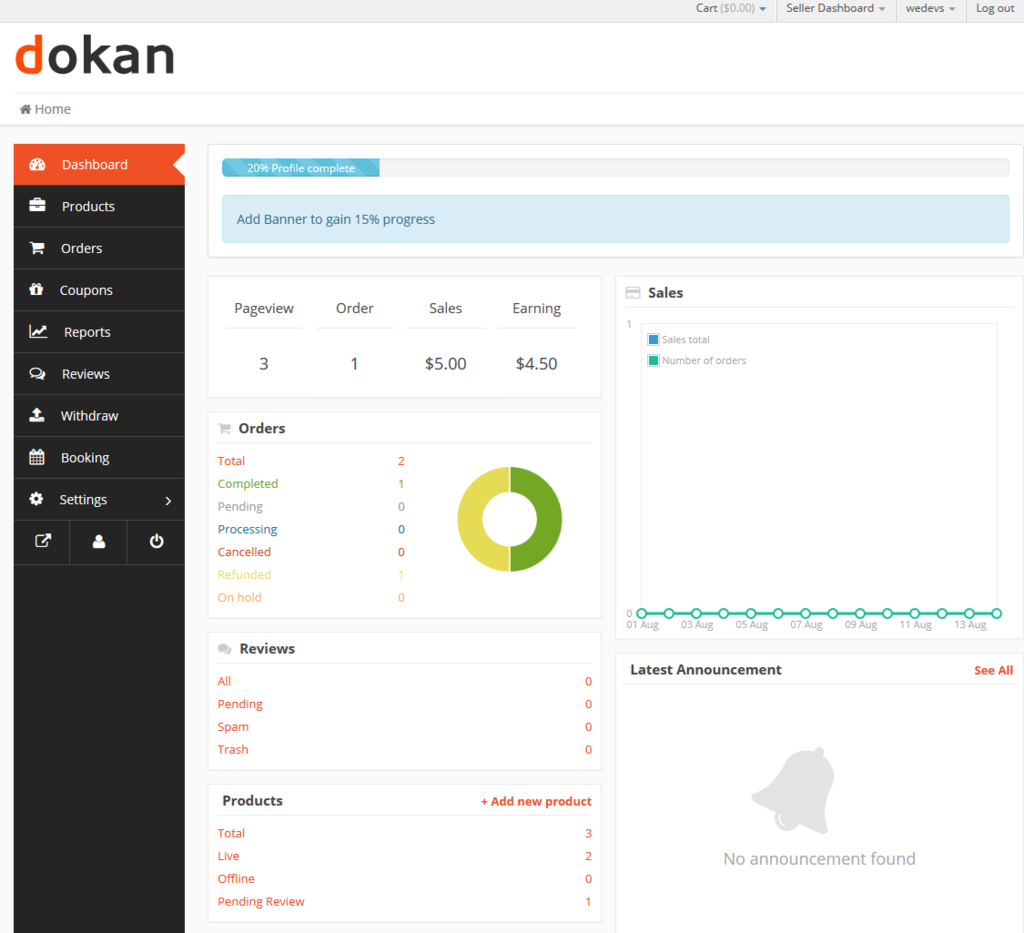
Vendor dashboard can become heavy.
✔ Remove unused widgets
✔ Limit dashboard data queries
✔ Optimize vendor reports
✔ Disable unnecessary scripts
4️⃣ Reduce Plugin Overload (VERY IMPORTANT)
Too many plugins = slow site.
✔ Remove unused plugins
✔ Avoid duplicate plugins
✔ Use lightweight alternatives
✔ Avoid pirated plugins
👉 Ideal range: 15–25 high-quality plugins
5️⃣ Optimize Database Regularly
Dokan marketplaces generate lots of data.
✔ Clean post revisions
✔ Remove expired transients
✔ Optimize database tables
✔ Clear old logs


6️⃣ Optimize Images & Media
Large images slow everything.
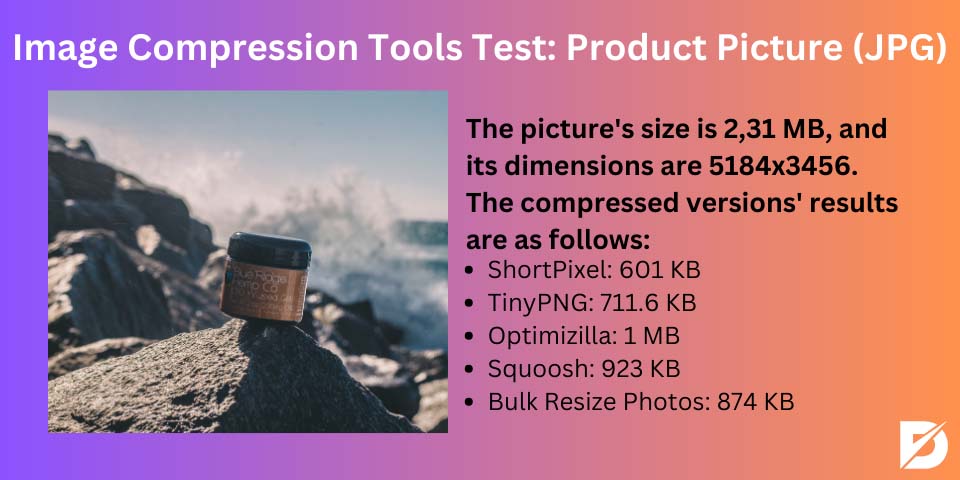
✔ Compress product images
✔ Use modern image formats
✔ Avoid uploading raw images
✔ Lazy-load images
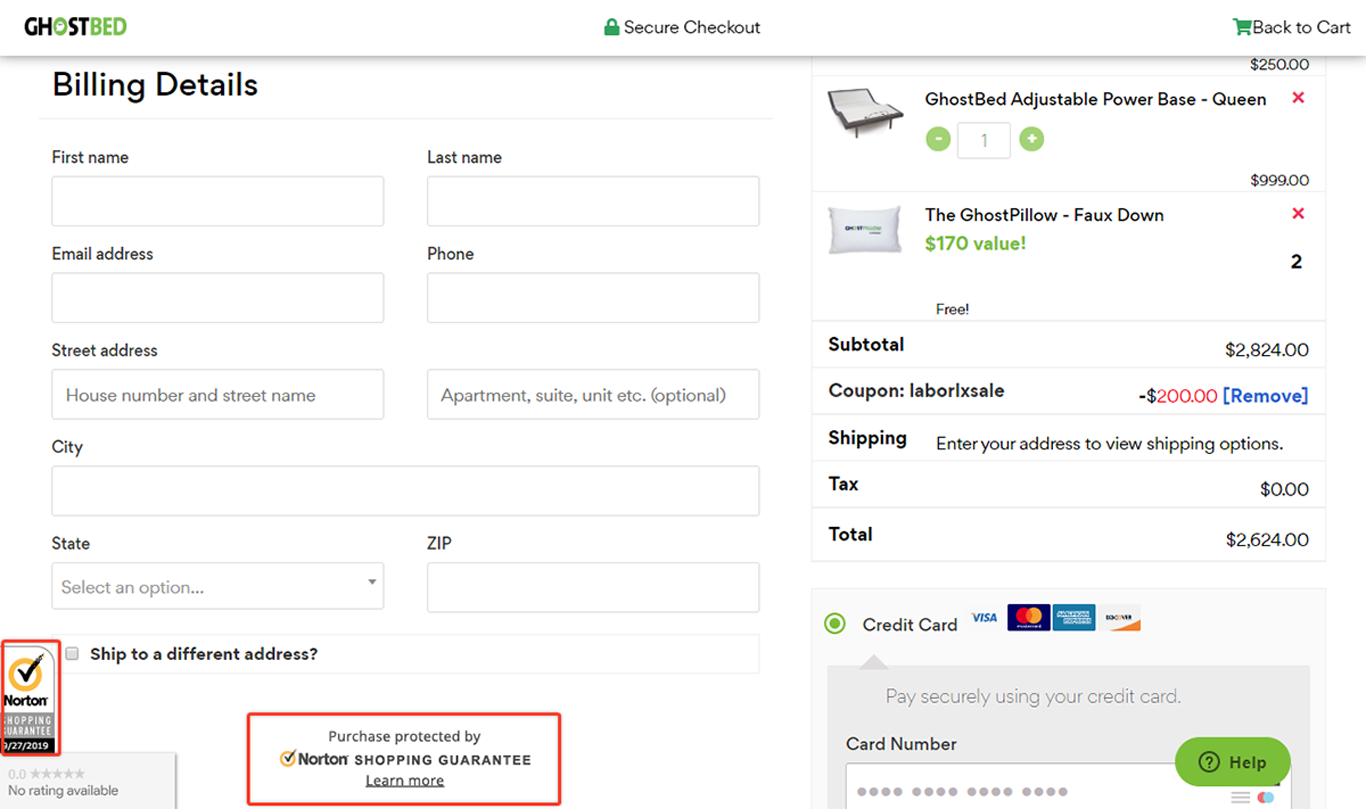
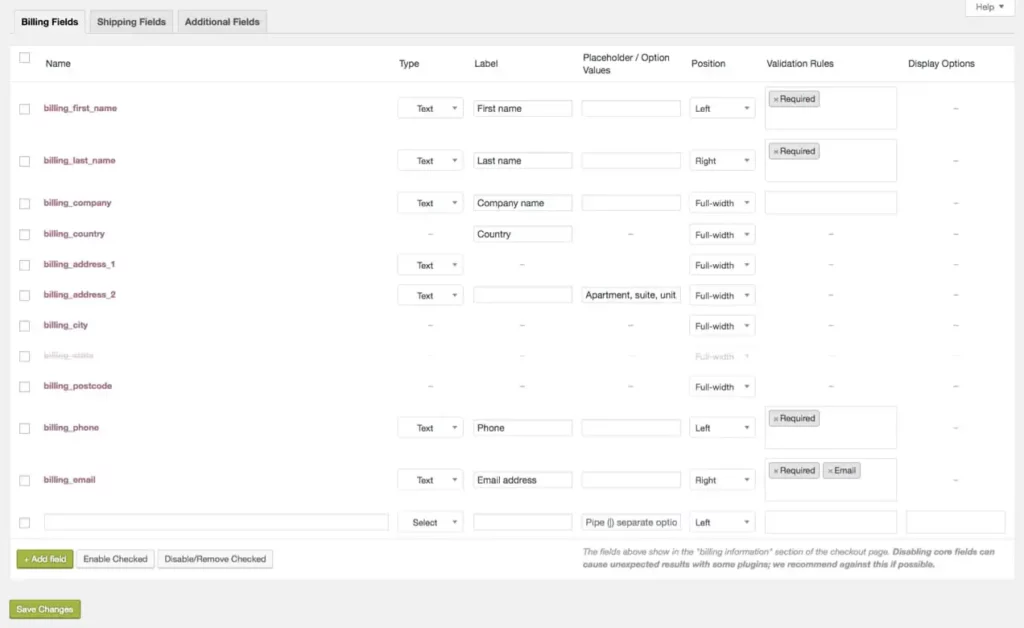
7️⃣ Optimize WooCommerce Checkout Flow
Checkout performance affects revenue.
✔ Reduce checkout fields
✔ Disable unnecessary checkout scripts
✔ Optimize payment gateway loading
✔ Test checkout speed
8️⃣ Disable Unused Dokan Modules
Dokan comes with multiple modules.
✔ Disable modules you don’t use
✔ Remove unused vendor features
✔ Keep dashboard lean
Less code = better performance.
9️⃣ Use CDN for Global Performance
If you serve users globally:
✔ Use a CDN
✔ Cache images & static files
✔ Reduce server load
This significantly improves load time for vendors and customers.
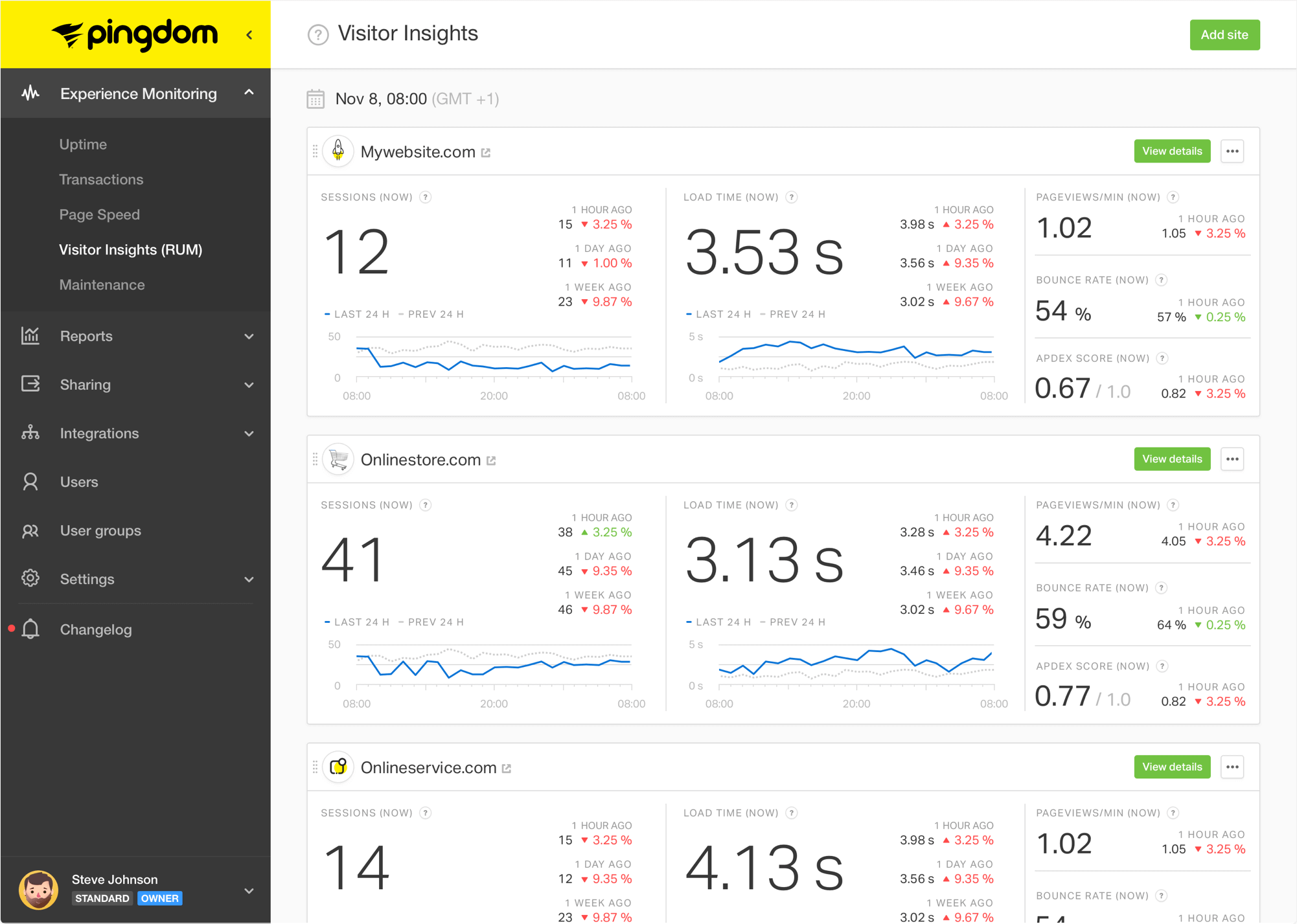
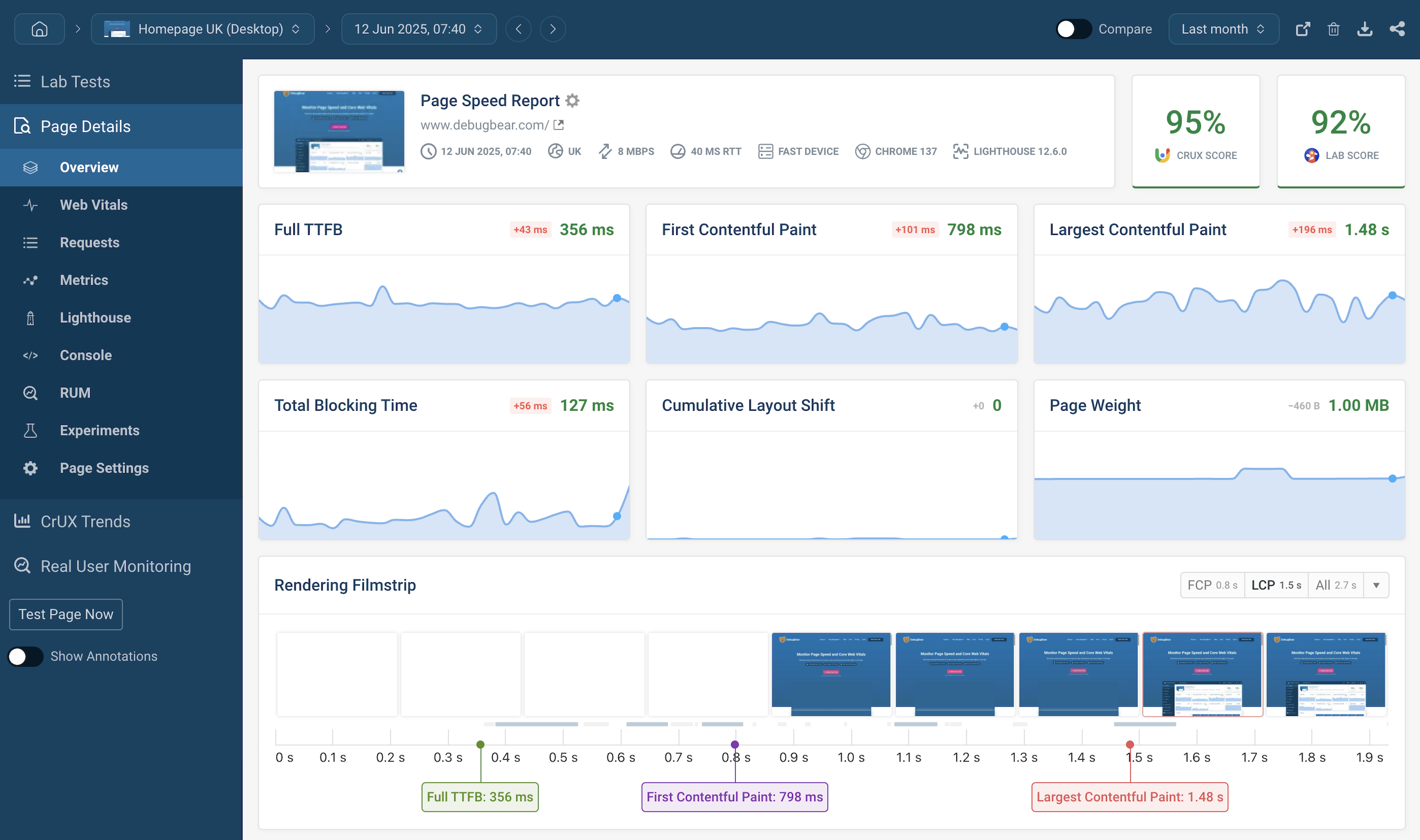
🔟 Monitor Performance Regularly
Performance is not one-time work.
✔ Monitor site speed
✔ Track vendor dashboard load time
✔ Watch server resource usage
✔ Fix issues early
⚠️ Common Dokan Performance Mistakes
❌ Cheap shared hosting
❌ Too many plugins
❌ Heavy page builders everywhere
❌ No database cleanup
❌ No caching strategy
Avoiding these mistakes gives instant improvement.
🛠️ When You Need Custom Dokan Performance Optimization
You should consider custom optimization if:
-
Vendor dashboard is slow
-
Checkout takes too long
-
Site slows down with more vendors
-
You plan to scale marketplace
Custom optimization includes:
✔ Query optimization
✔ Custom caching logic
✔ Dashboard performance tuning
✔ Scalable architecture
📚 Also Read

Hire Me on Upwork – Dokan & WooCommerce Expert

 Chat on WhatsApp