
Selling globally with WooCommerce advanced tax configuration is exciting — but tax configuration can quickly become complicated.
If tax settings are wrong, you risk:
❌ Overcharging customers
❌ Underpaying taxes
❌ Legal penalties
❌ Accounting errors
❌ Customer disputes
WooCommerce advanced tax configuration
Global stores must handle:
-
Multiple countries
-
Different tax rates
-
VAT & GST rules
-
Digital vs physical product taxation
-
Tax-inclusive vs tax-exclusive pricing
This guide explains how to configure advanced tax settings in WooCommerce for global stores, step by step.
🔴 Why Advanced Tax Setup Is Critical
When selling internationally, tax rules vary by:
-
Country
-
State / province
-
Product type
-
Customer type (B2C vs B2B)
Incorrect configuration can:
⚠ Damage credibility
⚠ Cause compliance issues
⚠ Lead to revenue loss
👉 Proper tax setup protects both your business and your customers.
🧠 How WooCommerce Tax System Works
WooCommerce calculates tax based on:
1️⃣ Customer location
2️⃣ Product tax class
3️⃣ Tax rate table
4️⃣ Display settings
Basic flow:
-
Customer enters address
-
WooCommerce matches tax zone
-
Correct tax rate applied
-
Tax shown in cart & checkout
Advanced configuration allows full control.
1️⃣ Enabling Taxes in WooCommerce
First, enable tax calculation:
-
Go to WooCommerce → Settings → General
-
Enable “Enable taxes”
This activates the Tax tab for configuration.


2️⃣ Understanding Tax Classes
WooCommerce supports multiple tax classes.
Common Tax Classes:
-
Standard Rate
-
Reduced Rate
-
Zero Rate
You can also create custom classes like:
-
Digital Products
-
Luxury Items
-
Export Goods
👉 Use tax classes for better global control.
3️⃣ Configuring Country-Based Tax Rates
Each country may require separate tax configuration.
Example:
| Country | Tax Type | Rate |
|---|---|---|
| USA | State-based sales tax | Varies |
| UK | VAT | 20% |
| Germany | VAT | 19% |
| India | GST | 18% |

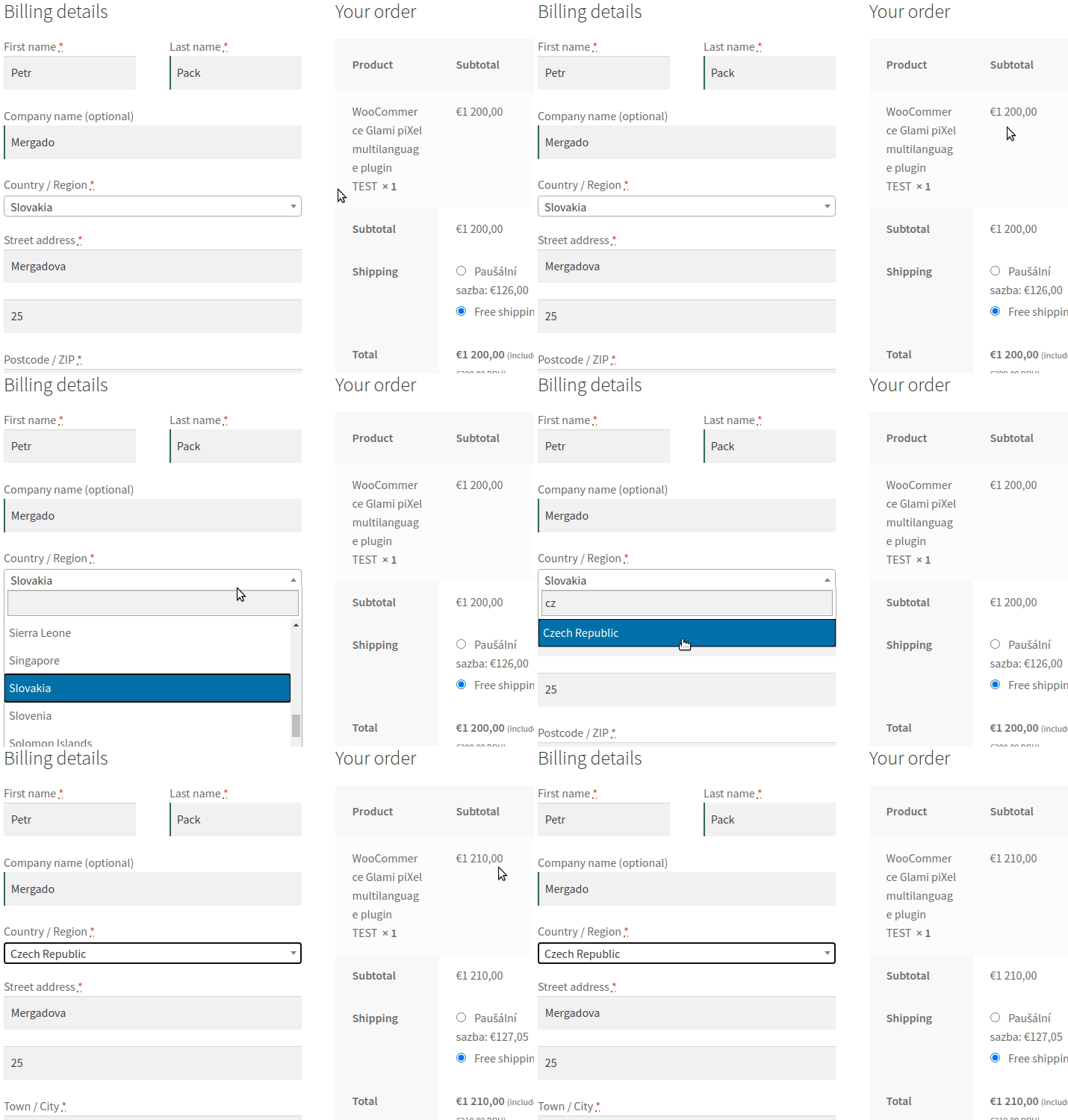
Best Practice:
✔ Add country code
✔ Add state code (if required)
✔ Define tax percentage
✔ Set tax name (VAT, GST, Sales Tax)
Test each region carefully.
4️⃣ VAT for European Union (EU)
EU VAT is complex.
You must:
✔ Charge VAT based on customer country
✔ Store VAT numbers for B2B customers
✔ Apply reverse charge if valid VAT number provided
Important:
-
Display VAT clearly
-
Validate VAT IDs
-
Maintain compliance records
👉 EU VAT misconfiguration can lead to penalties.
5️⃣ US Sales Tax Configuration
In the US:
-
Tax is state-based
-
Some states require local tax
-
Nexus rules apply
WooCommerce allows:
✔ State-level tax
✔ ZIP-code level tax
✔ Location-based calculation
Always verify nexus obligations before applying US tax rules.
6️⃣ Tax-Inclusive vs Tax-Exclusive Pricing
WooCommerce allows two display options:
🔹 Prices Inclusive of Tax
Displayed price includes tax.
Example:
Product price = $120 (includes 20% VAT)
🔹 Prices Exclusive of Tax
Tax added at checkout.
Example:
Product price = $100
VAT added later = $20

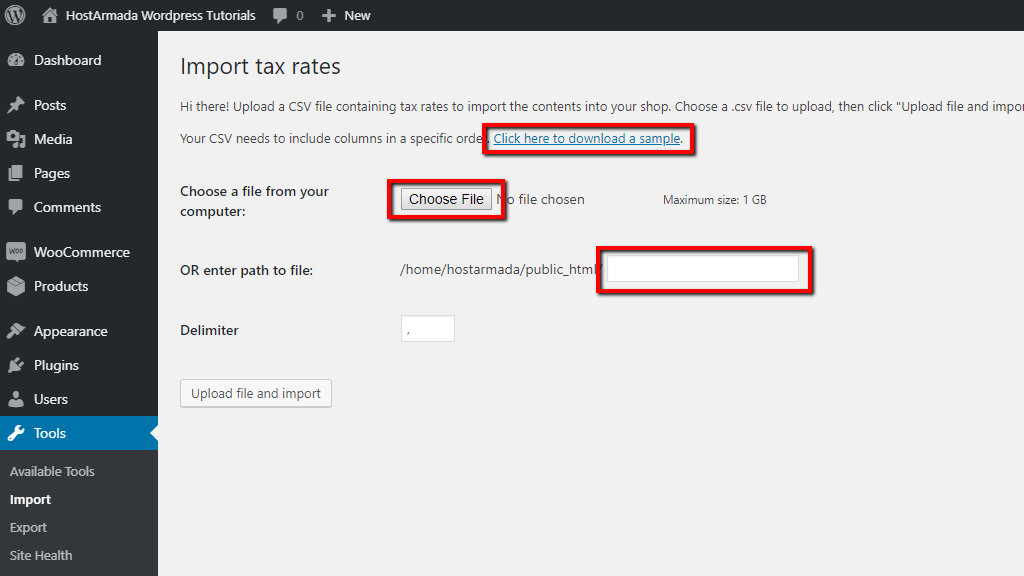

Choose based on region:
-
EU → Usually tax-inclusive
-
US → Often tax-exclusive
7️⃣ Digital Products Tax Rules
Digital products often have different tax regulations.
Examples:
-
Online courses
-
Software
-
eBooks
-
Memberships
In some regions, digital goods are taxed differently from physical goods.
Use separate tax classes for digital products to avoid errors.
8️⃣ Multi-Currency + Tax Interaction
If your store supports multiple currencies:
✔ Ensure tax percentages remain accurate
✔ Confirm rounding rules
✔ Test currency conversion impact
Tax calculation must work consistently across currencies.
9️⃣ Displaying Taxes Transparently
Transparency builds trust.
Display:
✔ Tax breakdown in cart
✔ Tax summary on checkout
✔ Tax clearly on invoice
✔ Tax name (VAT/GST/Sales Tax)
Customers should never feel confused about pricing.
🔟 Testing Advanced Tax Configuration
Before going live:
✔ Test checkout for multiple countries
✔ Test different product tax classes
✔ Test VAT validation
✔ Test inclusive vs exclusive pricing
✔ Verify invoice formatting
Tax mistakes are expensive — always test thoroughly.
🚨 Common Global Tax Mistakes
❌ Using one global tax rate
❌ Ignoring EU VAT rules
❌ No state-level US tax
❌ Wrong tax display format
❌ Not updating rates annually
Tax laws change — review regularly.
📊 Ongoing Tax Maintenance
After launch:
✔ Review tax rules quarterly
✔ Update rates annually
✔ Monitor new country regulations
✔ Sync with accounting system
Automation helps, but manual review is necessary.
📚 Also Read (Internal Links)

Hire Me on Upwork – Dokan & WooCommerce Expert

 Chat on WhatsApp