
As your WordPress website grows, basic user roles are no longer enough.
When you have:
-
Multiple team members
-
Content editors
-
SEO managers
-
Developers
-
eCommerce managers
-
Membership users
You need advanced user roles and custom capabilities to control access securely.
Without proper role management:
❌ Users get too much access
❌ Security risks increase
❌ Accidental changes happen
❌ Workflow becomes messy
This guide explains how to manage advanced user roles and custom capabilities in WordPress, step by step.
🔴 Why Advanced User Roles Matter
WordPress is powerful because it allows controlled access.
But many site owners make the mistake of:
-
Giving everyone Administrator access
-
Not defining permissions clearly
-
Ignoring capability structure
👉 Proper role management protects your website and improves workflow efficiency.
🧠 How WordPress Roles & Capabilities Work
In WordPress:
-
Role = A group of permissions
-
Capability = A specific permission
Example:
Role → Editor
Capabilities → Edit posts, publish posts, manage categories
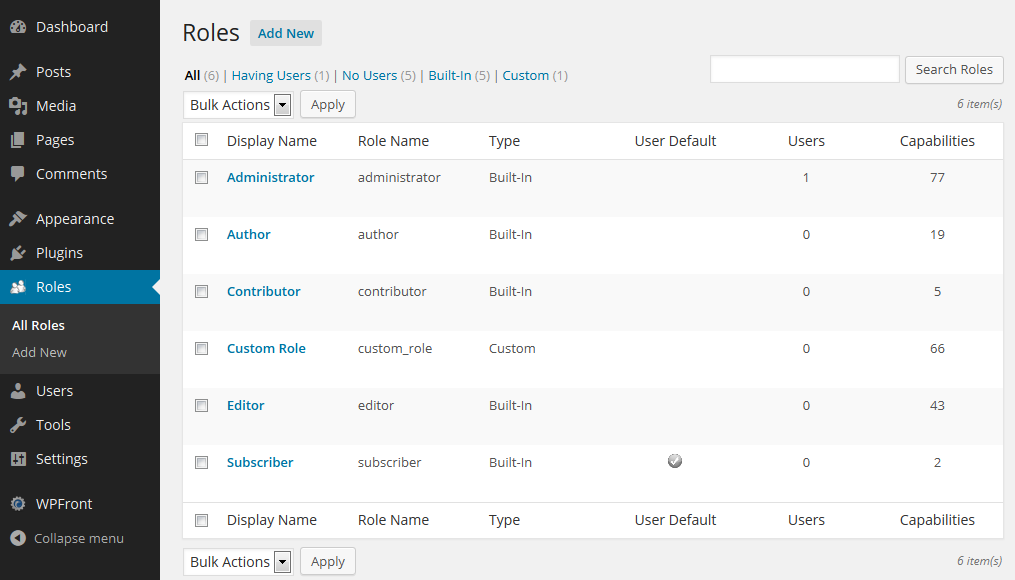
WordPress default roles include:
-
Administrator
-
Editor
-
Author
-
Contributor
-
Subscriber

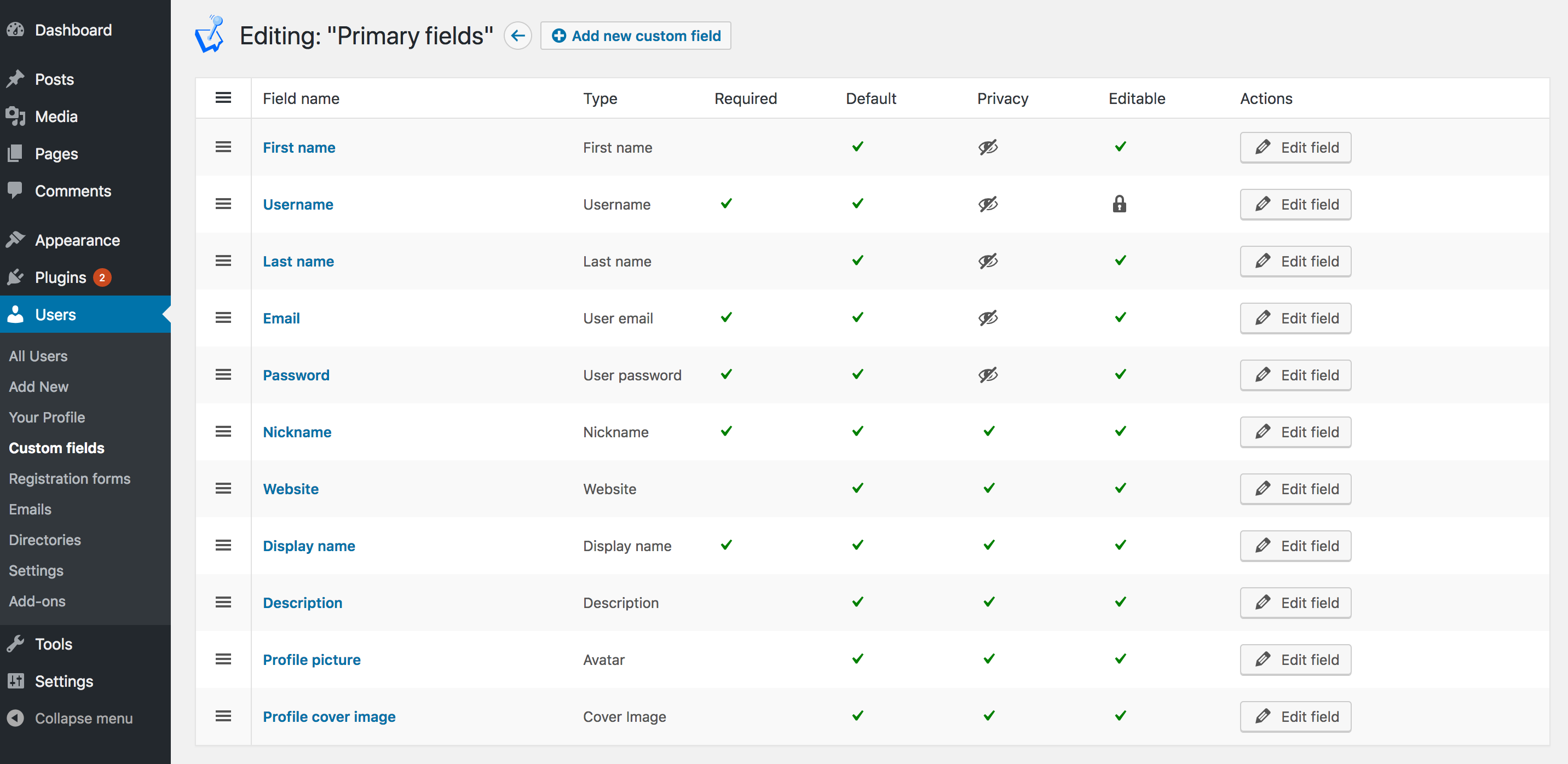

But advanced websites need more control.
1️⃣ Understanding Default WordPress Roles
Let’s break them down:
🔹 Administrator
Full control over the website.
🔹 Editor
Can manage and publish all posts.
🔹 Author
Can publish and manage own posts.
🔹 Contributor
Can write posts but cannot publish.
🔹 Subscriber
Can only manage profile.
👉 These are basic — not enough for complex websites.
2️⃣ What Are Custom Roles?
Custom roles allow you to create:
-
SEO Manager
-
Shop Manager
-
Support Staff
-
Content Reviewer
-
Course Instructor
-
Vendor (in marketplace setups)
Each role can have specific capabilities assigned manually.
3️⃣ Common Advanced Role Use Cases
🛍 eCommerce Website
-
Product Manager (manage products only)
-
Order Manager (manage orders only)
-
Support Agent (view orders, no editing)
📝 Content Website
-
SEO Specialist (edit posts, no publishing)
-
Content Reviewer (approve content only)
-
Media Manager (upload media only)
🎓 Membership / LMS Website
-
Instructor (manage courses)
-
Student (access course content only)
Advanced roles prevent cross-access problems.
4️⃣ Creating Custom Roles in WordPress
You can create custom roles using:
-
Code-based approach
-
Role management plugin
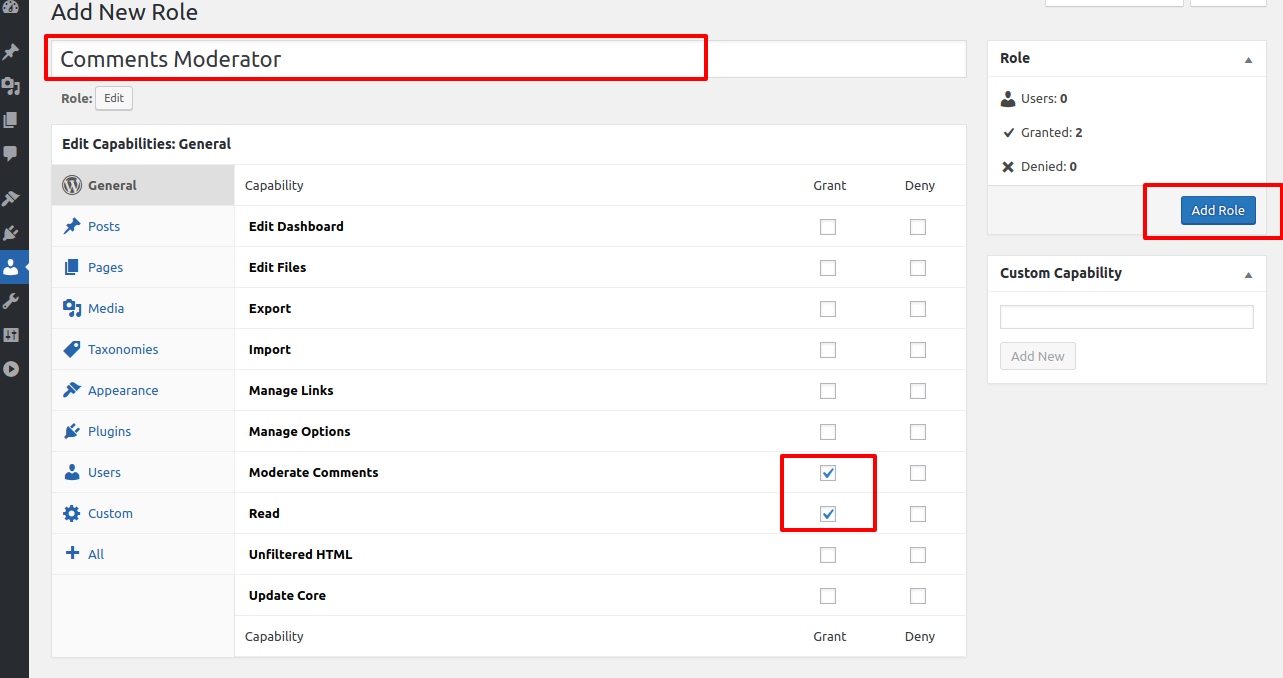

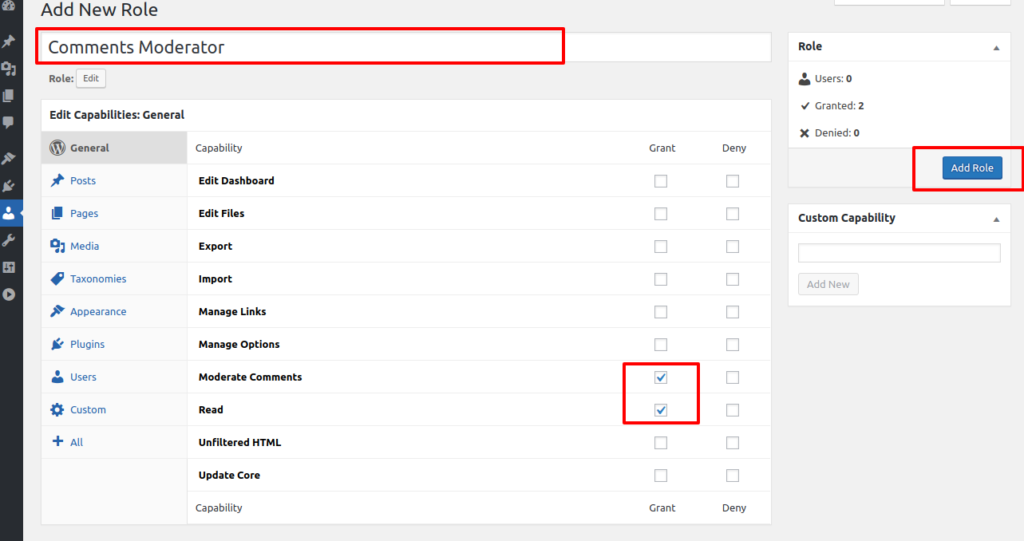
Steps:
1️⃣ Define new role
2️⃣ Assign capabilities
3️⃣ Test permissions
4️⃣ Assign role to users
Always test new roles with a secondary account.
5️⃣ Understanding Capabilities (Granular Control)
Capabilities include:
-
edit_posts
-
publish_posts
-
delete_posts
-
manage_options
-
edit_users
-
manage_woocommerce
-
manage_orders
Granular capability control allows:
✔ Precise permission setup
✔ Reduced security risks
✔ Clear workflow boundaries
👉 Capabilities are more important than roles.
6️⃣ Advanced Capability Examples
Example 1: SEO Manager Role
Capabilities:
✔ edit_posts
✔ edit_pages
✔ upload_files
❌ publish_posts
❌ manage_users
This allows SEO optimization without publishing authority.
Example 2: Order Manager Role (WooCommerce)
Capabilities:
✔ manage_orders
✔ view_reports
❌ manage_settings
❌ delete_products
Perfect for customer support staff.
7️⃣ Role Hierarchy & Permission Conflicts
WordPress roles are not hierarchical by default.
If a user has multiple roles, permission conflicts may occur.
Best practice:
✔ Assign only one primary role
✔ Avoid overlapping permissions
✔ Audit roles quarterly
Complex role stacking can create vulnerabilities.
8️⃣ Security Benefits of Custom Roles
Advanced roles improve:
🔐 Website security
🔐 Data protection
🔐 Admin panel safety
🔐 Reduced accidental changes
Limiting access reduces risk of:
-
Malware injection
-
Unauthorized changes
-
Data leaks
👉 Security starts with user control.
9️⃣ Auditing User Roles Regularly
As your website grows:
✔ Remove inactive users
✔ Update role permissions
✔ Monitor unusual access
✔ Review capability assignments
Quarterly audits prevent long-term issues.
🔟 Common User Role Mistakes
❌ Giving everyone admin access
❌ Not testing new roles
❌ Forgetting to remove ex-employees
❌ Ignoring capability conflicts
❌ Overcomplicating roles
Role management should be structured, not chaotic.
📈 Scaling User Management for Large Websites
For larger teams:
✔ Define role documentation
✔ Create onboarding checklist
✔ Standardize permission levels
✔ Assign responsibility clearly
Clear documentation reduces confusion.
📚 Also Read (Internal Links)

Hire Me on Upwork – Dokan & WooCommerce Expert

 Chat on WhatsApp