
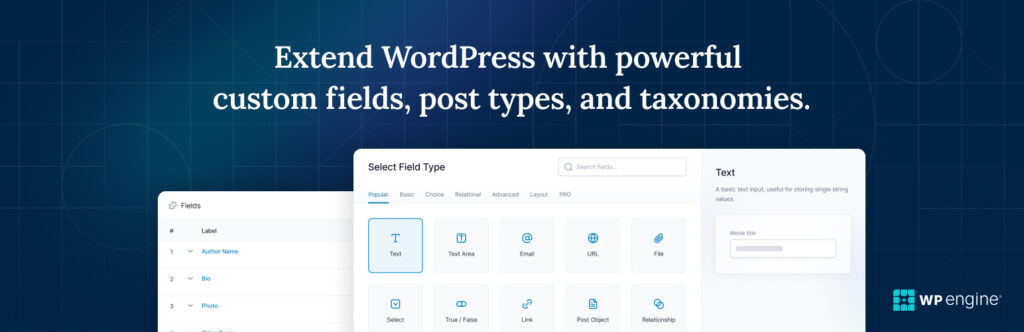
WordPress custom post type pluginis powerful because it’s not limited to just posts and pages.
If you’re building:
-
A real estate website
-
A job portal
-
A directory website
-
A portfolio website
-
An event listing site
-
A service-based platform
You need Custom Post Types (CPTs).
By default, WordPress includes:
-
Posts
-
Pages
But advanced websites require structured content types like:
-
Properties
-
Jobs
-
Events
-
Products
-
Testimonials
-
Courses
This guide explains how to create Custom Post Types (CPT) in WordPress, step by step.
🔴 What Is a Custom Post Type (CPT)?
A Custom Post Type is a separate content structure inside WordPress.
Example:
WordPress custom post type pluginis
Instead of adding properties as blog posts, you create:
“Property” post type
Instead of adding events as pages, you create:
“Events” post type
CPT allows:
✔ Separate admin menu
✔ Custom fields
✔ Custom templates
✔ Better content organization
👉 CPT turns WordPress into a full CMS.
🧠 Why Use Custom Post Types?
Using CPT improves:
✔ Content structure
✔ SEO organization
✔ Admin clarity
✔ Template control
✔ Scalability
Without CPT, content becomes messy and hard to manage.
🧱 When Should You Create a CPT?
Create CPT when:
✔ Content is repeatable
✔ Requires custom fields
✔ Needs separate design
✔ Should not mix with blog posts
Examples:
| Website Type | CPT Example |
|---|---|
| Real Estate | Properties |
| Job Board | Jobs |
| Events Site | Events |
| Directory | Listings |
| LMS | Courses |
1️⃣ Method 1: Create CPT Using Plugin (Recommended for Beginners)
The easiest way is using a CPT plugin.
Steps:
1️⃣ Install CPT plugin
2️⃣ Click “Add Post Type”
3️⃣ Enter slug (e.g., property)
4️⃣ Configure labels
5️⃣ Save settings

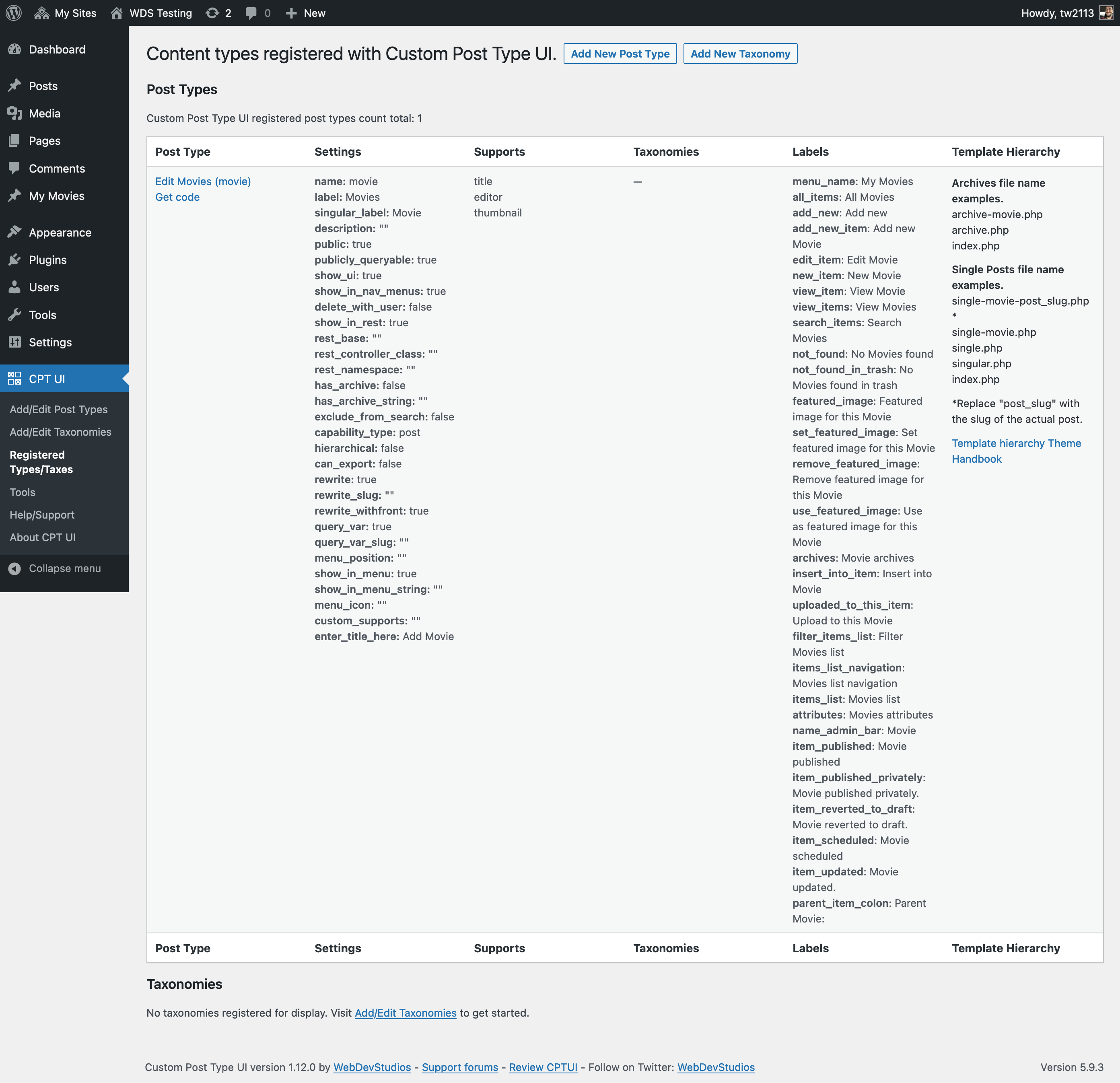

After saving, you’ll see a new menu item in the admin dashboard.
2️⃣ Method 2: Create CPT Using Code (Developer Method)
For full control, you can register CPT using code.
Add in theme’s functions.php or custom plugin:
register_post_type(‘property’,
array(
‘labels’ => array(
‘name’ => __(‘Properties’),
‘singular_name’ => __(‘Property’)
),
‘public’ => true,
‘has_archive’ => true,
‘rewrite’ => array(‘slug’ => ‘properties’),
‘supports’ => array(‘title’, ‘editor’, ‘thumbnail’)
)
);
}
add_action(‘init’, ‘create_property_cpt’);
⚠ Always use a child theme or custom plugin to avoid losing changes during updates.
3️⃣ Understanding CPT Parameters
Important arguments in register_post_type():
✔ public → Visible on frontend
✔ has_archive → Enables archive page
✔ rewrite → Defines URL slug
✔ supports → Defines features (title, editor, thumbnail)
✔ menu_icon → Custom admin icon
These control how your CPT behaves.
4️⃣ Adding Custom Fields to CPT
CPT alone is not enough — most need custom data.
Example:
For “Property” CPT:
-
Price
-
Location
-
Bedrooms
-
Bathrooms
-
Area size


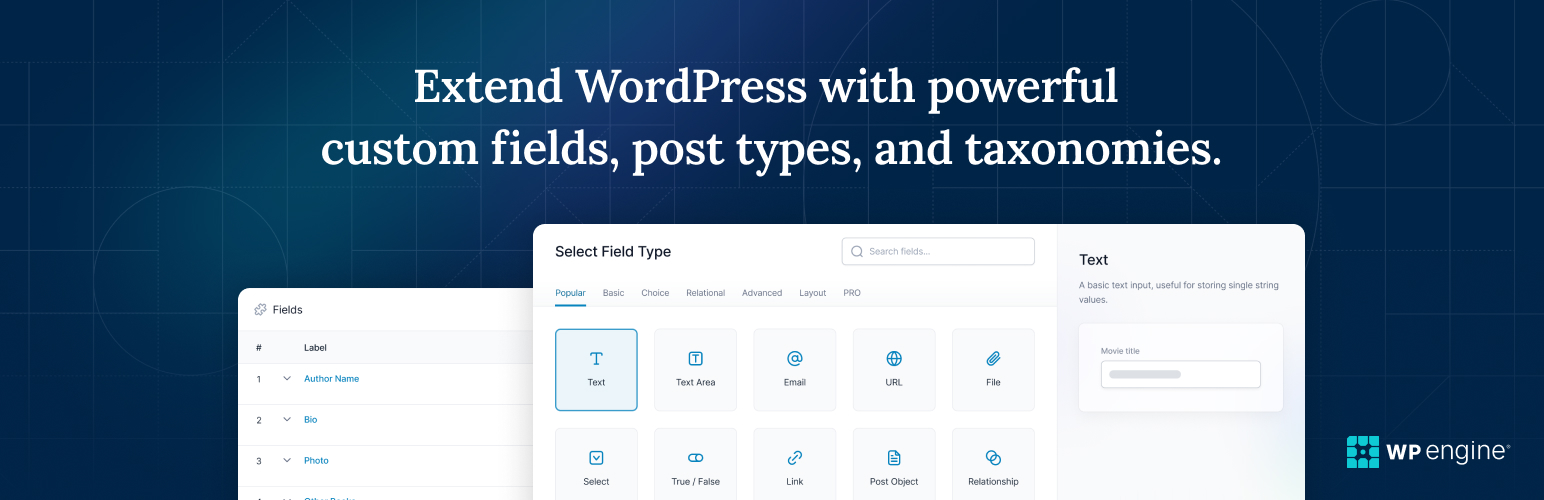
You can use:
-
Custom fields (basic)
-
Advanced field plugins
-
Meta boxes via code
Structured data improves flexibility.
5️⃣ Creating CPT Templates
CPT supports custom templates:
-
single-property.php
-
archive-property.php
This allows:
✔ Unique design
✔ Custom layout
✔ Different styling from blog posts
Example structure:
archive-property.php
Templates must match CPT slug.
6️⃣ Custom Taxonomies for CPT
Taxonomies help categorize CPT.
Example:
For Property CPT:
-
Location
-
Property Type
-
Status (Sale / Rent)
Taxonomies work like categories but are custom.
Example code:
‘label’ => ‘Property Type’,
‘rewrite’ => array(‘slug’ => ‘property-type’),
‘hierarchical’ => true,
));
Custom taxonomies improve filtering and SEO.
7️⃣ CPT and SEO Optimization
To optimize CPT for SEO:
✔ Enable public visibility
✔ Enable archives
✔ Customize meta titles
✔ Create structured URLs
✔ Add schema markup
Example URL:
example.com/properties/luxury-apartment
Better than mixing inside blog.
8️⃣ Common CPT Mistakes
❌ Not enabling has_archive
❌ Forgetting permalink flush
❌ Registering CPT inside theme only
❌ No template customization
❌ No SEO optimization
After creating CPT, go to:
Settings → Permalinks → Save Changes
This refreshes rewrite rules.
9️⃣ CPT for Advanced Websites
Custom Post Types are essential for:
✔ Real estate platforms
✔ Directory websites
✔ Marketplace sites
✔ LMS platforms
✔ Membership portals
CPT transforms WordPress from blog to full CMS.
🔟 Scaling with CPT
For large websites:
✔ Document CPT structure
✔ Standardize fields
✔ Use REST API if needed
✔ Avoid overcomplicated structures
Well-planned CPT structure ensures scalability.
📚 Also Read (Internal Links)

Hire Me on Upwork – Dokan & WooCommerce Expert

 Chat on WhatsApp