
Customizing a WordPress website is easy.
Customizing it safely is what makes you a professional.
Many developers directly edit theme files like functions.php or header.php. The site works fine — until the theme updates. Then suddenly:
❌ All changes disappear
❌ Layout breaks
❌ Custom features stop working
❌ Client calls you urgently
If you are working with WordPress, learning how to use Child Themes properly is non-negotiable.
This complete guide explains:
-
What a WordPress child theme is
-
Why it’s important
-
How to create it (step-by-step)
-
How to override templates
-
How to customize WooCommerce safely
-
Common mistakes developers make
You can copy this process directly into your development workflow.
🧠 What Is a WordPress Child Theme?


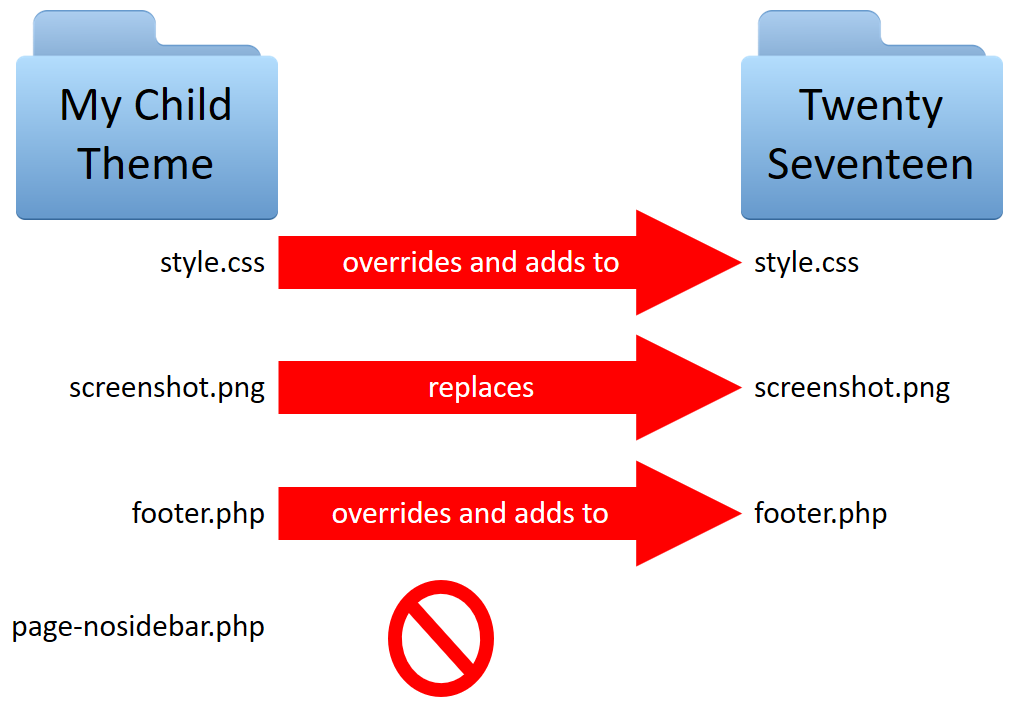
A Child Theme is a theme that inherits the functionality and styling of another theme (called the Parent Theme).
Instead of editing the parent theme files directly, you:
1️⃣ Create a separate child theme
2️⃣ Add your customizations there
3️⃣ Let WordPress load parent + child together
When the parent theme updates, your customizations stay safe.
🚨 Why You Should Never Edit the Parent Theme
If you modify:
-
style.css -
functions.php -
header.php -
footer.php -
WooCommerce template files
Your changes will be erased after a theme update.
This creates:
-
Maintenance problems
-
Client trust issues
-
Broken production sites
-
Extra development cost
Using a child theme prevents all of this.
When Should You Use a Child Theme?
You should use a child theme when:
✔ Adding custom PHP
✔ Modifying template structure
✔ Overriding WooCommerce layouts
✔ Removing or adding hooks
✔ Customizing headers & footers
✔ Building client projects
If you are doing professional WordPress development — always use one.
Step-by-Step: How to Create a WordPress Child Theme
1️⃣ Create the Child Theme Folder
Go to:
Create a new folder:
Example:
The folder name can be anything — but it should relate to the parent theme.
2️⃣ Create the style.css File
Inside the child theme folder, create:
Add this header:
Theme Name: Astra Child
Template: astra
Version: 1.0
*/
⚠ Important:
Template: must match the parent theme folder name exactly.
If the parent theme folder is astra, then Template must be astra.
3️⃣ Create functions.php File
Create:
Add this code:
function my_child_theme_enqueue_styles() {
wp_enqueue_style(
‘parent-style’,
get_template_directory_uri() . ‘/style.css’
);
}
add_action(‘wp_enqueue_scripts’, ‘my_child_theme_enqueue_styles’);
This ensures the parent theme styles load correctly.
4️⃣ Activate the Child Theme
Go to:
Dashboard → Appearance → Themes
Activate your child theme.
Your website will look exactly the same — but now it’s safe for customization.
🎨 Adding Custom CSS in Child Theme
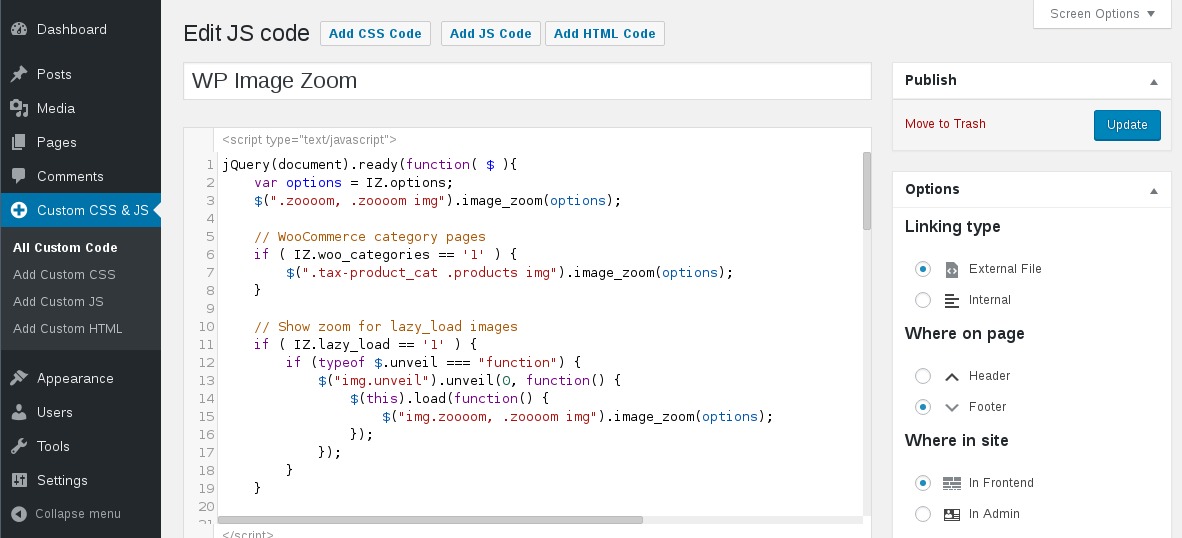

Add CSS inside:
Example:
color: #ff0000;
}
The child theme CSS overrides the parent theme automatically.
🧩 Overriding Theme Template Files
If you want to edit:
-
header.php -
footer.php -
single.php -
page.php
Copy the file from parent theme into child theme.
Example:
From:
To:
Now edit the child version only.
WordPress always loads child templates first.
🛒 Customizing WooCommerce Using Child Theme
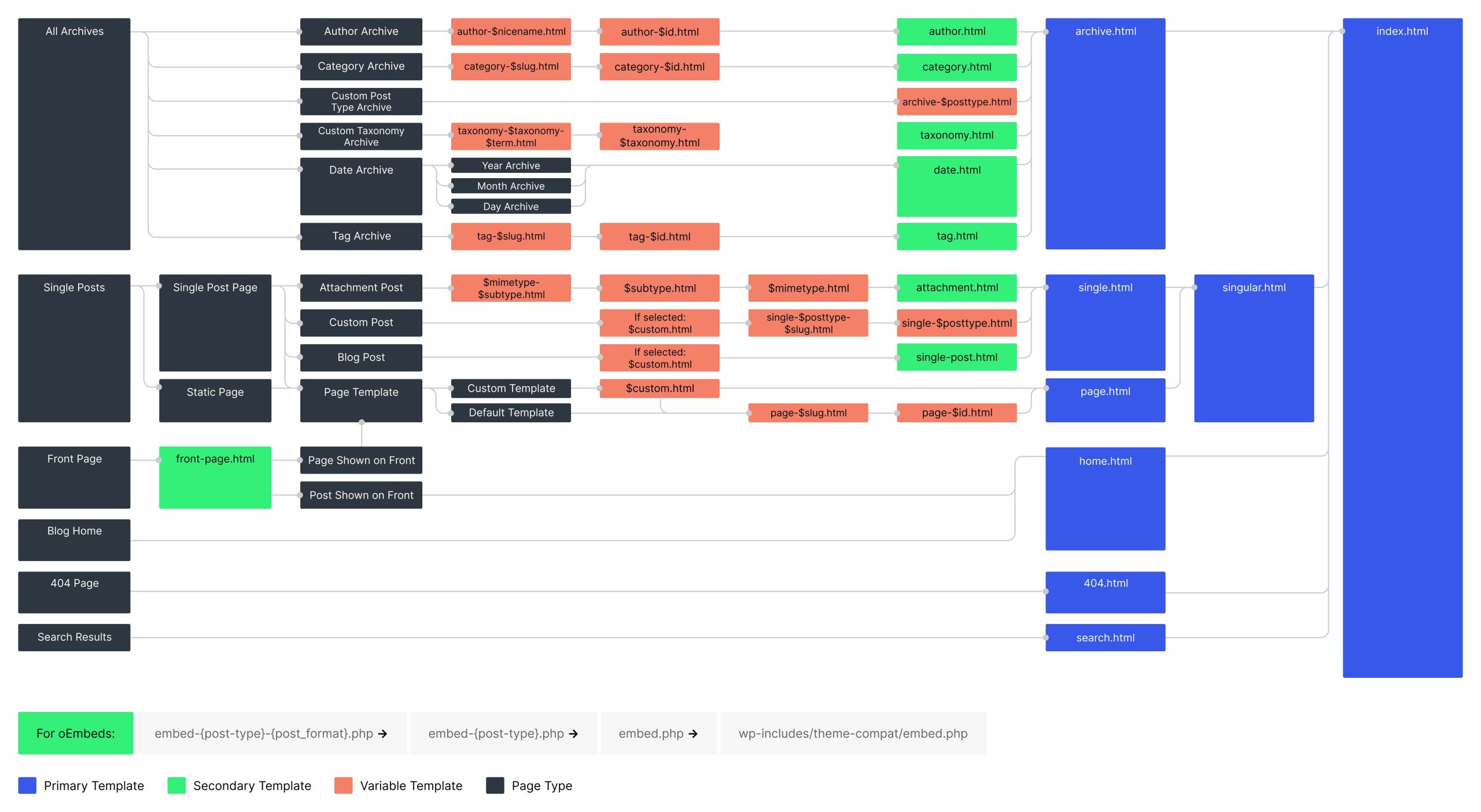

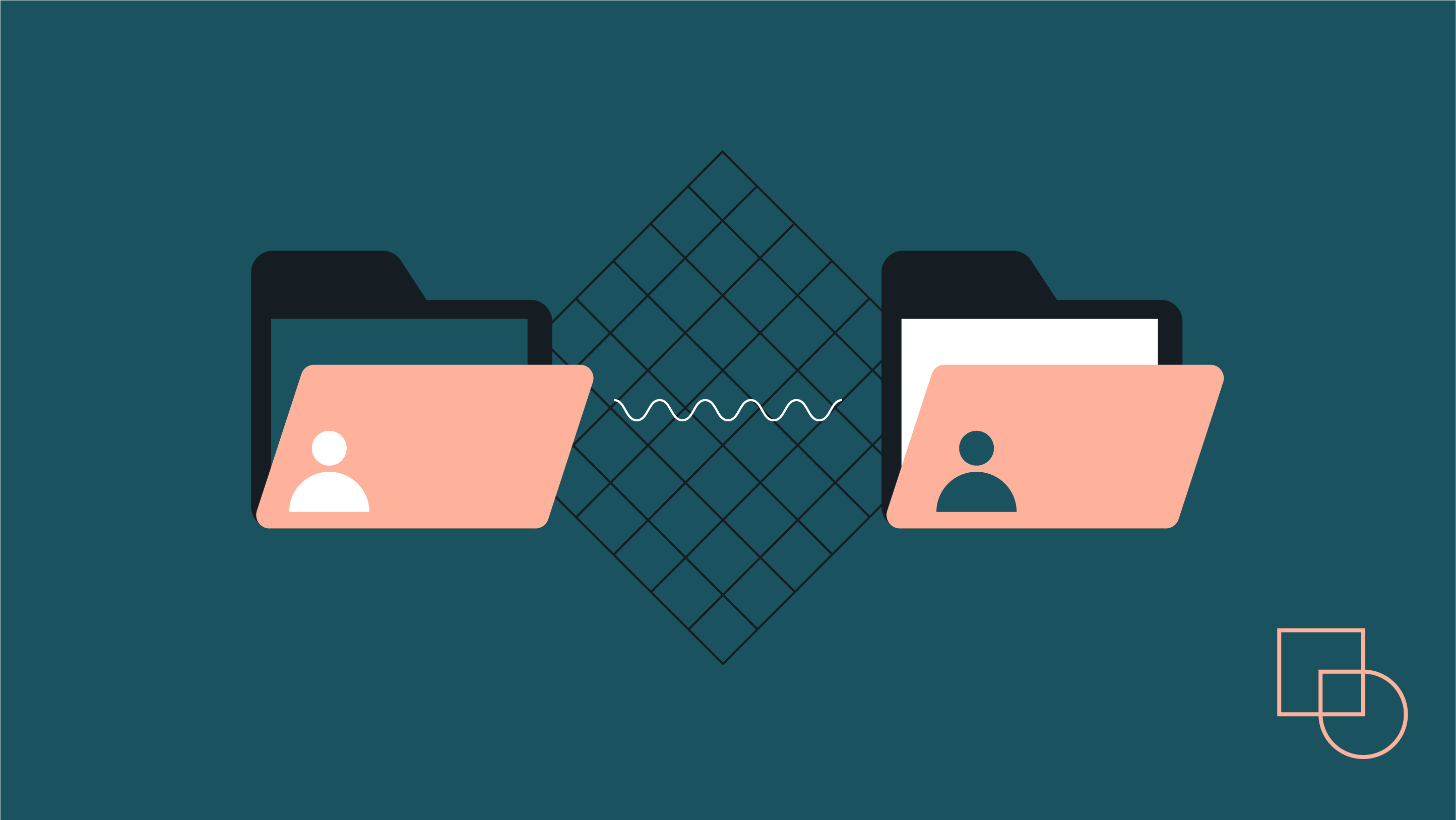
If your store uses WooCommerce, child themes become even more important.
WooCommerce allows template overrides.
Create this folder inside child theme:
Example:
To override the single product page:
Copy from:
Paste into:
Now you can customize layout safely.
This is useful for:
✔ Custom checkout design
✔ Product layout changes
✔ Shipping modifications
✔ Multi-vendor marketplaces
⚡ Advanced Customization Using functions.php
You can:
-
Add custom hooks
-
Remove default actions
-
Create shortcodes
-
Modify WooCommerce behavior
-
Add custom AJAX
Example:
Remove product meta:
‘woocommerce_single_product_summary’,
‘woocommerce_template_single_meta’,
40
);
Add custom text after price:
‘woocommerce_single_product_summary’,
‘custom_text_after_price’,
15
);function custom_text_after_price() {
echo ‘<p>Free shipping on orders above ₹999</p>‘;
}
Child theme is the safest place for this logic.
🆚 Child Theme vs Custom Plugin
Use Child Theme when:
✔ Modifying design
✔ Overriding templates
✔ Layout changes
Use Custom Plugin when:
✔ Adding reusable functionality
✔ Creating business logic
✔ Building features independent of theme
Professional developers often use both together.
🚫 Common Mistakes to Avoid
❌ Wrong Template name in style.css
❌ Not loading parent stylesheet
❌ Editing parent theme accidentally
❌ Overriding too many files unnecessarily
❌ Forgetting to test after updates
Keep your child theme clean and minimal.
🏗 Why Child Themes Are Critical for Client Projects
If you are building websites for clients:
-
Theme updates are unavoidable
-
Security patches are mandatory
-
Layout changes are common
Without a child theme:
⚠ Your customizations disappear
⚠ Website may break
⚠ Maintenance becomes messy
With a child theme:
✔ Safe updates
✔ Clean structure
✔ Professional workflow
✔ Long-term scalability
📚 Also Read
- WooCommerce Shipping Not Working – Fix Guide
- WooCommerce Advanced Shipping Rules & Conditional Shipping

Hire Me on Upwork – Dokan & WooCommerce Expert

 Chat on WhatsApp