
WooCommerce updates are released regularly to improve performance, security, and compatibility.
But for many store owners, updates can be risky — a small change can break checkout, payments, or shipping.
If your store is built using WooCommerce, this guide explains what typically changes in WooCommerce updates and what you MUST check after updating to keep your store running smoothly.
🔴 Why WooCommerce Updates Matter
WooCommerce updates are not just cosmetic. They often include:
-
Security patches
-
Performance improvements
-
Bug fixes
-
Compatibility with new WordPress & PHP versions
Ignoring updates can lead to:
❌ Security vulnerabilities
❌ Broken checkout
❌ Plugin conflicts
❌ Poor performance


🧠 What Usually Changes in WooCommerce Updates?
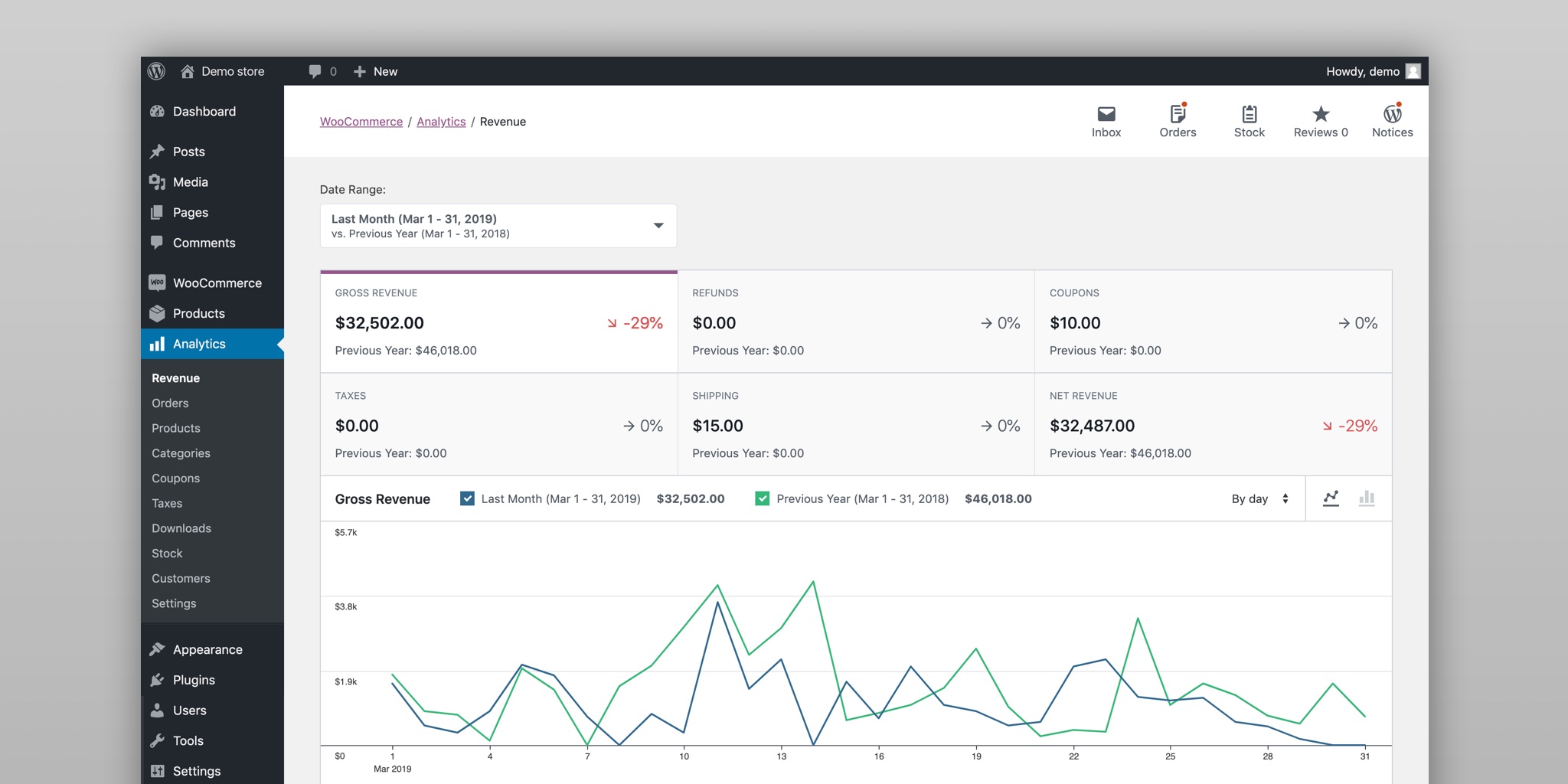
Most WooCommerce updates include changes in these areas:
🔹 1. Performance Improvements
-
Faster product queries
-
Optimized cart & checkout
-
Better database handling
🔹 2. Security Fixes
-
Patches for known vulnerabilities
-
Improved data handling
🔹 3. Compatibility Updates
-
Support for latest WordPress version
-
Support for newer PHP versions
-
Better theme compatibility
🔹 4. API & Code Changes
-
REST API updates
-
Deprecated functions removed
-
New hooks & filters added


⚠️ What Can Break After a WooCommerce Update?
After updating WooCommerce, store owners often face:
-
Checkout not working
-
Payment gateway errors
-
Shipping methods missing
-
Theme layout issues
-
Custom code breaking
-
Dokan vendor features not working
These issues usually happen due to plugin or theme incompatibility.
✅ What to Check After Every WooCommerce Update (VERY IMPORTANT)
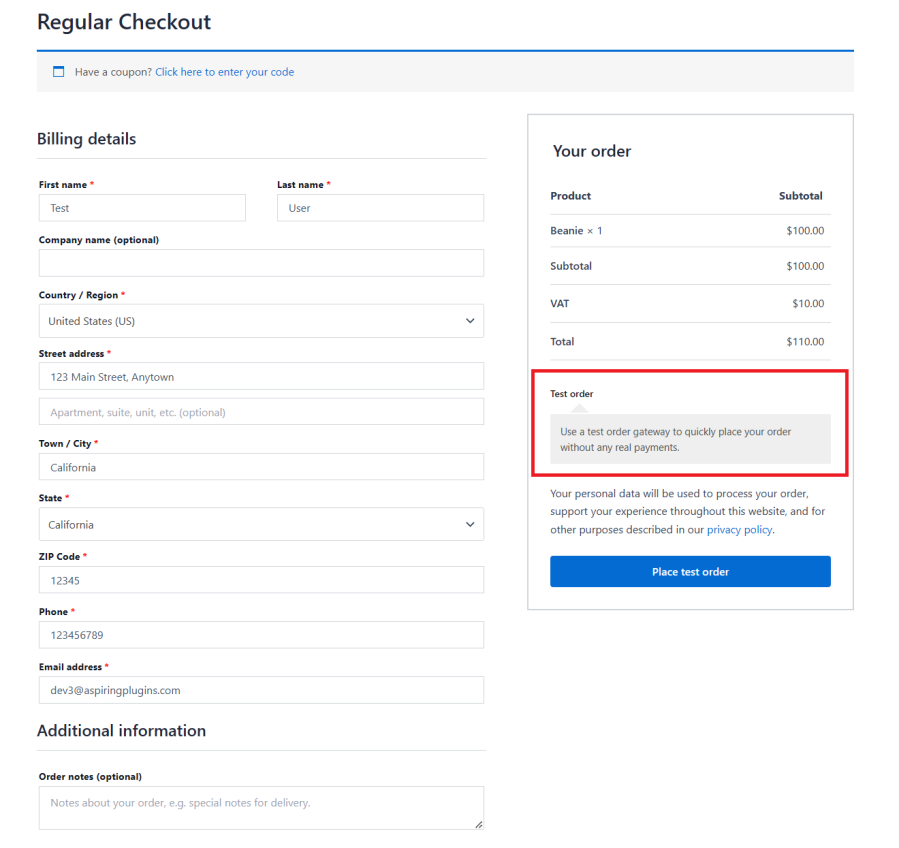
1️⃣ Test Checkout Process
-
Add product to cart
-
Go to checkout
-
Place a test order
✔ This is the most critical step
2️⃣ Check Payment Gateways
-
Stripe / PayPal / Razorpay
-
Test payment in sandbox or test mode
✔ Ensure orders move to correct status
3️⃣ Verify Shipping Methods
-
Check shipping zones
-
Confirm rates are displayed
-
Test different locations

4️⃣ Review Theme Compatibility
-
Check product pages
-
Cart & checkout layout
-
Mobile view
If layout breaks, your theme may need an update.
5️⃣ Check Custom Code & Snippets
If you use:
-
Custom plugins
-
Code snippets
-
Child theme functions
✔ Test all custom features carefully
6️⃣ Test WooCommerce Extensions
Paid/free extensions may need updates after WooCommerce core updates.
✔ Update extensions
✔ Check extension changelogs
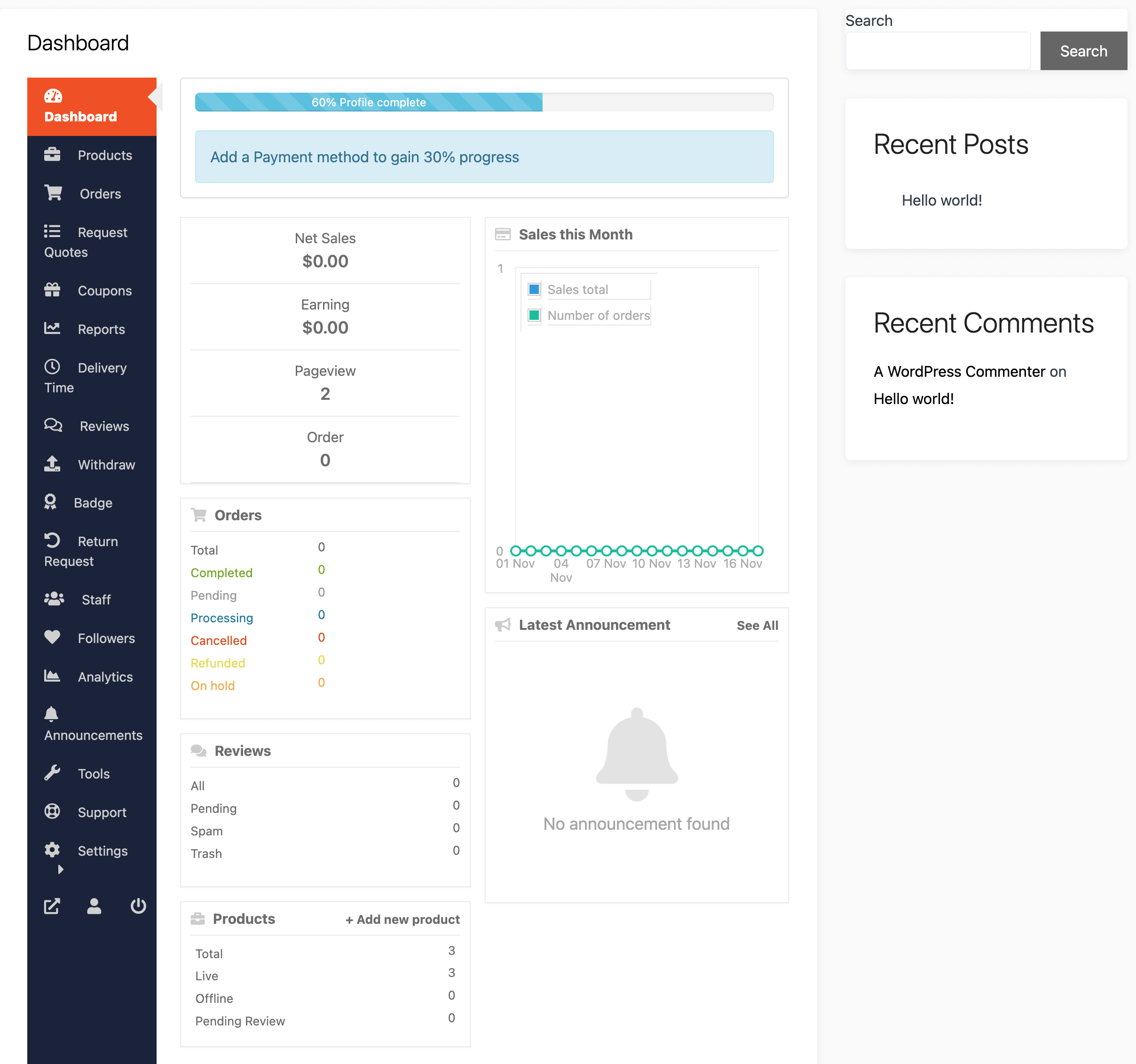
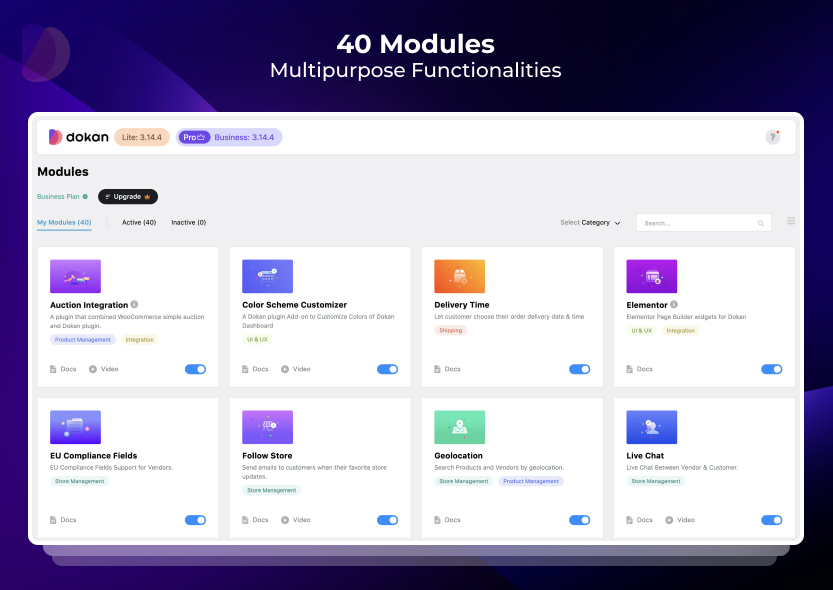
7️⃣ Check Vendor Features (If Using Dokan)
If your store uses Dokan, also test:
-
Vendor dashboard
-
Product submission
-
Vendor checkout & withdrawals
🛑 Best Practices Before Updating WooCommerce
Before clicking Update, always:
✔ Take a full backup
✔ Update on staging site first
✔ Read WooCommerce changelog
✔ Update theme & plugins
✔ Check PHP compatibility
These steps prevent 90% of update-related issues.
🔁 How Often Should You Update WooCommerce?
-
Security updates: Immediately
-
Minor updates: Within a few days
-
Major updates: Test first, then update
Never delay updates for months — that’s risky.
📚 Also Read

Hire Me on Upwork – Dokan & WooCommerce Expert

 Chat on WhatsApp
2 Responses