
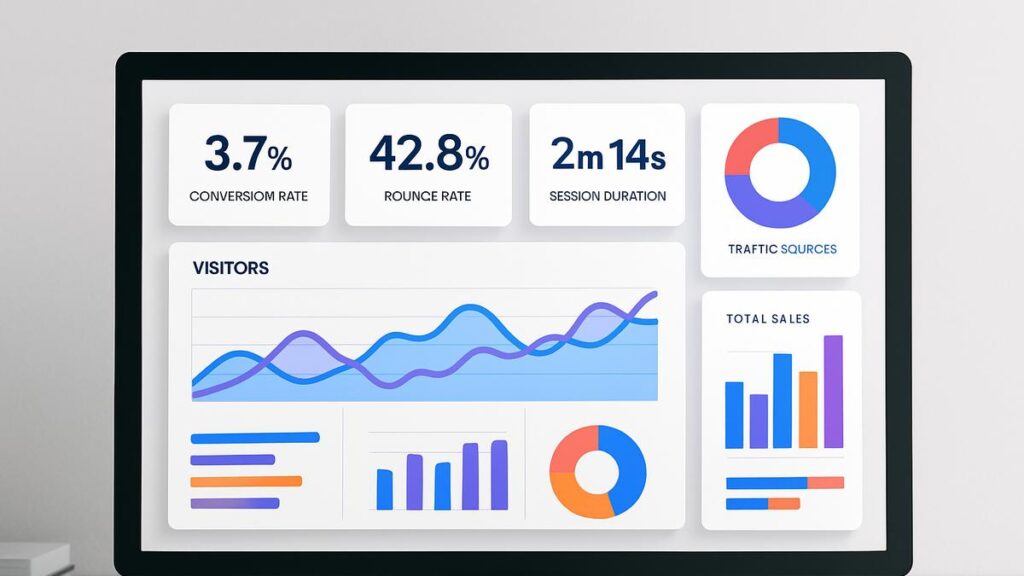


Tracking KPIs (Key Performance Indicators) is essential if you want to grow your website using data instead of guesswork.
With WordPress, you can integrate powerful tools like Google Analytics 4 (GA4) to monitor traffic, conversions, user behavior, and performance.
In this guide, you’ll learn how to track KPIs in WordPress using GA4 and other tools.
🔴 What are KPIs in WordPress?
KPIs are measurable values that show how your website is performing.
Examples:
✔ Traffic (visitors)
✔ Conversion rate
✔ Bounce rate
✔ Session duration
✔ Goal completions
👉 KPIs help you make data-driven decisions
🧠 Why KPI Tracking Matters
Without tracking:
❌ No insights
❌ Poor decisions
❌ Missed growth opportunities
With tracking:
✔ Understand user behavior
✔ Improve conversions
✔ Optimize marketing
✔ Scale business
👉 Data = growth power
📊 Key KPIs to Track
🌐 1️⃣ Traffic (Users & Sessions)
✔ Total visitors
✔ New vs returning users
👉 Measures website reach.
🎯 2️⃣ Conversion Rate
✔ Leads, purchases, signups
👉 Measures success of your website.
⏱️ 3️⃣ Engagement Metrics
✔ Time on site
✔ Pages per session
✔ Engagement rate
👉 Shows user interest.
📉 4️⃣ Bounce Rate
✔ Users leaving quickly
👉 Indicates UX issues.
💰 5️⃣ Revenue (For eCommerce)
✔ Sales data
✔ Order value
👉 Measures business performance.
⚙️ Step 1: Set Up GA4
To start tracking:
- Create GA4 account
- Add website property
- Install tracking code
You can integrate GA4 using:
✔ Plugins
✔ Manual code
✔ Tag Manager
👉 GA4 is the core analytics tool.
🔗 Step 2: Use Google Tag Manager (GTM)
Google Tag Manager helps manage tracking without coding.
Track:
✔ Clicks
✔ Form submissions
✔ Button actions
✔ Events
👉 Advanced tracking made easy.
🔌 Step 3: Use WordPress Analytics Plugins
Popular plugins:
✔ Site Kit by Google
✔ MonsterInsights
✔ Analytify
Features:
✔ Easy GA4 integration
✔ Dashboard reports
✔ Event tracking
👉 Best for beginners.
🎯 Step 4: Set Up Events & Conversions
In GA4, track:
✔ Button clicks
✔ Form submissions
✔ Purchases
✔ Downloads
👉 Events = user actions.
🛒 Step 5: eCommerce Tracking (WooCommerce)
If you use WooCommerce:
✔ Track purchases
✔ Product views
✔ Cart actions
👉 Essential for online stores.
📊 Step 6: Create Custom Dashboards
Use:
✔ GA4 dashboards
✔ Looker Studio (Google Data Studio)
Track:
✔ KPIs in one place
✔ Real-time data
👉 Makes analysis easier.
📈 Step 7: Analyze & Optimize
Use data to:
✔ Improve pages
✔ Optimize CTAs
✔ Fix drop-offs
✔ Increase conversions
👉 Data → Action → Growth
🔐 Step 8: Privacy & Compliance
Ensure compliance with:
✔ GDPR
✔ Cookie consent
✔ Data privacy laws
👉 Important for legal safety.
🚀 Step 9: Automate Reporting
Set up:
✔ Weekly reports
✔ Monthly insights
✔ Alerts
👉 Saves time.
📱 🔟 Mobile KPI Tracking
Track:
✔ Mobile traffic
✔ Mobile conversions
✔ Device performance
👉 Mobile users are majority.
📈 Real Impact of KPI Tracking
After proper tracking:
✔ Better decisions
✔ Higher conversions
✔ Improved UX
✔ Increased revenue
👉 Data-driven growth.
🚨 Common Mistakes to Avoid
❌ Not setting up events
❌ Tracking too many metrics
❌ Ignoring data
❌ No dashboard
👉 Focus on meaningful KPIs.
📌 KPI Tracking Checklist
✔ Set up GA4
✔ Configure GTM
✔ Track events
✔ Create dashboards
✔ Analyze data
👉 Follow this step-by-step.
📚 Internal Links

Hire Me on Upwork – Dokan & WooCommerce Expert

 Chat on WhatsApp