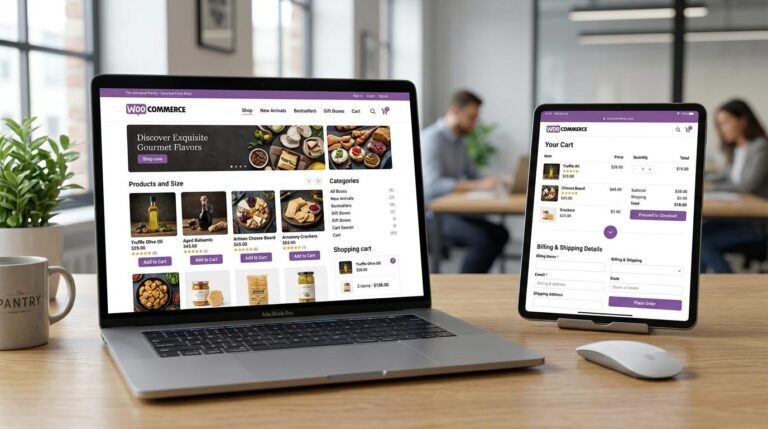
Most shoppers who add something to their cart never complete the purchase. Some were only browsing, but many leave because the checkout is slow, confusing or asks for too much. The good news: checkout is one of the most fixable parts of a WooCommerce store, and small improvements here go straight to revenue.
These are the ten fixes we apply first when a client asks us to improve their checkout.
1. Allow guest checkout
Forcing shoppers to create an account before paying is one of the most common reasons people abandon a cart. In WooCommerce → Settings → Accounts & Privacy, allow customers to place orders without an account. You can still offer account creation after the order is complete.
2. Remove fields you do not need
Every extra field adds friction. If you sell digital products, you may not need a full shipping address. Many stores can drop “Company name” or “Address line 2”, or make them optional. Fewer fields mean faster checkouts, especially on mobile.
3. Show the full cost early
Surprise shipping costs at the last step are a classic abandonment trigger. Show a shipping estimate on the cart page, make free-shipping thresholds visible (“You are $12 away from free shipping”), and avoid adding fees at the final step.
4. Add express payment options
Apple Pay, Google Pay and PayPal let shoppers pay without typing card and address details. Gateways like Stripe and WooPayments support express buttons on product, cart and checkout pages. On mobile, this alone can make a noticeable difference.
5. Make the checkout fast
A slow checkout feels unsafe. Keep the checkout page light: remove unnecessary scripts, sliders and chat widgets from it, use good hosting, and make sure your caching plugin is not caching cart, checkout or account pages. Serving cached checkout pages to customers causes serious bugs.
6. Design for mobile first
Most traffic is mobile. Test your checkout on a real phone: buttons should be large, the keyboard should match the field (number pad for phone numbers, email keyboard for email), and the “Place order” button should be easy to find without endless scrolling.
7. Use address autocomplete
Address autocomplete reduces typing and typos, which also means fewer failed deliveries. Several WooCommerce extensions add address lookup to checkout fields, and some payment providers fill the address automatically with express checkout.
8. Add trust signals near the payment step
Shoppers want reassurance right before they pay. Add short, honest trust signals near the payment section:
- Accepted payment logos and a secure-checkout note
- Your returns or refund policy in one line, with a link
- Delivery time estimates
- A way to contact you if something goes wrong
9. Show clear, friendly errors
Nothing is more frustrating than submitting a form and getting a vague error at the top of the page. Make sure errors appear next to the field that needs fixing and explain what to do. Test what happens when a card is declined. Shoppers should be able to try again easily without losing their details.
10. Recover abandoned carts
Even with a perfect checkout, some people will leave. An abandoned-cart email sequence, sent to shoppers who entered their email but did not finish, recovers a share of those sales. Keep the emails short, link straight back to the cart, and stop sending as soon as they buy.
Classic checkout or the Checkout block?
New WooCommerce stores now use the block-based Cart and Checkout by default. It is fast, modern and works well with express payments. Some older extensions still only support the classic shortcode checkout, though. Before switching, check that your payment gateway, shipping and checkout-field plugins support the block checkout.
Measure before and after
Set up checkout tracking in Google Analytics 4 (begin checkout, add payment info, purchase) before making changes. Then make one or two changes at a time and compare. Optimization works best as a habit, not a one-off project.
Further reading
Want us to audit your checkout?
We review your cart and checkout on desktop and mobile, fix speed and UX issues, and set up tracking so you can see the impact. See our WooCommerce development services or ask for a checkout audit.