
WooCommerce: WooCommerce Tax Configuration (Complete Guide)
Taxes are one of the most important aspects of running an online store. Whether you’re selling locally or internationally, correctly configuring taxes in WooCommerce ensures legal compliance, accurate pricing, and a smooth checkout experience for your customers.
WooCommerce includes a flexible tax engine that supports location-based tax rates, multiple tax classes, shipping taxes, tax-inclusive pricing, and integrations with automated tax services. With the right configuration, you can automate tax calculations and reduce manual work while minimizing costly mistakes.
This comprehensive guide covers everything you need to know about configuring taxes in WooCommerce.
What is WooCommerce Tax Configuration?
WooCommerce Tax Configuration allows your online store to automatically calculate taxes based on customer location, product type, shipping method, and applicable tax rules.
WooCommerce supports various tax systems, including:
- GST (Goods and Services Tax)
- VAT (Value Added Tax)
- Sales Tax
- Service Tax
- Digital Goods Tax
- Regional Tax Rules
The goal is to ensure customers are charged the correct amount at checkout.
Why Proper Tax Configuration Matters
Correct tax settings help you:
- Stay compliant with tax laws
- Prevent pricing errors
- Generate accurate invoices
- Improve customer trust
- Simplify accounting
- Support international sales
- Reduce manual calculations
Accurate tax configuration protects your business from costly mistakes.
Enable Taxes in WooCommerce
To start using taxes:
- Go to WooCommerce → Settings → General.
- Enable Taxes.
- Save changes.
A new Tax tab will appear in WooCommerce settings.
Configure Tax Options
Inside the Tax settings, configure:
Prices Entered With Tax
Choose:
- Inclusive of tax
- Exclusive of tax
Calculate Tax Based On
Select:
- Billing Address
- Shipping Address
- Store Base Address
Shipping Tax Class
Choose whether shipping follows:
- Standard Tax
- Reduced Rate
- Zero Rate
Rounding
Enable or disable tax rounding according to your country’s regulations.
These settings define how WooCommerce calculates taxes.
Tax Classes
WooCommerce allows multiple tax classes.
Examples include:
Standard Rate
For regular taxable products.
Reduced Rate
For discounted or essential goods.
Zero Rate
For tax-exempt products.
Custom Tax Classes
Create unique classes for:
- Digital Products
- Food
- Books
- Luxury Goods
Tax classes provide flexibility for different product types.
Creating Tax Rates
Each tax rate includes:
- Country
- State
- ZIP Code
- City
- Tax Percentage
- Tax Name
- Priority
- Compound Tax
- Shipping Tax
Example:
| Country | Tax | Name |
|---|---|---|
| India | 18% | GST |
| Germany | 19% | VAT |
| United Kingdom | 20% | VAT |
| Australia | 10% | GST |
Configure rates based on your operating regions.
Product Tax Settings
Each WooCommerce product can have:
Tax Status
- Taxable
- Shipping Only
- None
Tax Class
Assign the correct tax class for automatic calculation.
Different products may require different tax treatments.
Shipping Tax Configuration
Choose how taxes apply to shipping.
Options include:
Tax Shipping
Apply the same tax as products.
Separate Shipping Tax
Assign a different tax class.
No Shipping Tax
Exclude shipping from tax calculations.
Always verify local tax regulations before configuring shipping taxes.
Tax-Inclusive vs Tax-Exclusive Pricing
WooCommerce supports two pricing methods.
Tax Inclusive
Displayed price already includes tax.
Example:
₹1,180 (includes 18% GST)
Tax Exclusive
Tax is added during checkout.
Example:
Product Price:
₹1,000
Tax:
₹180
Total:
₹1,180
Choose the option that aligns with your country’s pricing standards.
Location-Based Tax Rules
WooCommerce can calculate taxes based on:
Country
State
City
ZIP Code
Customer Address
Location-based taxation ensures customers are charged correctly.
Digital Product Taxes
Digital products often require separate tax rules.
Examples include:
- Software
- eBooks
- Online Courses
- Memberships
- Digital Downloads
Some countries require taxes based on the customer’s location rather than the seller’s.
Tax Exemptions
Support tax-exempt customers such as:
- Government Organizations
- Nonprofit Organizations
- Wholesale Buyers
- Export Customers
Store administrators can approve exemption requests before purchases.
Automatic Tax Calculation
WooCommerce supports automated tax services.
Popular solutions include:
WooCommerce Tax
Built-in automated tax calculation.
Avalara AvaTax
Enterprise-grade international tax automation.
TaxJar
Automatic sales tax calculations and reporting.
Automation reduces manual maintenance.
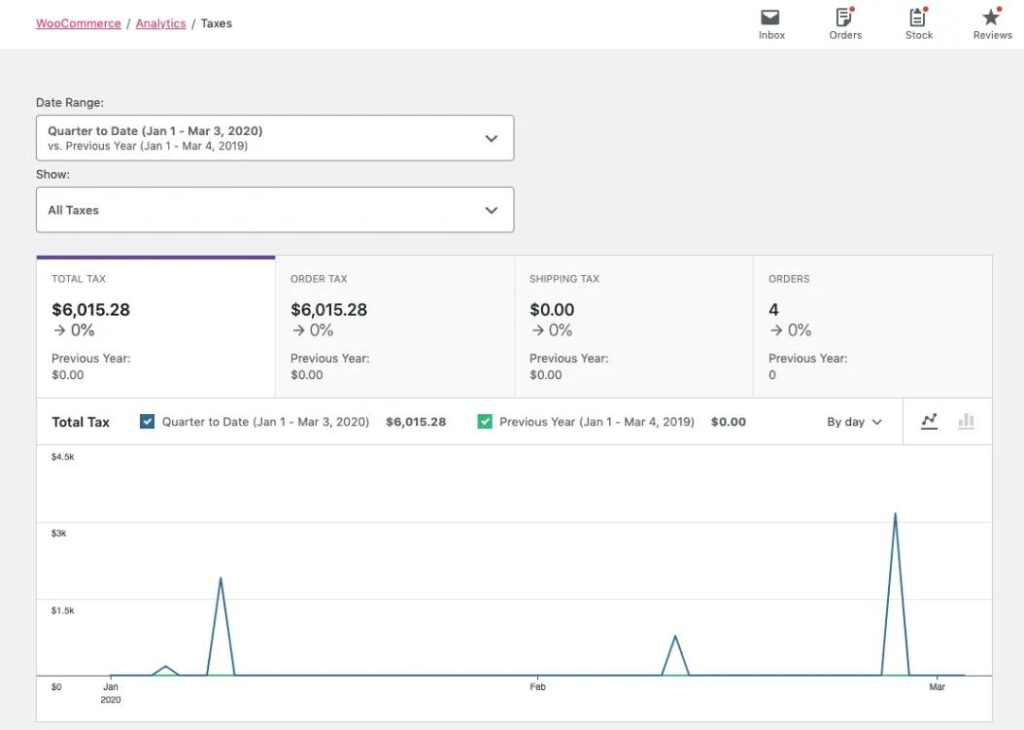
Tax Reports
WooCommerce provides reports including:
Tax Collected
Tax by Date
Tax by Product
Tax by Order
Tax by Location
Reports simplify bookkeeping and tax filing.
Invoice Generation
Invoices should include:
Store Details
Customer Information
Order Number
Product Details
Tax Breakdown
Total Amount
Professional invoices improve customer confidence.
Accounting Integration
Connect WooCommerce with accounting software.
Popular integrations include:
QuickBooks
Xero
Zoho Books
FreshBooks
Tally
This reduces manual bookkeeping and improves accuracy.
International Tax Configuration
Global stores should configure:
VAT Rules
GST Rules
Country-Specific Taxes
Import Duties
Currency-Based Pricing
International tax compliance is essential for cross-border commerce.
Refund Tax Handling
When processing refunds:
- Reverse tax calculations
- Update tax reports
- Generate revised invoices
- Maintain accurate accounting records
Correct refund handling prevents reporting discrepancies.
Performance Optimization
Large WooCommerce stores calculate taxes for thousands of orders.
Optimize performance using:
LiteSpeed Cache
Redis Object Cache
Database Optimization
Cloudflare CDN
Optimized Tax Tables
Efficient systems keep checkout fast.
Security Best Practices
Protect financial data with:
SSL Certificate
Secure Checkout
Role-Based Permissions
Activity Logs
Two-Factor Authentication
Daily Backups
Security protects sensitive customer and tax information.
Best WooCommerce Tax Plugins
WooCommerce Tax
Automatically calculates taxes based on customer location.
Best For
Most WooCommerce stores.
Avalara AvaTax
Enterprise solution for automated tax compliance.
Best For
International businesses.
TaxJar
Automates U.S. sales tax calculations and reporting.
Best For
Businesses operating in multiple U.S. states.
EU VAT for WooCommerce
Handles VAT validation and calculations for European customers.
Best For
Digital products and EU businesses.
WooCommerce PDF Invoices & Packing Slips
Automatically generates tax-compliant invoices.
Best For
Professional invoicing and accounting.
Recommended Plugin Stack
WooCommerce
Core eCommerce platform.
WooCommerce Tax
Automatic tax calculation.
WooCommerce PDF Invoices & Packing Slips
Professional invoices.
Avalara AvaTax
Global tax automation.
FluentCRM
Customer management.
WP Mail SMTP
Reliable email notifications.
Rank Math SEO
Search engine optimization.
LiteSpeed Cache
Performance optimization.
Redis Object Cache
Database caching.
Cloudflare
Website security and CDN.
This plugin stack creates a reliable and scalable tax management system.
Common Tax Configuration Mistakes
Incorrect Tax Classes
Leads to inaccurate tax calculations.
Outdated Tax Rates
Causes compliance issues.
Ignoring Shipping Taxes
Creates billing inconsistencies.
Wrong Pricing Method
Confuses customers.
Missing Tax Reports
Complicates accounting.
Poor International Tax Setup
Limits global expansion.
Avoiding these mistakes ensures accurate tax management.
WooCommerce Tax Configuration Checklist
✅ Taxes Enabled
✅ Tax Classes Configured
✅ Tax Rates Added
✅ Product Tax Settings
✅ Shipping Tax Rules
✅ Tax Display Configured
✅ Tax Exemptions
✅ Automatic Tax Calculation
✅ Tax Reports
✅ Invoice Generation
✅ Accounting Integration
✅ International Tax Support
✅ Performance Optimization
✅ Security Hardening
Final Thoughts
A properly configured tax system is essential for every WooCommerce store. By taking advantage of WooCommerce’s built-in tax engine and integrating with automated tax services, you can calculate taxes accurately, generate compliant invoices, simplify accounting, and deliver a transparent checkout experience for your customers.
Whether you sell locally or internationally, reviewing your tax settings regularly, keeping tax rates updated, and using automation tools will help your store remain compliant while reducing administrative work. A well-managed tax configuration supports customer trust, business efficiency, and long-term growth.

Hire Me on Upwork – Dokan & WooCommerce Expert

 Chat on WhatsApp