
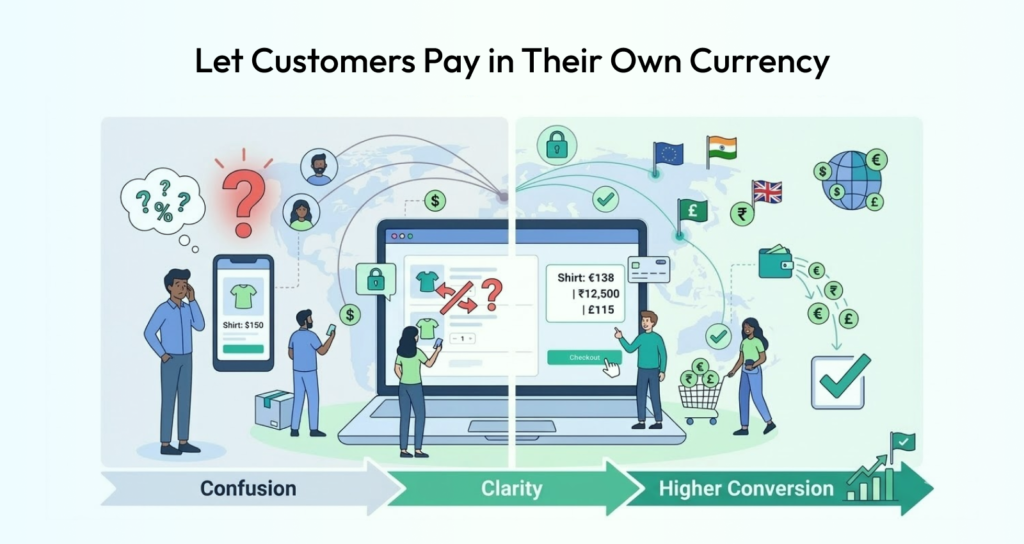

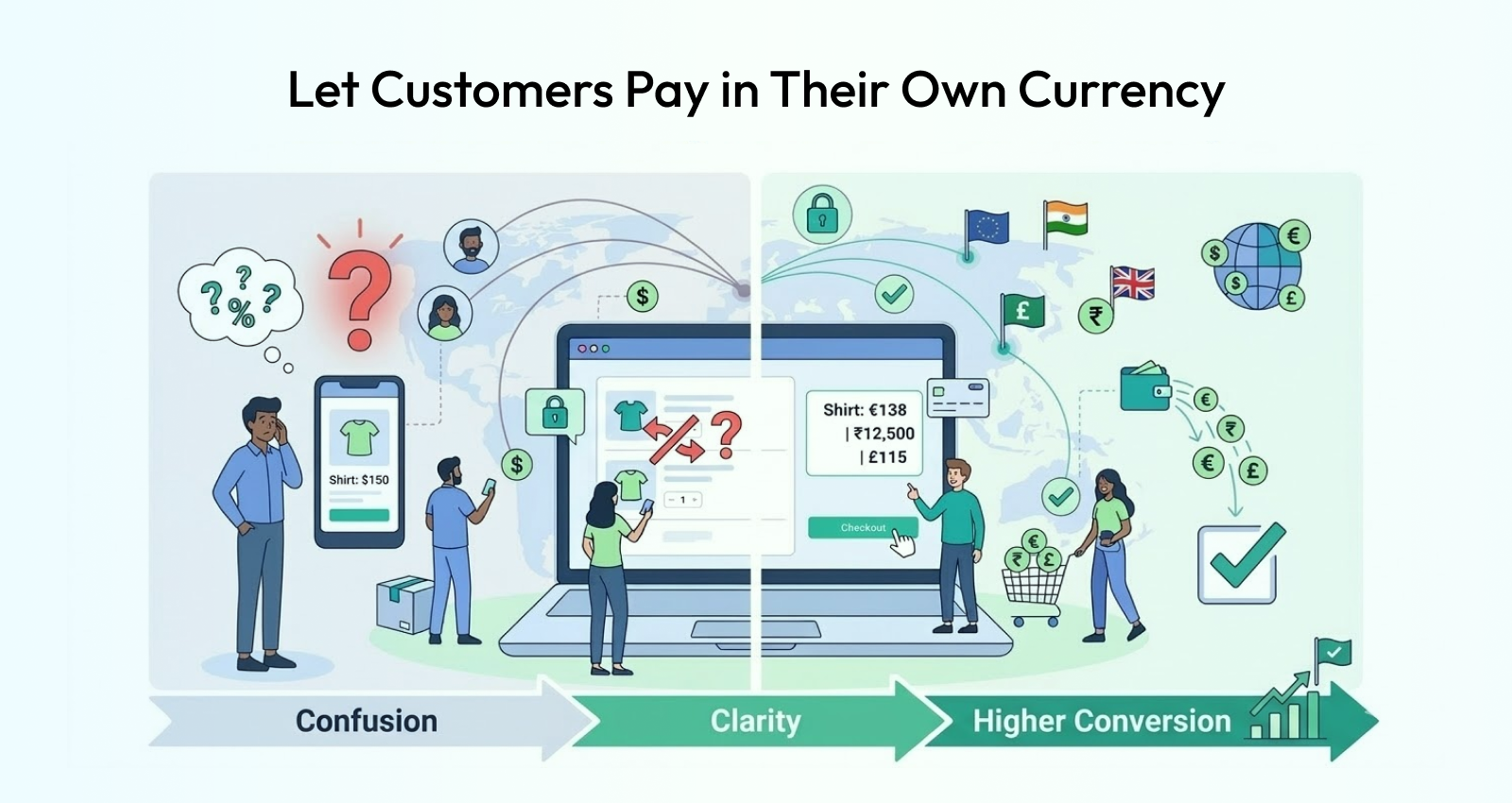

If you’re building a global marketplace, accepting only one currency can limit your growth. Customers prefer to shop in their local currency, and vendors may want to sell internationally.
With WordPress, WooCommerce, and Dokan, you can create a multi-currency marketplace that supports global buyers and vendors.
In this guide, you’ll learn how to set up multi-currency functionality in Dokan step-by-step.
🔴 What is a Multi-Currency Marketplace?
A multi-currency marketplace allows:
✔ Customers to view prices in their local currency
✔ Automatic currency conversion
✔ Global transactions
✔ Better international user experience
👉 Example:
- Indian user → ₹
- US user → $
- UK user → £
🧠 Why Multi-Currency is Important
Without multi-currency:
❌ Customers get confused
❌ Lower conversions
❌ Limited global reach
With multi-currency:
✔ Better user experience
✔ Higher conversion rates
✔ Increased global sales
✔ Vendor expansion
👉 Multi-currency = global growth
⚙️ How Multi-Currency Works
A multi-currency system:
✔ Detects user location
✔ Converts base currency
✔ Displays local price
✔ Processes payment
👉 Based on real-time exchange rates.
🧑💻 Step 1: Choose a Multi-Currency Plugin
WooCommerce doesn’t support multi-currency by default.
Popular plugins:
✔ WooCommerce Multi-Currency (by TIV.NET)
✔ WOOCS – Currency Switcher
✔ Aelia Currency Switcher
👉 These plugins handle conversion automatically.
🌐 Step 2: Configure Base Currency
Set your default currency in WooCommerce:
✔ Example: INR or USD
👉 All conversions are based on this.
🔄 Step 3: Enable Currency Switcher
Add a currency switcher:
✔ Header dropdown
✔ Sidebar widget
✔ Auto-detect by location
👉 Users can select preferred currency.
📊 Step 4: Set Exchange Rates
Options:
✔ Manual rates
✔ Automatic API-based rates
Most plugins support:
✔ Real-time updates
✔ Scheduled updates
👉 Keeps pricing accurate.
💳 Step 5: Payment Gateway Compatibility
Not all gateways support multiple currencies.
Ensure compatibility:
✔ Stripe → supports multi-currency
✔ PayPal → supports global payments
👉 Choose the right gateway.
🏪 Step 6: Vendor Pricing Strategy (Dokan)
In a Dokan marketplace:
✔ Vendors usually set base price
✔ System converts automatically
Advanced setup:
✔ Allow vendor-specific currency
✔ Show converted prices per region
👉 Important for global vendors.
📦 Step 7: Display Prices Properly
Best practices:
✔ Show currency symbol clearly
✔ Avoid confusion in checkout
✔ Keep consistent formatting
👉 Improves user trust.
🔐 Step 8: Handle Taxes & Shipping
Currency impacts:
✔ Tax calculations
✔ Shipping charges
Ensure:
✔ Accurate conversion
✔ Consistent pricing logic
👉 Avoid mismatch issues.
⚡ Step 9: Performance Optimization
Currency conversion can slow down your site.
Optimize:
✔ Cache converted prices
✔ Use fast APIs
✔ Reduce unnecessary calculations
👉 Keeps site fast.
📱 🔟 Mobile Experience
Ensure:
✔ Currency switcher is mobile-friendly
✔ Prices update instantly
✔ Smooth UX
👉 Mobile users are majority.
📈 Real Example Setup
A global marketplace setup:
✔ Base currency: USD
✔ Auto conversion enabled
✔ Currency switcher in header
✔ Stripe for payments
👉 Supports worldwide users.
🚨 Common Mistakes to Avoid
❌ Not using real-time rates
❌ Confusing price display
❌ Unsupported payment gateways
❌ Ignoring tax differences
❌ Slow performance
👉 These reduce conversions.
📌 Multi-Currency Checklist
✔ Install currency plugin
✔ Set base currency
✔ Enable switcher
✔ Configure exchange rates
✔ Check payment gateways
✔ Optimize performance
👉 Follow this for success.
📚 Internal Links

Hire Me on Upwork – Dokan & WooCommerce Expert

 Chat on WhatsApp