
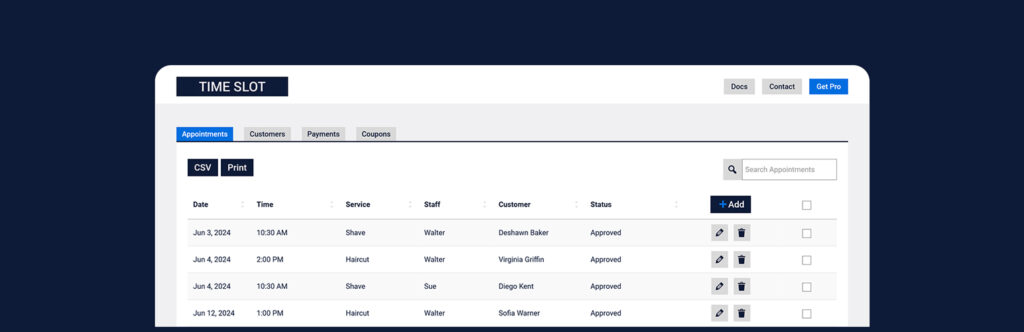
If you want customers to book appointments, rentals, or services online, WooCommerce booking setup guide can handle it — but only with the correct booking configuration.
Whether you run:
-
A hotel or property rental
-
A car rental service
-
A coaching or consulting business
-
A salon or clinic
-
Equipment rentals
-
Event space booking
- WooCommerce booking setup guide
This guide explains how to properly set up WooCommerce bookings, step by step.
🔴 What Is WooCommerce Booking?
WooCommerce Booking allows customers to:
✔ Select dates
✔ Choose time slots
✔ Book services
✔ Pay online
✔ Receive confirmation
Unlike regular products, booking products require:
-
Date selection
-
Duration configuration
-
Availability management
-
Pricing rules
👉 Booking logic is more advanced than normal product selling.
🧠 How WooCommerce Booking Works
Basic flow:
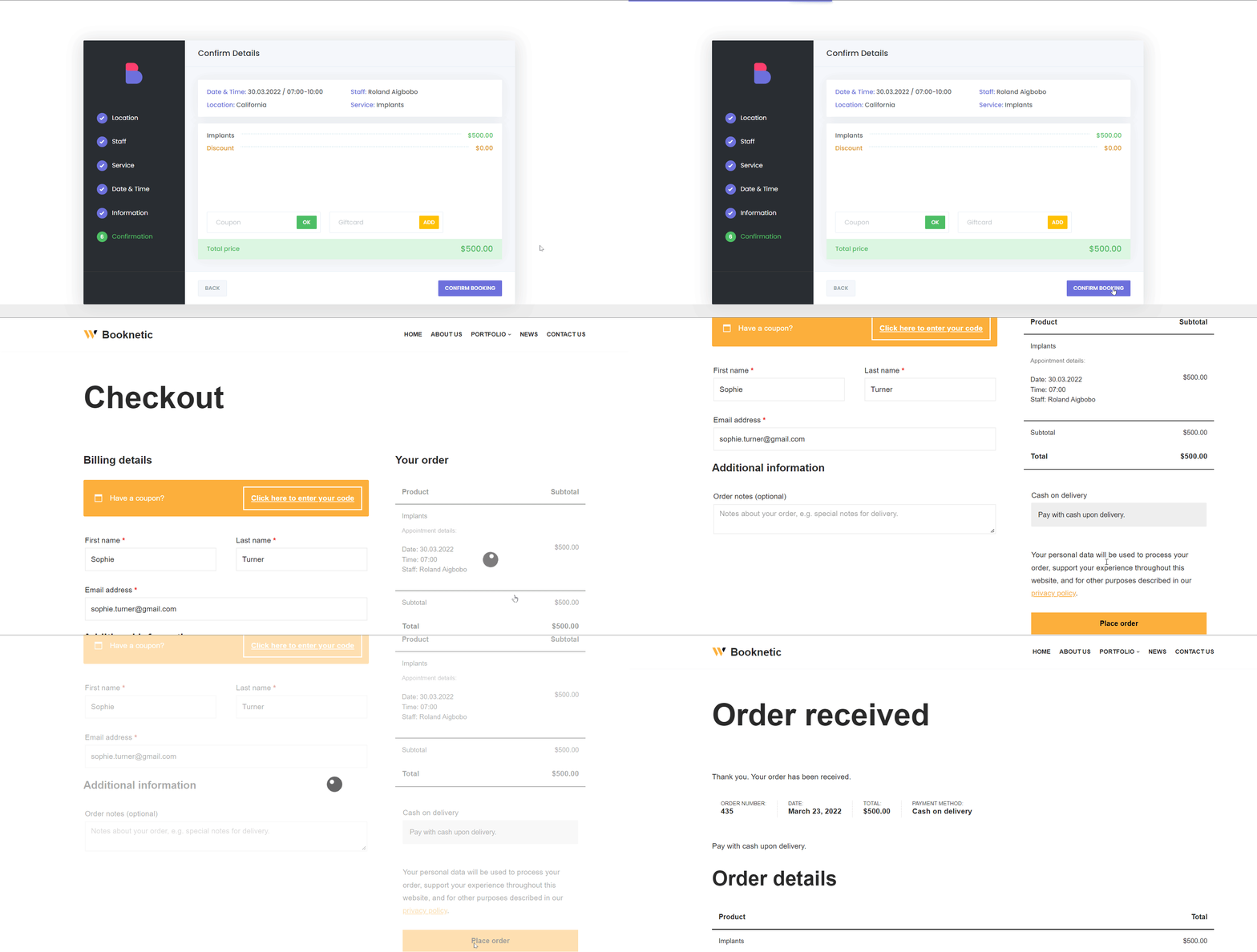
1️⃣ Admin creates booking product
2️⃣ Defines availability
3️⃣ Sets pricing rules
4️⃣ Customer selects date/time
5️⃣ System checks availability
6️⃣ Payment processed
7️⃣ Booking confirmed
If availability is misconfigured, double bookings can occur.
🧱 What You Need Before Setup
To enable bookings in WooCommerce, you need:
✔ WordPress installed
✔ WooCommerce installed
✔ WooCommerce (official extension)
✔ Payment gateway configured
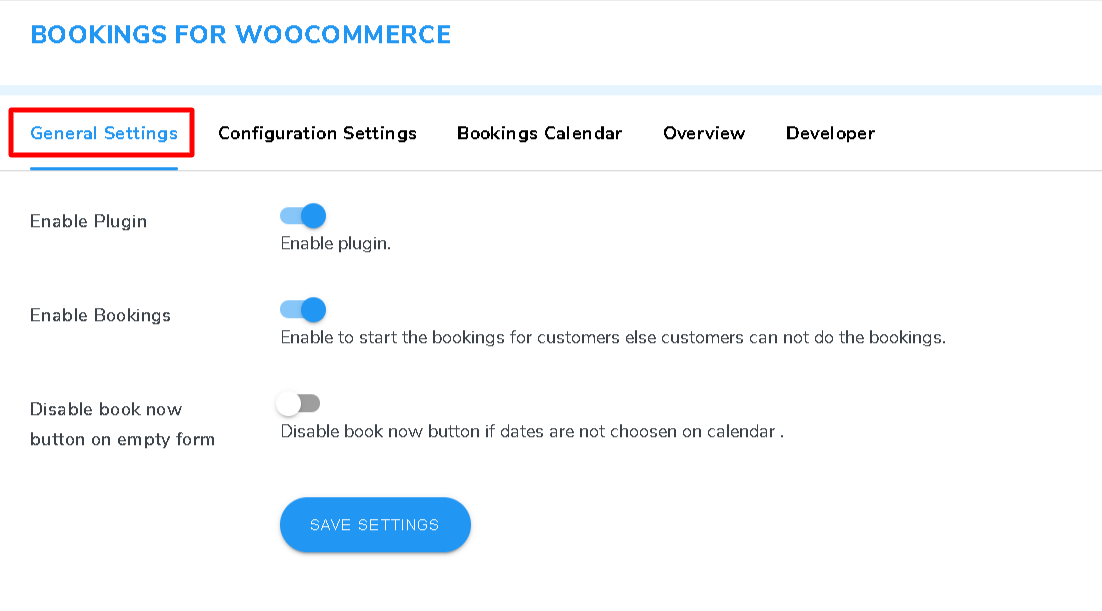
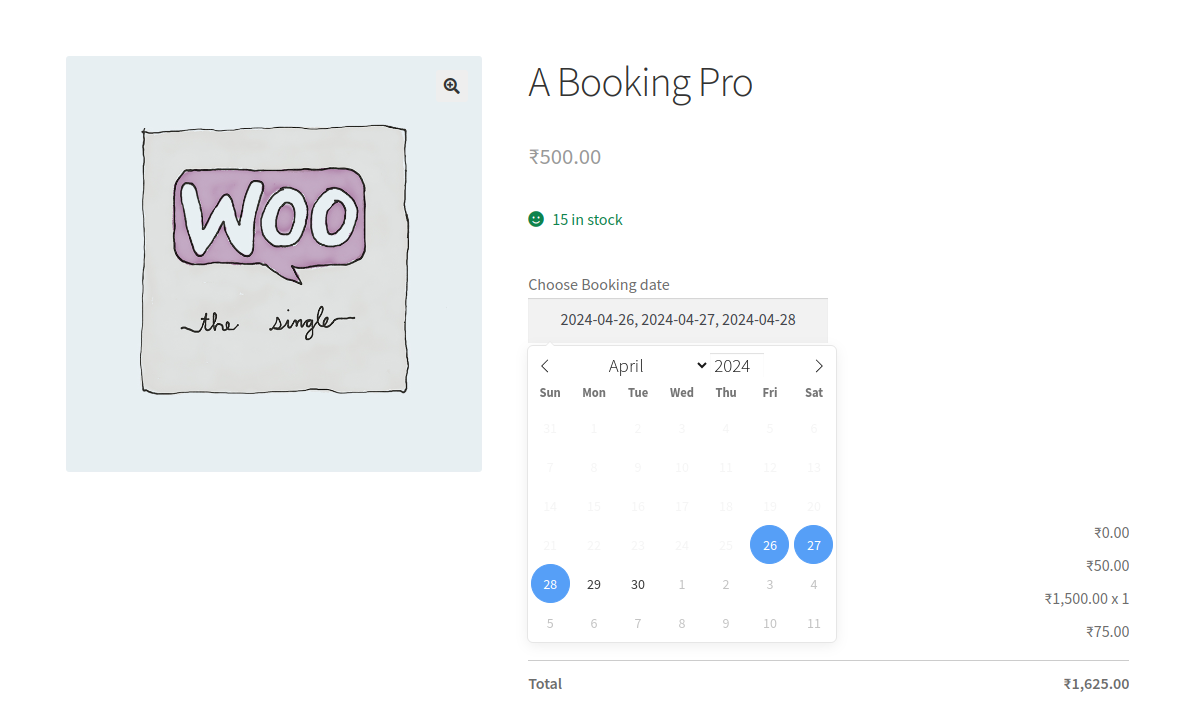
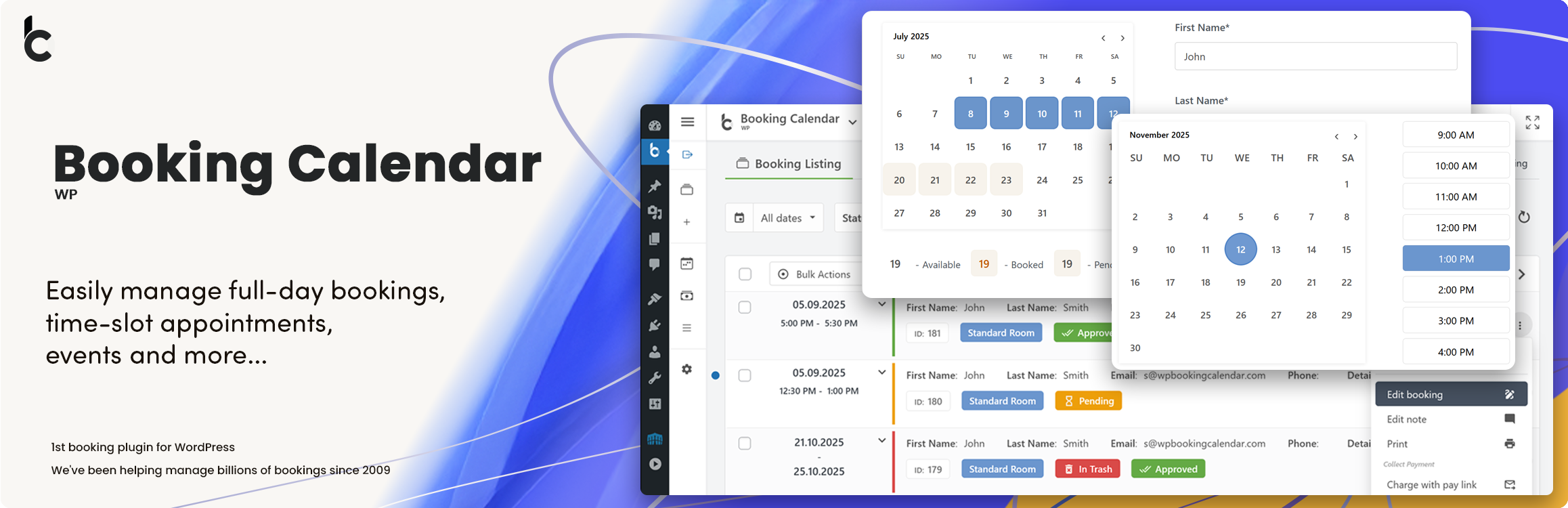
The official booking extension provides advanced scheduling features.
1️⃣ Creating a Booking Product
To create a booking product:
1️⃣ Go to Products → Add New
2️⃣ Select “Bookable Product”
3️⃣ Configure booking settings
You must define:
✔ Booking type (date-based or time-based)
✔ Duration
✔ Calendar display
✔ Availability
2️⃣ Setting Booking Duration
Duration defines how long the booking lasts.
Options include:
🔹 Fixed Duration
Example:
-
1-hour appointment
-
1-day rental
🔹 Customer-Defined Duration
Example:
-
Customer selects number of days
-
Customer chooses rental hours
Set:
✔ Minimum duration
✔ Maximum duration
Duration directly impacts pricing calculation.
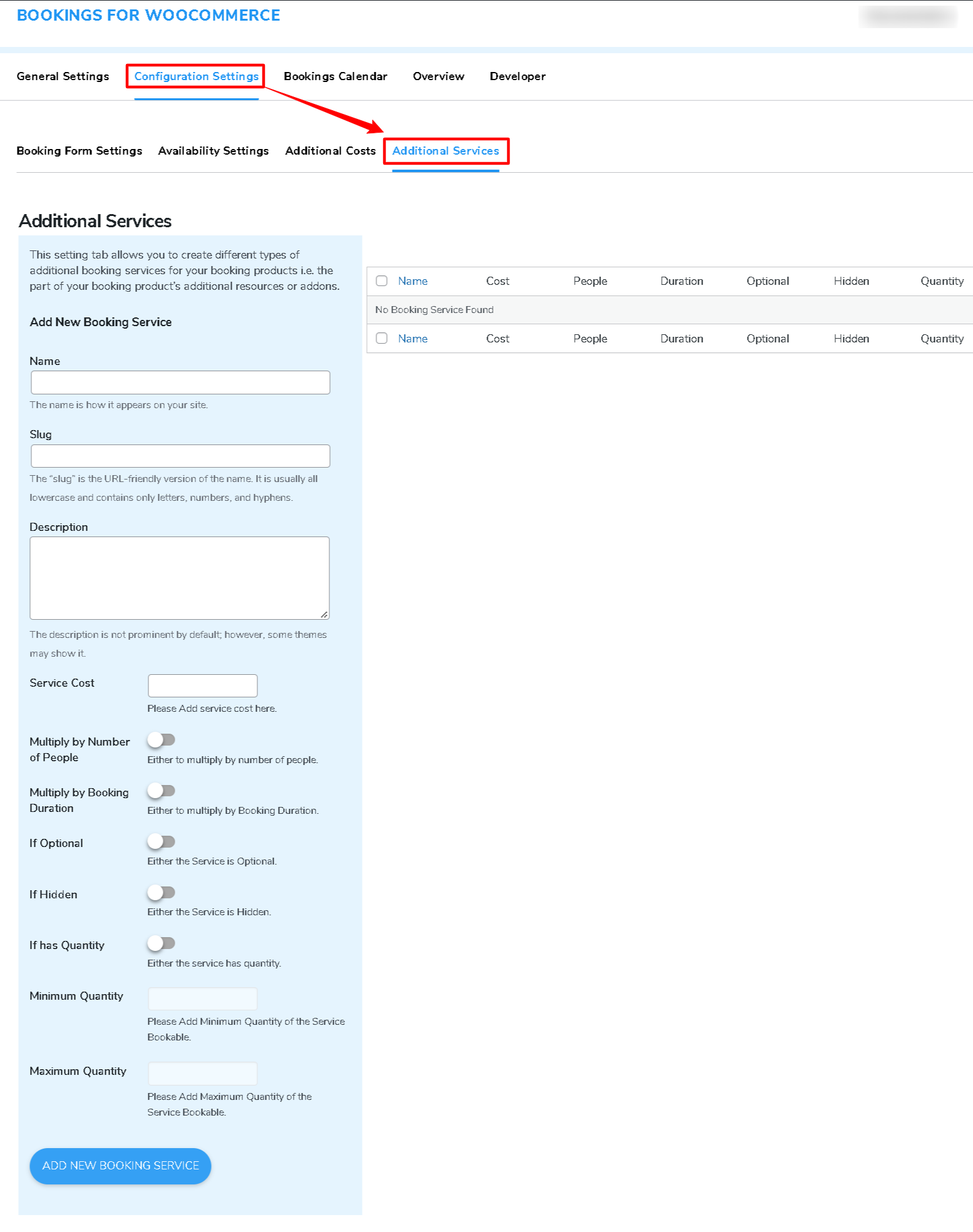
3️⃣ Configuring Availability
Availability prevents overbooking.
Define:
✔ Available days (Mon–Sun)
✔ Available time slots
✔ Blocked dates
✔ Buffer time between bookings


Example:
-
Business hours: 9 AM – 6 PM
-
Sunday closed
-
30-minute buffer between bookings
👉 Proper availability setup prevents scheduling conflicts.
4️⃣ Setting Pricing Rules
WooCommerce bookings supports:
✔ Base cost
✔ Block cost
✔ Per-day pricing
✔ Per-hour pricing
✔ Seasonal pricing
✔ Weekend pricing
Example:
-
$50 base fee
-
$20 per hour
-
10% higher on weekends
Dynamic pricing increases profitability.
5️⃣ Managing Multiple Bookings (Inventory-Based)
If you have multiple resources:
Example:
-
5 hotel rooms
-
3 rental cars
-
10 equipment units
You can configure:
✔ Booking quantity
✔ Resource allocation
✔ Availability per resource
This allows multiple bookings per time slot without conflicts.
6️⃣ Confirmed vs Automatic Booking
WooCommerce allows:
🔹 Automatic Confirmation
Booking confirmed immediately after payment.
Best for:
-
Standard services
-
Hotel bookings
🔹 Manual Confirmation
Admin must approve booking.
Best for:
-
Custom services
-
High-value rentals
Choose based on your business type.
7️⃣ Handling Booking Cancellations & Refunds
Define clear policies:
✔ Cancellation window
✔ Partial refund rules
✔ Non-refundable deposits
✔ Rescheduling policy
Test refund functionality before launch.
8️⃣ Booking Notifications & Emails
Ensure customers receive:
✔ Booking confirmation
✔ Reminder email
✔ Cancellation notice
✔ Payment receipt
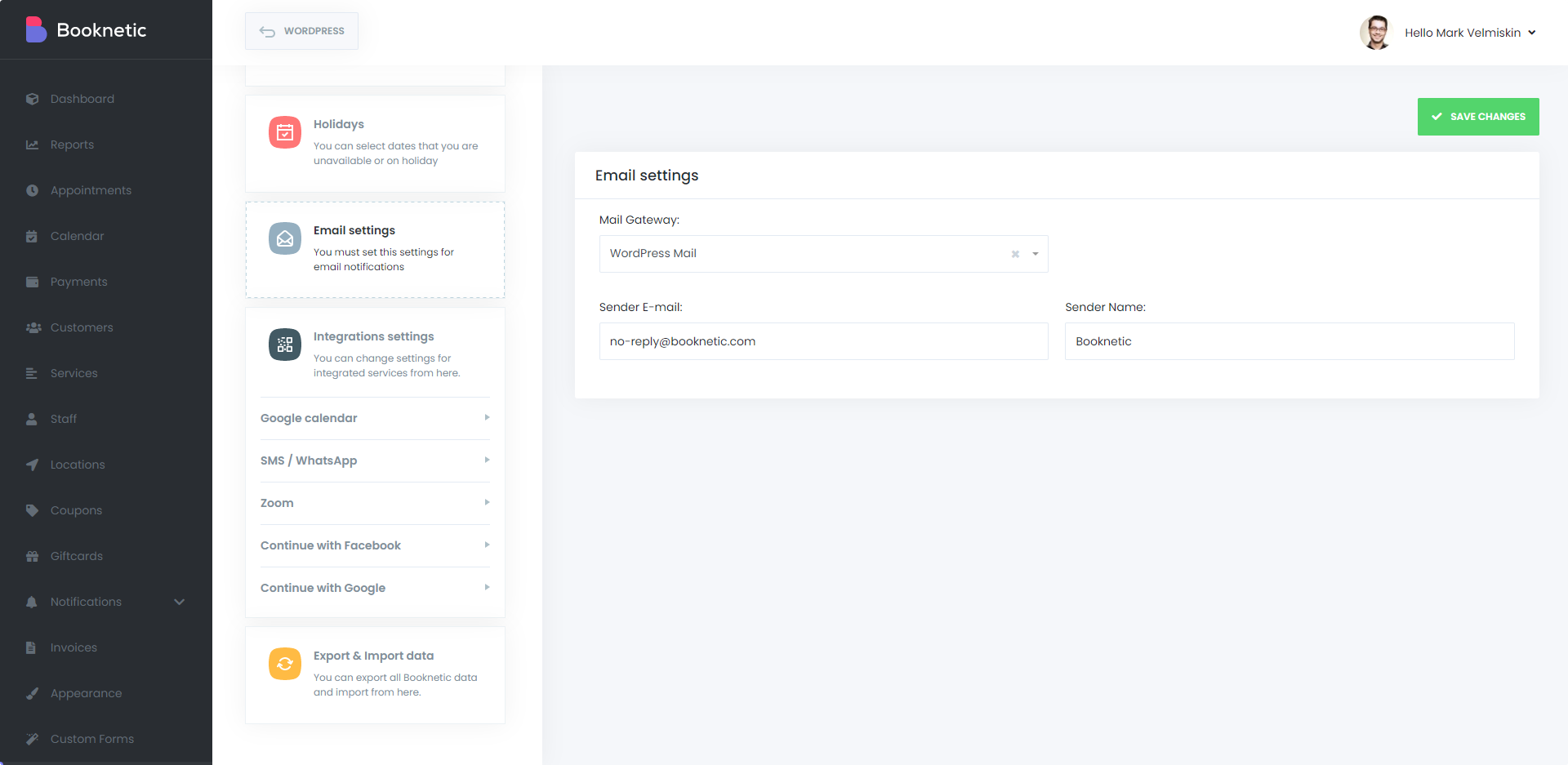
Automated reminders reduce no-shows.
9️⃣ Advanced Booking Use Cases
WooCommerce Booking supports:
✔ Multi-day rentals
✔ Appointment-based services
✔ Event bookings
✔ Seasonal availability
✔ Recurring bookings
You can build:
-
Hotel booking system
-
Doctor appointment system
-
Rental business platform
-
Training session booking
The system is highly flexible.
🔟 Common WooCommerce Booking Mistakes
❌ No buffer time between bookings
❌ Incorrect duration settings
❌ Weak cancellation policy
❌ Not testing calendar properly
❌ Ignoring mobile booking experience
Booking UX must be simple and clear.
📈 Optimizing Booking Conversion Rate
To improve booking sales:
✔ Simplify booking steps
✔ Display availability clearly
✔ Show pricing breakdown
✔ Add trust badges
✔ Use clear cancellation policy
Transparency improves conversion.
📊 Testing Before Launch
Before going live:
✔ Test single-day booking
✔ Test multi-day booking
✔ Test time-slot booking
✔ Test refund process
✔ Test booking confirmation emails
Booking systems must be error-free.
📚 Also Read (Internal Links)

Hire Me on Upwork – Dokan & WooCommerce Expert

 Chat on WhatsApp