


Running an online store is not just about selling products — you must also ensure tax accuracy and legal compliance.
If you’re using WooCommerce on WordPress, understanding tax rules like GST, VAT, invoicing, and reporting is essential to run a legal and scalable business.
In this guide, you’ll learn how to manage tax and compliance in WooCommerce step-by-step.
🔴 Why Tax & Compliance Matters
Without proper tax setup:
❌ Legal penalties
❌ Incorrect pricing
❌ Payment gateway issues
❌ Customer trust problems
With proper compliance:
✔ Accurate tax calculation
✔ Legal protection
✔ Smooth operations
✔ Business scalability
👉 Compliance = safe business growth
🧠 Types of Taxes in WooCommerce
Depending on your business location:
🇮🇳 GST (India)
✔ Goods and Services Tax
✔ Applies to most online sales
🌍 VAT (Europe/UK)
✔ Value Added Tax
✔ Based on customer location
🌎 Sales Tax (USA)
✔ State-based taxes
👉 WooCommerce supports all types.
⚙️ Step 1: Enable Tax Settings
In WooCommerce:
✔ Go to Settings → General
✔ Enable “Enable Taxes” option
👉 This activates tax configuration.
📊 Step 2: Configure Tax Rates
You can define:
✔ Standard rates
✔ Reduced rates
✔ Zero rates
Example:
- 18% GST (India)
- 20% VAT (EU)
👉 Set rates based on region.
🧾 Step 3: Set Tax Calculation Rules
Choose how taxes are calculated:
✔ Based on billing address
✔ Based on shipping address
✔ Based on store location
👉 Important for accurate tax handling.
🏷️ Step 4: Product-Level Tax Settings
For each product:
✔ Taxable / non-taxable
✔ Tax class (standard, reduced)
👉 Different products may have different tax rates.
🧮 Step 5: Display Prices with/without Tax
Options:
✔ Show prices inclusive of tax
✔ Show prices exclusive of tax
👉 Choose based on your region.
📦 Step 6: Shipping Tax
Shipping may also be taxable.
✔ Apply tax to shipping
✔ Set shipping tax class
👉 Ensure consistency.
🔌 Step 7: Use Tax Plugins
WooCommerce supports automation via plugins.
Popular options:
✔ WooCommerce Tax
✔ GST plugins (India)
✔ VAT plugins (EU)
👉 Automates calculations.
💳 Step 8: Payment Gateway Compliance
Ensure your gateway supports tax handling:
✔ Stripe
✔ PayPal
Requirements:
✔ Business verification
✔ Tax compliance
✔ Secure transactions
👉 Needed for smooth payments.
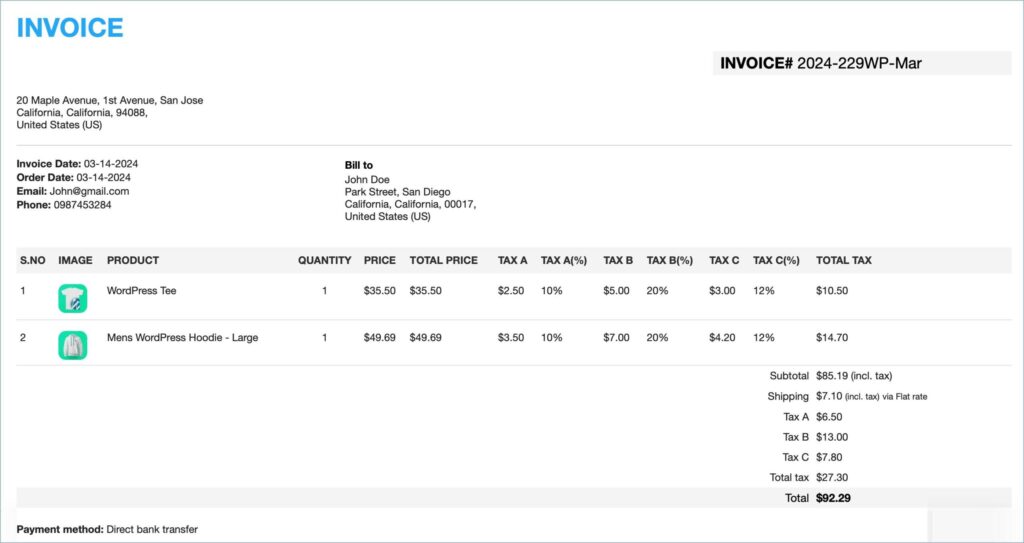
🧾 Step 9: Invoice Generation
Invoices must include:
✔ Business details
✔ Tax number (GSTIN/VAT)
✔ Product details
✔ Tax breakdown
✔ Total amount
👉 Required for accounting and legal purposes.
📊 Step 🔟 Reporting & Record Keeping
Maintain records for:
✔ Orders
✔ Taxes collected
✔ Invoices
✔ Refunds
WooCommerce provides:
✔ Tax reports
✔ Sales reports
👉 Important for audits.
🔐 Compliance & Legal Requirements
Ensure:
✔ Business registration
✔ Tax registration
✔ Privacy policy
✔ Terms & conditions
👉 Legal foundation for your store.
📈 Real Example Setup
For an Indian WooCommerce store:
✔ GST enabled
✔ 18% tax rate
✔ GSTIN added
✔ Tax invoices generated
👉 Fully compliant setup.
🚨 Common Mistakes to Avoid
❌ Wrong tax rates
❌ Ignoring shipping tax
❌ No invoice system
❌ Poor record keeping
❌ Not updating tax rules
👉 These can cause legal issues.
📌 Tax & Compliance Checklist
✔ Enable taxes
✔ Configure rates
✔ Set product tax classes
✔ Enable invoices
✔ Use plugins
✔ Maintain records
👉 Follow this strictly.
📚 Internal Links

Hire Me on Upwork – Dokan & WooCommerce Expert

 Chat on WhatsApp